Netskopeクライアントをアンインストールする方法
Summary: WindowsまたはMacコンピューターで次の手順に従って、Netskopeクライアントをアンインストールする方法について説明します。
This article applies to
This article does not apply to
This article is not tied to any specific product.
Not all product versions are identified in this article.
Symptoms
この記事では、Netskopeクライアントをアンインストールする手順について説明します。
対象製品:
- Netskopeクライアント
対象オペレーティング システム:
- Windows
- Mac
Cause
該当なし
Resolution
Netskopeクライアントをアンインストールする手順については、[ Windows ]または [Mac]を選択します。
- 管理者としてWindowsのスタート メニューを右クリックし、[Run(実行)]をクリックします。
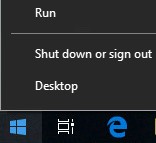
- [ファイル名を指定して実行]のUIで、
appwiz.cplと入力して[OK]を押します。
![[ファイル名を指定して実行]UI](https://supportkb.dell.com/img/ka06P000000stG8QAI/ka06P000000stG8QAI_ja_2.jpeg)
- [Netskope Client]をダブルクリックします。
![[プログラムと機能]の[Netskope Client]](https://supportkb.dell.com/img/ka06P000000stG8QAI/ka06P000000stG8QAI_ja_3.jpeg)
- 「はい」をクリックします。
![[Yes]をクリックしてアンインストールを確認](https://supportkb.dell.com/img/ka06P000000stG8QAI/ka06P000000stG8QAI_ja_4.jpeg)
- ユーザー アカウント制御(UAC)が有効になっている場合は、[Yes]をクリックします。
![[ユーザー アカウント制御]プロンプト](https://supportkb.dell.com/img/ka06P000000stG8QAI/ka06P000000stG8QAI_ja_5.jpeg)
- Appleメニューの[Go]をクリックし、次に[Applications]を選択します。
![[移動]と[アプリケーション]の選択](https://supportkb.dell.com/img/ka06P000000stG8QAI/ka06P000000stG8QAI_ja_6.jpeg)
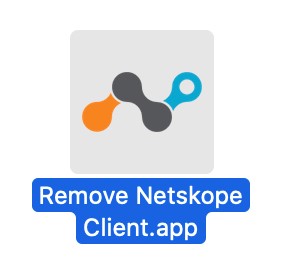
- [Remove Netskope Client]をダブルクリックします。
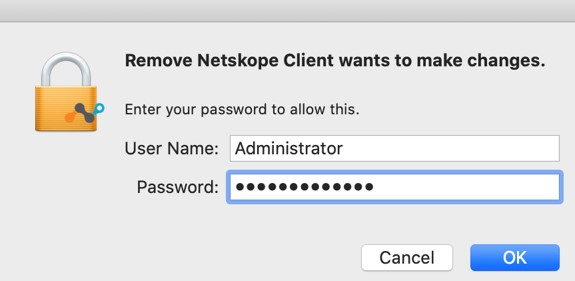
- [User Name]と[Password]を入力してから、[OK]をクリックします。
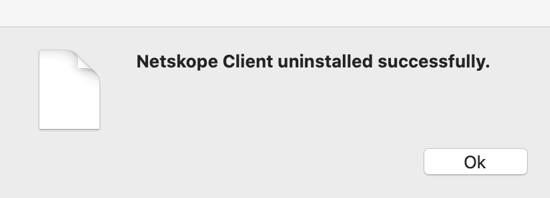
- 「OK」をクリックします。
サポートに問い合わせるには、「Dell Data Securityのインターナショナル サポート電話番号」を参照してください。
TechDirectにアクセスして、テクニカル サポート リクエストをオンラインで生成します。
さらに詳しい情報やリソースについては、「デル セキュリティ コミュニティー フォーラム」に参加してください。
Additional Information
Videos
Affected Products
NetskopeArticle Properties
Article Number: 000126730
Article Type: Solution
Last Modified: 07 Mar 2024
Version: 10
Find answers to your questions from other Dell users
Support Services
Check if your device is covered by Support Services.