Windows Command Prompt Information and How to Use Its Commands List
Summary: Know all about Windows command prompts - including basic commands list, running commands prompts, access previous commands, most used commands, and related helpful information.
This article applies to
This article does not apply to
This article is not tied to any specific product.
Not all product versions are identified in this article.
Instructions
Table of Contents:
- What is the Command Prompt
- How to Open the Command Prompt
- Commonly Used Commands
- Frequently Asked Question's
What is the Command Prompt
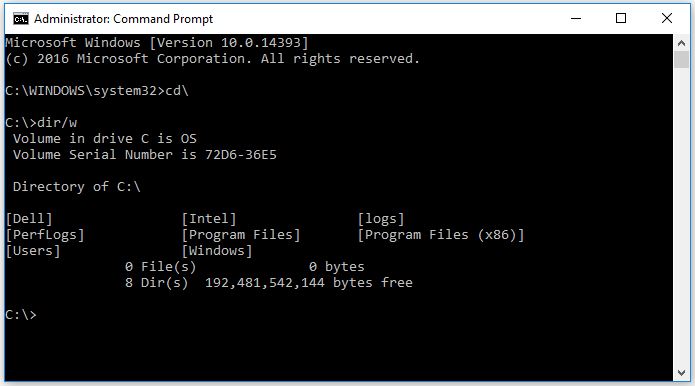
In Windows operating systems, the Command Prompt is a program that emulates the input field in a text-based user interface screen with the Windows Graphical User Interface (UI).
It can be used to perform entered commands and perform advanced administrative functions. It can also be used to troubleshoot and solve certain kinds of Windows issues.
How to Open the Command Prompt
Dependent on which operating system you have installed, select the Tab that corresponds to your version of Windows.
NOTE: The examples below show how to open an Elevated Command Prompt. This means opening the Command Prompt with administrator rights.
Open Command Prompt in Windows 11
- Press the Windows key + r.
- In the Run box, type cmd, and then click Ok.
- This opens the Command Prompt window.
- To change to the Root directory type cd\ and press Enter.
NOTE: The Root directory is the best place to enter any required commands or instructions.
Open Command Prompt in Windows 10
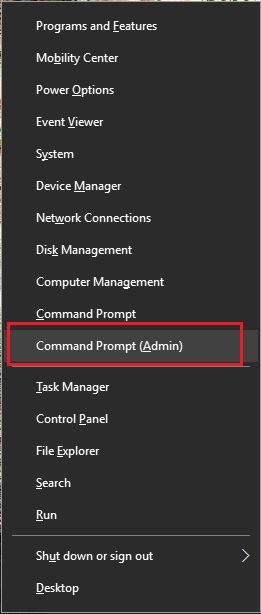
- Move the mouse pointer to the bottom-left corner of the screen and Right-click, or press Windows key + X.
- In the power user task menu, select Command Prompt (Admin).
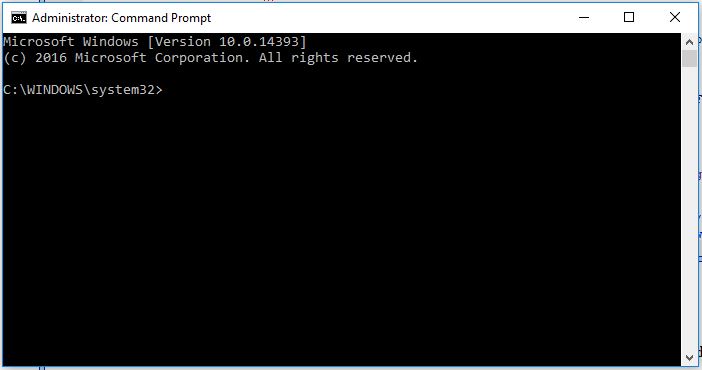
- This opens the Command Prompt window.
- To change to the Root directory type cd\ and press Enter.
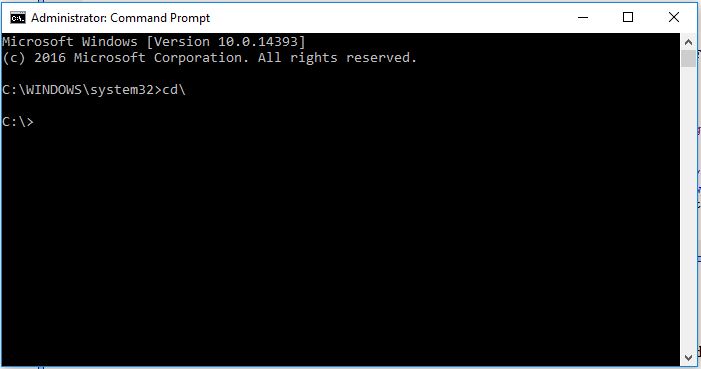 NOTE: The Root directory is the best place to enter any required commands or instructions.
Commonly Used Commands
- cd (change directory)
Command used to switch the directory (path) in which you are working.
Example: cd\windows\system32 Will move the prompt to the system32 folder path located in the Windows folder.
- dir (Directory)
This function allows you to see available files and folders within the selected directory. Also provides details on the modification date and size of files.
Several additional switches can be used with the command to perform additional actions. (see the Microsoft guidebelow for further info on the available commands.)
Example: C:\> dir
This displays the contents of the C: directory or drive.
- ipconfig
This command displays the current network information for your adapters, including IP Address, Default Gateway, Subnet Mask and so forth.
- ping
This command is used as a troubleshooting tool to resolve network issues. It sends a data packet to another system on the network and awaits a reply - outputting the results.
Example: ping 192.168.0.2
This pings the computer with the address 192.168.0.2 and outputs any response.
- Help (/?)
The help command provides information about another command including available switches to perform additional tasks.
Example: ipconfig /help
A list of commands can be found at the Microsoft Command-line Reference Guide
FAQs
How do I cancel a command?
Use Ctrl + C to stop a command from running.
Note: This is not an undo. The command only stops the current command during its process.
How can I shut down or restart the computer from the Command Prompt screen?
The commands below can also be used to shutdown or restart computers on your network. This can be handy when applying updates that require restarts to take effect.
- shutdown /s command shuts down the system that you are working on.
- shutdown /i from the command prompt opens the Remote Shutdown Dialog window, this provides options available using an easy-to-use interface including networked systems.
How do I access previous commands that I have used?
You can use the arrow keys on your keyboard to cycle through the previously performed commands. For example, the UP and DOWN arrows show the most recently used commands. The RIGHT and LEFT arrows display the commands letter by letter.
Where do I find a comprehensive list of commands available?
Microsoft Command-Line Reference A-Z
What tools are available?
Command-Line Tools (Microsoft)
Affected Products
Alienware, Dell All-in-One, Dell Pro All-in-One, Dell Pro Max Micro, Dell Pro Max Slim, Dell Pro Max Tower, Dell Pro Micro, Dell Pro Slim, Dell Pro Tower, Dell Slim, Dell Tower, Inspiron, OptiPlex, Vostro, XPS, G Series, G Series, Alienware
, Dell Plus, Dell Pro, Dell Pro Max, Dell Pro Plus, Dell Pro Premium, Inspiron, Latitude, Dell Pro Rugged, Vostro, XPS, Fixed Workstations, Mobile Workstations, Dell Pro Max Micro XE FCM2250, Dell Pro Max Slim XE FCS1250, Dell Pro Max Tower T2 XE FCT2250, Dell Pro Max 16 XE MC16250, Dell Pro Micro Plus XE QBM1250, Dell Pro Slim Plus XE5 QBS1250, Dell Pro Tower Plus XE5 QBT1250
...
Article Properties
Article Number: 000130703
Article Type: How To
Last Modified: 10 Jul 2025
Version: 12
Find answers to your questions from other Dell users
Support Services
Check if your device is covered by Support Services.