使用裝置管理員的硬體 ID 尋找裝置的驅動程式
Summary: 瞭解如何使用 Windows 裝置管理員,依硬體 ID 尋找驅動程式。查閱裝置 ID、使用硬體裝置識別碼,然後下載電腦的正確驅動程式 ID。
This article applies to
This article does not apply to
This article is not tied to any specific product.
Not all product versions are identified in this article.
Instructions
在 Windows 裝置管理員中可以找到 Windows 中裝置的硬體 ID。若要檢查裝置的硬體 ID,請按照下列步驟操作:
-
從控制台開啟裝置管理員。您也可以在「開始」功能表的「執行」選項中輸入「devmgmt.msc」。
- 在「裝置管理員」中,以滑鼠右鍵按一下裝置,然後在視窗中選取內容。
- 選取詳細資料標籤。
- 從下拉式清單中選取硬體 ID。

一台設備可以有多個硬體ID。頂部清單是最具體的硬體設備識別碼,往下看,標識碼更通用。這樣做的原因是允許根據與任何這些硬體標識碼的匹配項選擇設備驅動程式識別碼。
此範例中的硬體製造商為 Realtek,由 VEN_10EC 識別。
硬體 ID 通常是匯流排>\廠商 ID>&<裝置 ID>和其他< ID> 的形式<。
<廠商 ID 會以VEN_後的四個字元來表示。
裝置 ID 會以 DEV_後的四個字元來表示。
硬體 ID 適用於已安裝驅動程式的裝置、未知裝置,以及無法辨識的裝置。
還可以使用設備的硬體 ID,通過搜索Microsoft更新目錄 來查找該設備的驅動程式。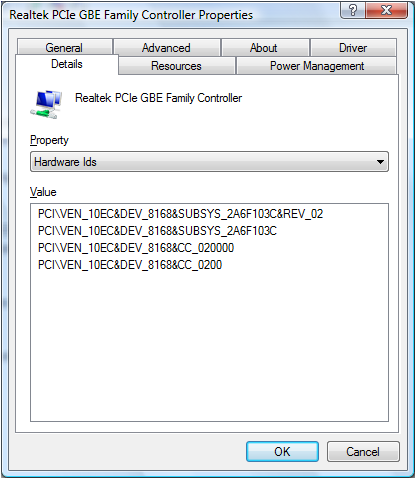
如果驅動程式不在Microsoft更新目錄中,請在線上搜尋裝置 ID 以尋找驅動程式。
 保固過期?沒問題。瀏覽 Dell.com/support 網站,輸入您的 Dell 產品服務編號,並檢視我們提供的內容。
注意:提供的內容僅適用於美國、加拿大、英國、法國、德國和中國的個人電腦客戶。不適用於伺服器和儲存裝置。
Affected Products
Alienware, Dell All-in-One, Dell Pro All-in-One, Dell Pro Max Micro, Dell Pro Max Slim, Dell Pro Max Tower, Dell Pro Micro, Dell Pro Slim, Dell Pro Tower, Dell Slim, Dell Tower, Inspiron, Legacy Desktop Models, OptiPlex, Vostro, XPS, G Series
, G Series, Alienware, Dell Plus, Dell Pro, Dell Pro Max, Dell Pro Plus, Dell Pro Premium, Inspiron, Latitude, Dell Pro Rugged, Vostro, XPS, Legacy Laptop Models, Fixed Workstations, Mobile Workstations, Dell Pro Max Micro XE FCM2250, Dell Pro Max Slim XE FCS1250, Dell Pro Max Tower T2 XE FCT2250, Dell Pro Max 16 XE MC16250, Dell Pro Micro Plus XE QBM1250, Dell Pro Slim Plus XE5 QBS1250, Dell Pro Tower Plus XE5 QBT1250
...
Article Properties
Article Number: 000131022
Article Type: How To
Last Modified: 04 Jun 2025
Version: 7
Find answers to your questions from other Dell users
Support Services
Check if your device is covered by Support Services.