How to Use WSScan for Dell Data Security
Summary: Windows System Scan (WSScan) can be run on Dell Data Security applications by following these instructions.
This article applies to
This article does not apply to
This article is not tied to any specific product.
Not all product versions are identified in this article.
Instructions
Windows System Scan (WSScan.exe) is a tool that is used with Dell Data Security (formerly Dell Data Protection) to determine what files and folders are encrypted with data-centric encryption.
Affected Products:
- Dell Encryption Enterprise
- Dell Data Protection Enterprise Edition
- Dell Encryption Personal
- Dell Data Protection Personal Edition
- Dell Encryption External Media
- Dell Data Protection External Media Edition
- Dell Data Protection Server Encryption
Affected Operating Systems:
- Windows
WSScan can be used on endpoints running:
- Dell Encryption Enterprise (formerly Dell Data Protection Enterprise Edition)
- Dell Encryption Personal (formerly Data Protection Enterprise Edition for Mac)
- Dell Encryption Enterprise for Server (formerly Dell Data Protection Server Encryption)
- Dell Encryption External Media (formerly Dell Data Protection External Media Edition)
These Dell Data Security applications create a file that is called CREDDB.cef or CREDDB2.cef (post v8.16) in every folder where at least one encrypted file resides. WSScan searches file directories that contain CREDDB.cef or CREDDB2.cef to determine:
- What files does Dell Data Security encrypt that are in that directory?
- What encryption type do the files use?
- What key is associated to an encrypted file?
- What encryption cipher is the file encrypted with?
Click the Execution or Analysis of WSScan for more information.
Execution
WSScan can be run through the user interface (UI) or command-line interface (CLI) switches. Click the appropriate method for more information.
UI
Note: Administrator privileges are required to run
WSScan.
- Double-click
WSScan.exeatC:\Program Files\Dell\Dell Data Protection\Encryption.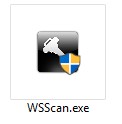 Note: The directory may differ if the product path was modified during installation.
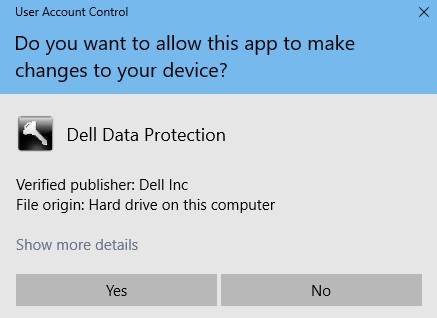
 - If User Account Control (UAC) is enabled, click Yes and then go to Step 3. If UAC is not enabled, go to Step 3.
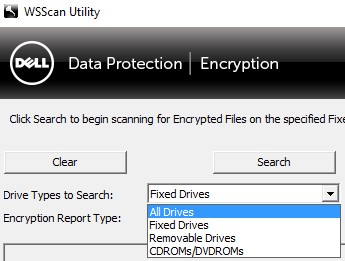
- Optionally change Drive Types to Search to either:
- Fixed Drives = Volumes internal to the computer
- Removable Drives = Volumes external to the computer
- All Drives = Both Fixed and Removable Drives
- CDROMS/DVDROMS
- Optionally change Encryption Report Type to:
- Encrypted Files
- Unencrypted Files
- All Files = Encrypted & Unencrypted
- Unencrypted Files in Violation = Files that should be encrypted
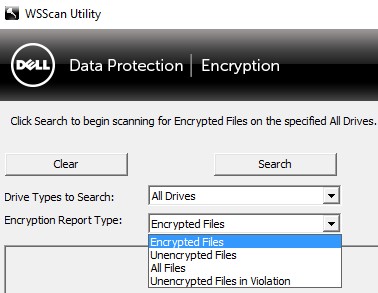 Note: Encryption Report Type is only available in version 8.10 or later.
 - Click Search to begin the scan.
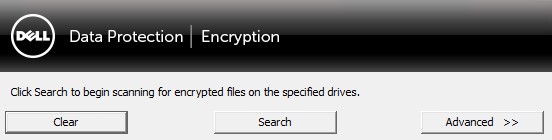 Note:
Note:- A user can click Stop Searching to stop the scan.
- A user can click Clear to remove the search results from the
WSScanUI. These results remain available in theWSScanreport.
CLI
Note: Administrator privileges are required to run
WSScan.
| Scan Parameter | Purpose |
|---|---|
-ta |
Scans all drives |
-tf |
Scans all fixed drives. Default value if not defined |
-tr |
Scans all removable media |
-tc |
Scans CD/DVD ROM drives |
[DIRECTORY] |
Scans the specified directory. Enclose directories with spaces in quotation marks (""). |
-x[DIRECTORY] |
Excludes directory from scan. Multiple excluded directories are allowed. |
-s |
Runs scan silently |
-y |
Sleep time (in milliseconds) between directory scans. This results in a slower scan, but a more responsive CPU. |
| Report Parameter | Purpose |
|---|---|
-u |
Reports encrypted and unencrypted files |
-u- |
Reports unencrypted files |
-ua |
Reports encrypted files and unencrypted files (with encryption validation) |
-ua- |
Reports unencrypted files (with encryption validation) |
-uv |
Reports unencrypted files for policy violation |
-uav |
Reports unencrypted files for policy violation using all user policies |
| Output Parameter | Purpose |
|---|---|
-o[DIRECTORY] |
Specifies the output report location. Extension must be .cmg, .csv, .txt, or .log. Defaults to %TEMP%\WSScan.log if parameter is not defined. |
-a |
Appends to a previously created output report (if available). |
-f[FORMAT] |
Output report format (Report, Fixed, or Delimited). Defaults to Report if parameter is not defined. |
-d |
Specifies value separator for delimited reports |
-q |
Specifies values that should be enclosed in quotes for delimited reports |
-e |
Include extended encryption fields for delimited reports. |
Example #1
WSScan.exe -x"%SYSTEMROOT%" -x"C:\Program Files" -s -o" C:\Reports\WSScan_Output.txt" -fFixedExample #1 contains:
- Installer =
WSScan.exe - Silent install = Yes
- Scanned directories = All fixed drives
- Default value since a value is not defined
- Excluded directories = Yes
%SYSTEMROOT% (C:\Windows)C:\Program Files
- Report data = Encrypted files
- Default value since a value is not defined
- Output report =
C:\Reports\WSScan_Output.txt - Overwrite previous output (if applicable) = Yes
- Default value since a value is not defined.
- Report Format = Fixed
Example #2
WSScan.exe "%USERPROFILE%" -s uv -aExample #2 contains:
- Installer =
WSScan.exe - Silent install = Yes
- Scanned directories =
%USERPROFILE% (C:\Users\[USERNAME]) - Excluded directories = No
- Default value since a value is not defined
- Report data = Unencrypted
- Default value since a value is not defined
- Overwrite previous output (if applicable) = No
- Output report =
%Temp%- Default value since a value is not defined
- Report Format = Report
- Default value since a value is not defined
Example #3
WSScan.exe -tr -ua -s -o"%USERPROFILE%\desktop\Media_Scan.cmg"Example #3 contains:
- Installer =
WSScan.exe - Silent install = Yes
- Scanned directories = All removable media
- Excluded directories = No
- Default value since a value is not defined
- Report data = Encrypted and unencrypted files with encryption validation.
- Overwrite previous output (if applicable) = Yes
- Default value since a value is not defined
- Output report =
%USERPROFILE%\desktop\Media_Scan.cmg(C:\Users\[ActiveUser]\desktop\Media_Scan.cmg)
- Report Format = Report
- Default value since a value is not defined
Analysis
A user can analyze the WSScan results through:
WSScanuser interface (UI)WSScan.log, located by default at%temp%
Note:
WSScan.log output location can be modified in the WSScan UI Advanced menu.
An example WSScan UI output: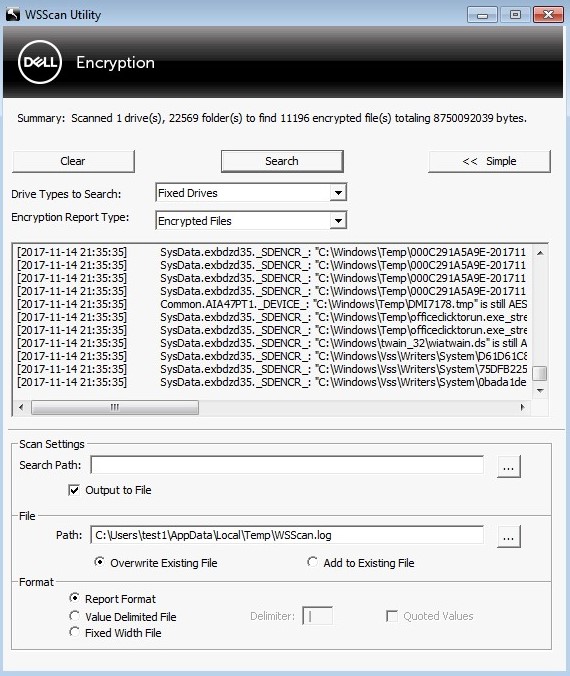
Below is a line from WSScan output:
Time of Scan
This is the time that WSScan scanned the file.
Key
Data Centric can contain five type of keys depending on how policies are configured:
- SDE Key
- This is a file that is encrypted under the Fixed Disk policies. This key is unlocked during boot. This key is unlocked by validating the hardware profile and validating checksums on some operating system files to prevent hacking attempts. Each partition is assigned a Key Computer ID (KCID) that is tied to the same SDE bundle.
Note: Example of a SDE key in
WSScan:[2015-08-28 14:01:48] SysData.1gx8z64b._SDENCR_: "C:\Windows\Web\Wallpaper\Theme2\img7.jpg" is still AES256 encrypted.
- This is a file that is encrypted under the Fixed Disk policies. This key is unlocked during boot. This key is unlocked by validating the hardware profile and validating checksums on some operating system files to prevent hacking attempts. Each partition is assigned a Key Computer ID (KCID) that is tied to the same SDE bundle.
SDUser- This is a subkey of SDE that is unlocked when an authenticated user logs in. This is treated similarly to Common and how it is unlocked. Files in any user's My Documents folder that are encrypted by SDE cannot be opened unless if there is a user that is logged into the computer interactively. Files that fall under this definition are labeled as
SDUSERencrypted. Situations that warrant the use ofSDUSERencryption are, for example, an unmanaged user's My Documents folder or all users' My Documents folder if the policy is SDE only. Although the name could be interpreted to imply that User encryption is in play, it is not.Note: Example of aSDUserkey inWSScan:[2015-08-28 14:00:25] User.1gx8z64b._SDUSER_: "C:\Users\Public\Documents\desktop.ini" is still AES256 encrypted
- This is a subkey of SDE that is unlocked when an authenticated user logs in. This is treated similarly to Common and how it is unlocked. Files in any user's My Documents folder that are encrypted by SDE cannot be opened unless if there is a user that is logged into the computer interactively. Files that fall under this definition are labeled as
- Common
- The Common key is unlocked when a managed user successfully authenticates to an endpoint. A managed user is someone who has activated successfully against the Dell Data Security product. Only one common key exists.
Note: Example of a Common key in
WSScan:[2015-08-28 15:17:19] Common.G4FHL19J._DEVICE_: "C:\Users\UserName\Desktop\Access Encrypted Files (Mac).dmg" is still AES256 encrypted
- The Common key is unlocked when a managed user successfully authenticates to an endpoint. A managed user is someone who has activated successfully against the Dell Data Security product. Only one common key exists.
- User
- User keys are unlocked when a specific managed user successfully authenticates to an endpoint. Only that specific user has access to files protected with their User key. User keys have the UID populated.
Note: Example of a User key in
WSScan:[2015-08-28 15:17:19] User.G4FHL19J.4N5A97MG: "C:\Users\UserName\Desktop\Test.txt" is still AES256 encrypted
- User keys are unlocked when a specific managed user successfully authenticates to an endpoint. Only that specific user has access to files protected with their User key. User keys have the UID populated.
- UserRoaming
- UserRoaming keys are unlocked when a specific user successfully authenticates to a device. Unlike User key, the UserRoaming key may be used on multiple endpoints. UserRoaming keys have the UID populated.
Note: Example of a UserRoaming key in
WSScan:[2015-08-28 15:17:19] UserRoaming.X8FDSH9A.5D4VHGN2: "E:\Sample\Example.docx" is still AES256 encrypted
- UserRoaming keys are unlocked when a specific user successfully authenticates to a device. Unlike User key, the UserRoaming key may be used on multiple endpoints. UserRoaming keys have the UID populated.
UID
The UID is the User ID of the managed user. The UID is a unique identifier that is associated to a UserRoaming or User Key for a specific user.
DCID
The DCID is the Device Computer ID. This is the ID that the Dell Security Management Server assigns to a unique Machine ID (MCID).
Note: A DCID is not populated when using
WSScan to scan a mapped network drive.
Encryption Type
The encryption type is the algorithm being used to encrypt the files. Data Centric Encryption may use:
RIJNDAEL 128- Deprecated as of client v8.6.1
RIJNDAEL 256- Deprecated as of client v8.6.1
AES 128AES 2563DES- Deprecated as of client v8.0
To contact support, reference Dell Data Security International Support Phone Numbers.
Go to TechDirect to generate a technical support request online.
For additional insights and resources, join the Dell Security Community Forum.
Affected Products
Dell EncryptionArticle Properties
Article Number: 000131891
Article Type: How To
Last Modified: 08 Jul 2025
Version: 13
Find answers to your questions from other Dell users
Support Services
Check if your device is covered by Support Services.