Understanding and Troubleshooting Hard Disk Drive or Solid State Drives on Dell Computers
Summary: This article provides information about the different types of hard disk drives (HDD) or solid state drives (SSD) on Dell computers. Learn how to run the hard disk drive diagnostics, replace a hard drive, upgrade a hard drive, and more. Find links to troubleshooting resources to help resolve hard drive-related issues on a Dell computer. ...
This article applies to
This article does not apply to
This article is not tied to any specific product.
Not all product versions are identified in this article.
Instructions
A hard drive is a fundamental component of a computer (excluding most thin clients). The operating system files, application files, and other data such as images, music files, video files, documents are stored on the hard drive.
The type of storage device your computer uses matters for performance, including power usage and reliability. Hard disk drives (HDDs) and solid state drives (SSDs) are the two main types of storage devices. A hard disk drive (HDD) is a traditional storage device that uses mechanical platters and a moving read/write head to access data. A solid state drive (SSD) is a newer, faster type of device that stores data on instantly accessible memory chips.
Is your Dell computer having trouble booting to Windows or Ubuntu? Is the computer running slow? Such issues could be related to the hard disk drive. Learn How to Resolve Hard Drive (HDD) or Solid-State Drive (SSD) Issues on your Dell Computer.
It is important to identify if the hard drive is failing on the computer. Bad or corrupted sectors on a hard drive can cause performance issues, bluescreen (STOP error) issues, and operating system boot issues.
Difference between a mechanical hard drive and a solid state drive
Mechanical hard disk drives (HDD)
Mechanical hard disk drives (HDD) are traditional hard drives that are used in most desktops and laptops. These drives are electromechanical storage devices that use magnetic storage on a series of physical platters to store and retrieve digital data. Mechanical hard drives support higher storage capacity, and slower read/write speeds compared to solid state drives (SSD). Mechanical hard drives contain moving components inside the drive. Mechanical hard drives come in 3.5-inch form factor that is mostly used in desktops and all-in-one computers and 2.5-inch form factor that is used in laptops. The performance of a mechanical hard drive depends on the revolutions per minute (RPM) rating of the drive. A hard drive that is rated at a higher RPM has better read/write speeds compared to lower RPM hard drives.
Solid state drives (SSD)
Solid state drives (SSD) are the latest type of hard drives that are used on desktops, laptops, tablets, and so on. Solid state drives use flash memory to store and retrieve digital data. Solid state drives do not have any moving parts, this helps improve the performance of the computer. Solid state drives have stronger resistance to physical shock, they run quietly, have faster read/write speeds, and lower latency. Solid state drives come in several form factors:
- Serial-ATA (SATA) SSD - A Serial-ATA SSD uses a traditional SATA or SAS interface to connect to the computer. SATA SSDs come in 2.5-inch form factor that can be used in desktops and laptops.
- mSATA - mSATA, short for mini-SATA. mSATA SSDs are used on certain laptops.
- M.2 SATA - M.2 also called Next-Generation Form Factor (NGFF) is a type of form factor for SSDs. M.2 SSDs are used in certain laptops. The M.2 SATA drives use the SATA bus on the system board.
- NVMe - NVMe drives, also called M.2 NVMe is a type of form factor for SSDs. The NVMe SSDs use the PCIe bus on the system board.
| Hard disk drive (HDD), also called a mechanical hard disk drive | Solid state drive (SSD) | |
|---|---|---|
| Form factor or interface |
|
|
| Read/Write speed |
|
|
| Energy efficiency |
|
|
*The type of hard drive (HDD or SSD) that is supported on your Dell computer depends on the hard drive interface that is available on the system board such as Serial-ATA or SATA, mSATA, M.2 SATA, or M.2 NVMe. To learn what type of hard drive is supported on your Dell computer, see the technical specifications in the documentation of your Dell computer.
NOTE: Most external hard drives are connected to the computer using a USB cable such as a USB 2.0, USB 3.0, USB 3.1, or USB-C cable. To learn more, see the documentation of the external hard drive on the device manufacturer's website. If your computer cannot recognize or not detecting the external hard drive, learn how to troubleshoot USB issues on a Dell computer.
Difference between internal and external hard drives
Internal hard disk drive
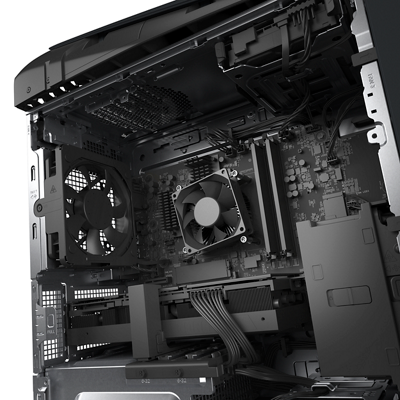
Internal hard drives are installed inside the computer. Unlike an external hard drive, these drives are not portable. An internal hard drive is connected to the system board of the computer. The type of internal hard drive (HDD or SSD) that is supported on your Dell computer depends on the hard drive interface (Serial-ATA or SATA, mSATA, M.2 SATA, or M.2 NVMe) that is available on the system board.
External hard disk drive
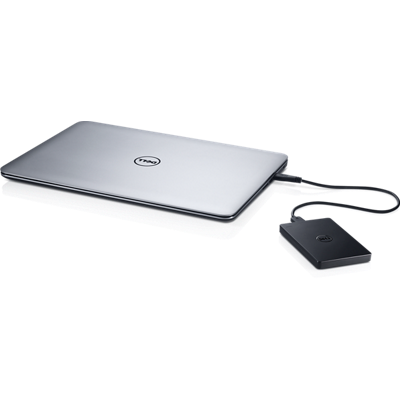
External hard drives are ideal for raw storage space to back up data and transport files from one computer to another. Most external hard drives come with a USB cable to connect the drive to the computer. External hard drives come in various capacities and connectivity options such as USB 2.0, USB 3.0, or Thunderbolt 3 external drives. The type of connectivity determines the performance of the external hard drive. To learn more, see the documentation of the external hard drive on the device manufacturer's website. If your computer cannot recognize or not detecting the external hard drive, learn how to troubleshoot USB issues on a Dell computer.
NOTE: For support on a non-Dell or third-party external hard drive, contact the device manufacturer.
How to run the hard drive diagnostic test
Run the hard disk drive diagnostics to verify that there are no hardware issues.
If the computer cannot boot into Windows, run the pre-boot diagnostic test:
- Turn on the computer and tap the F2 key several times until you see the One Time Boot Menu.
- Select Diagnostics and press Enter.
- Follow the on-screen instructions to complete the preboot-diagnostic test.
- If the tests pass, the hard drive is working correctly.
- If the test fails, make a note of the Service Tag, error code, and validation code. Look up the preboot diagnostic error code or contact Dell Technical Support for repair options in your region.
If the computer can boot into Windows and can access the Internet, run the Dell online diagnostics:
- Browse to Dell.com/support.
- Identify your Dell computer.
- Click Download & Install SupportAssist to auto-detect your Dell computer. Follow the on-screen instructions to install Dell SupportAssist.
- Or, enter the Service Tag or Express Service Code of the Dell computer and click Search.
- Or, click Browse all products and manually select your Dell computer from the catalog.
- Go to the Diagnostics tab.
- Click Run Quick Test.
NOTE: If SupportAssist is not installed on your Dell computer, you are prompted to download and install the SupportAssist app.
- If the test passes, the hard drive is working correctly.
- If the test fails, contact Dell Technical Support for repair options in your region.
Note: Do you own a Dell laptop? Send your laptop in for in-warranty repairs, and we identify and resolve the problem if you cannot get Windows to boot up or the hard drive diagnostic fails. This service is currently available in Canada, France, Germany, Italy, the Netherlands, Poland, the United Kingdom, and the United States.
How to replace the hard drive on a Dell computer
Have you received or purchased a replacement hard drive for your Dell computer? The service manual for your Dell computer has instructions on how to remove and install the hard drive on your Dell computer.
CAUTION: Dell Technologies recommends backing up data regularly. Before you replace the hard drive, back up the data from your computer to an external hard drive or to an online data storage service such as Microsoft OneDrive.
NOTE: The hard drive on certain Dell ultrabook laptops is integrated into the system board. Contact Dell Technical Support to learn more about repair options that are available in your region.
To access the service manual or documentation of your Dell computer:
- Browse to Dell.com/support.
- Identify your Dell computer.
- Click Download & Install SupportAssist to auto-detect your Dell computer. Follow the on-screen instructions to install Dell SupportAssist (if required).
- Or, enter the Service Tag or Express Service Code of the Dell computer and click Search.
- Or, click Browse all products and manually select your Dell computer from the catalog.
- Go to the Documentation tab.
- Under Manuals and Documents, click View PDF or View HTML next to the Service Manual.
- Follow the instructions under the Removing and installing components section to replace the HDD or SSD.
How to upgrade a hard drive on a Dell computer
Hard drive upgrade is often considered to increase the storage space or to enhance the performance of the computer. Upgrading from a traditional hard disk drive (HDD) to a solid state drive (SSD) helps improve the performance of the computer.
See the following hard drive specifications that must be considered before purchasing an upgraded hard drive.
- For mechanical hard drives:
- Form factor - Mechanical hard drives come in either 3.5" used in desktops or 2.5" used in laptops.
- Storage capacity - Hard drives come in a wide range of storage capacities, capping out at 18 TB per drive due to physical limitations.
- Transfer speed - Many factors determine the performance of a consumer-grade hard drive, but revolutions per minute (RPM) is an important one. Higher RPM means faster transfer of data to and from the drive. For example, a 7200RPM drive is faster than a 5400RPM drive.
- Cache - A larger cache enables the data to transfer faster because more information can be stored at one time. Modern hard drives can have cache sizes ranging from 8 MB to 256 MB.
- For SSDs:
- Interface - solid state drives come in various interface types such as 2.5" SATA, mSATA, M.2 SATA, or NVMe.
- Storage capacity - solid state drives come in a wide range of storage capacities.
The type of hard drive (HDD or SSD) that is supported on your Dell computer depends on the hard drive interface (Serial-ATA or SATA, mSATA, M.2 SATA, or M.2 NVMe) that is available on the system board. To learn what type of hard drive is supported on your Dell computer, see the technical specifications in the documentation of your Dell computer.
To buy a replacement hard drive from Dell, perform the following steps:
- Browse to Self-repair, Maintain, or Upgrade Parts for Your Dell Device page.
- Select Find Parts under Parts for your Dell.
- Using the Drop-down menus select the Brand and Model of your computer, and then click Search, select Hard Drives & Storage to see the options available.
NOTE: When you do not know the model number of your computer, see Dell Knowledge Base article How to find the product model number of your Dell computer.NOTE: When SupportAssist is installed on your computer, it identifies your computer and displays the Brand and Model under We detected your device. Select Browse Parts., and then select Hard Drives & Storage.
NOTE: The Dell shop pages are available in select regions only. If the Dell shop page is not available in your location, contact an authorized Dell reseller.
NOTE: Upgraded parts in a Dell computer such as hard drive, memory, and so on, that are purchased from Dell or a third-party vendor do not take on the warranty of the Dell computer.
How to back up data on a Dell computer
Backing up data regularly is an important part of computer maintenance. Online or "cloud" storage simplifies data backup for productivity tasks, but for media, sensitive information, and other large data a formal backup solution may be required.
Learn more about different options for backing up data on a Dell computer.
How to troubleshoot hard drive-related issues on a Dell computer
Modern hard drives are designed to self-heal. The drives transparently identify and block bad sectors and redirect data to a reserved space on the drive allotted for this purpose. This capability allows for higher fault tolerance and mitigates some of the design limitations of hard drives.
Is your Dell computer having trouble booting to Windows or Ubuntu? Is the computer running slow? Such issues could be related to the hard disk drive. Learn How to Resolve Hard Drive (HDD) or Solid-State Drive (SSD) Issues on your Dell Computer.
See these Dell Knowledge Base articles for related information:
- What are PCIe SSDs and how to use them as a boot drive for a Dell Computer?
- How to Troubleshoot Hard Drive or Solid-State Drive Issues on a Dell Computer
- How to Identify and Resolve Noise Issue on Dell Laptop PCs
- How To Distinguish the Differences Between M.2 Cards
- Frequently Asked Questions About NVMe solid state drives (SSDs)
- How to Free up Disk Space in Microsoft Windows
- How to Troubleshoot Slow Performance Issues
Affected Products
Chromebox, Alienware, Dell All-in-One, Dell Pro All-in-One, Dell Pro Max Micro, Dell Pro Max Slim, Dell Pro Max Tower, Dell Pro Micro, Dell Pro Slim, Dell Pro Tower, Dell Slim, Dell Tower, Inspiron, Legacy Desktop Models, OptiPlex, Vostro, XPS
, G Series, Chromebook, G Series, Alienware, Dell Plus, Dell Pro, Dell Pro Max, Dell Pro Plus, Dell Pro Premium, Inspiron, Latitude, Dell Pro Rugged, Vostro, XPS, Legacy Laptop Models, Fixed Workstations, Mobile Workstations, Dell Pro Max Micro XE FCM2250, Dell Pro Max Slim XE FCS1250, Dell Pro Max Tower T2 XE FCT2250, Dell Pro Max 16 XE MC16250, Dell Pro Micro Plus XE QBM1250, Dell Pro Slim Plus XE5 QBS1250, Dell Pro Tower Plus XE5 QBT1250
...
Article Properties
Article Number: 000179003
Article Type: How To
Last Modified: 20 May 2025
Version: 36
Find answers to your questions from other Dell users
Support Services
Check if your device is covered by Support Services.