PowerVault ME5: Considerations when shutting down and moving an array to a new location
Summary: This article discusses shutting down and switching off an ME5 SAN array as part of a maintenance window or equipment move and some considerations before doing.
This article applies to
This article does not apply to
This article is not tied to any specific product.
Not all product versions are identified in this article.
Instructions
- Planning to shut down and turn off a PowerVault ME5 SAN array.
- Bringing the PowerVault ME5 online after a maintenance window or site move.
- How to shut down an ME5 array using PowerVault Manager.
- How to shut down an ME5 array using Command Line Interface (CLI).
- How to check if a host initiator is logged in using PowerVault Manager.
- How to change SupportAssist maintenance mode settings.
Planning to shut down and turn off a PowerVault ME5 SAN array
- If planning a maintenance window, inform your users of the expected shutdown time and expected duration of the outage.
- Shut down any host applications that use volumes that are provisioned on the ME5 SAN array. See application user guide for instructions.
- Follow the host operating system user guide to put the host in maintenance mode or shut down connected host servers.
- Optional: Check if host initiators are connected using PowerVault Manager or Command Line Interface (CLI).
- If SupportAssist is enabled Dell Technologies recommends to enable maintenance mode.
- Shut down the PowerVault ME5 using PowerVault Manager or CLI.
- Turn off the PowerVault ME5 using the power switch on each power supply unit. See the owner's manual .
- Turn off any attached JBOD enclosures using the power switch on each power supply unit.
- Shut down and turn off connected iSCSI or Fiber channel switches. Save the running configuration or zone configuration before shutting down or restarting switches. For specific instructions, see the switch vendors user guide.
Bringing the PowerVault ME5 online after a maintenance window or site move
Essentially reverse the order of the previous steps.
- If the equipment is moved to a new location, ensure it is cabled correctly to provide redundant power and network connections at the front and backend of the PowerVault ME5. For more information, see the owner's manual.
- Where in use, turn on Ethernet or fiber channel switches and allow sufficient time (usually a few minutes) to complete their initialization.
- Where in use, turn on the power supply units on any attached ME412, ME424, or ME4084 enclosures and wait a minute before turning on the power supply units on the PowerVault ME5 RBOD unit.
- Once the ME5 RBOD is online, turn on host servers or bring operating systems out of maintenance mode. For instructions, see your server and host operating system user guides.
- Using the host operating system disk management tools check if the expected ME5 volumes are seen.
- If SupportAssist is enabled, disable maintenance mode by referring to Dell PowerVault ME5 Series Administrator's Guide.
NOTE: If the Dell equipment is moved to another country or region and coverage in that region is required or you want to request permanent address change for your Dell product with a service tag, complete the Warranty and Ownership Transfer form.
How to shut down an ME5 array using PowerVault Manager
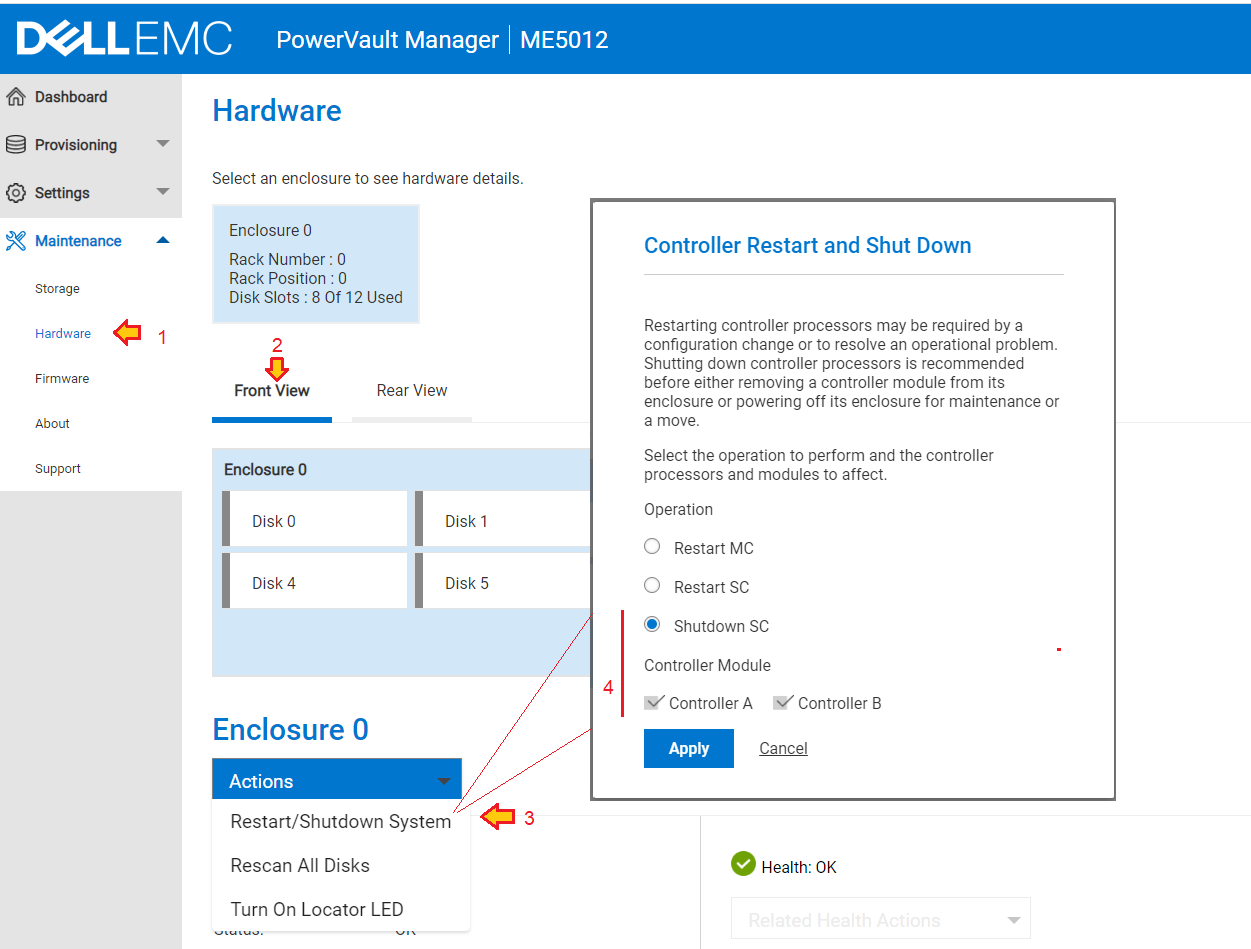
- Go to the Hardware panel (Maintenance > Hardware.)
- Select the Front View.
- From the Actions drop down menu, select Restart/Shutdown System.
- Check the following radio and check boxes:
- Shutdown Storage Controller (SC)
- Controller A
- Controller B
- Click Apply to complete the selection.
- A dialog appears asking to confirm the shutdown. Select OK to confirm the action.
How to shut down an ME5 array using Command Line Interface (CLI)
- Open an SSH session to either controller module management IP address.
- Log in as an administrator or manage level user.
- Confirm if any host initiators are logged in by using the command: show initiators.
NOTE: Host initiator ports are logged in when the ports in the Discovered column report as Yes. VMware ESXi hosts in maintenance mode report Discovered as Yes. Host servers that are turned off or disconnected report Discovered as No.
# show initiators
Nickname    Discovered Mapped Profile  Host Type  ID
--------------------------------------------------------------------
NodeAport0  Yes        Yes    Standard FC         210034800d6e9448
NodeAport1  Yes        Yes    Standard FC         210034800d6e9449
--------------------------------------------------------------------
Success: Command completed successfully. (2022-05-18 13:04:47)
#
-
To shut down both controllers, use the command
shutdown both. You are prompted to confirm the action.
DELL EMC PowerVault ME5012
System Name: xxxxxxxxxx
System Location:
Version: ME5.1.0.0.0

# shutdown both
WARNING: This operation will cause data to be unavailable from both controllers. Do you want to continue? (y/n)
- The ME5 array can be switched off at each power supply. See Owner's manual.
How to check if a host initiator is logged in using PowerVault Manager
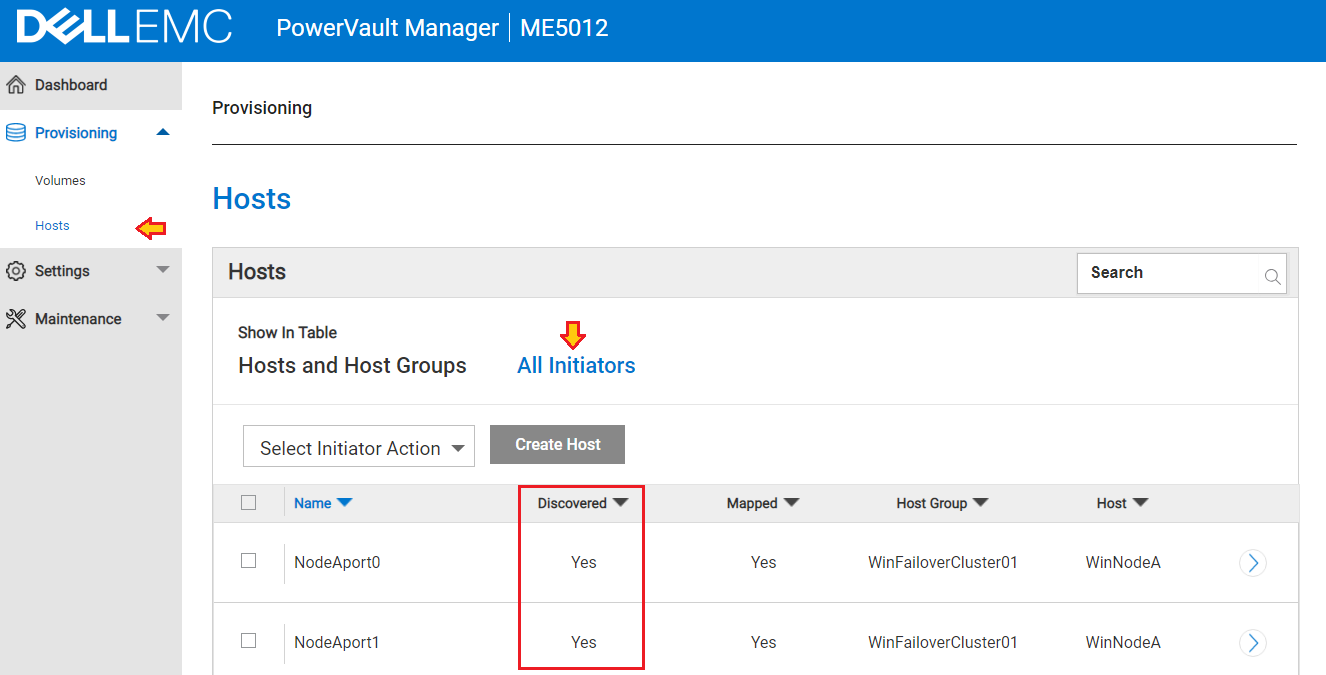
- The Hosts panel (Provisioning > Hosts) provides options to create hosts and host groups, display a list of existing hosts, host groups, and initiators that are a part of an existing host or host group, and display a list of all initiators.
- Select All Initiators.
- Host initiator ports are logged in when the ports in the Discovered column report as Yes.
VMware ESXi hosts in maintenance mode report Discovered as Yes. Host servers that are turned off or disconnected report Discovered as No.
Alternatively
- Select Host and Host groups.
- Host initiator ports that are logged in show with a green checkmark.

How to change SupportAssist maintenance mode settings
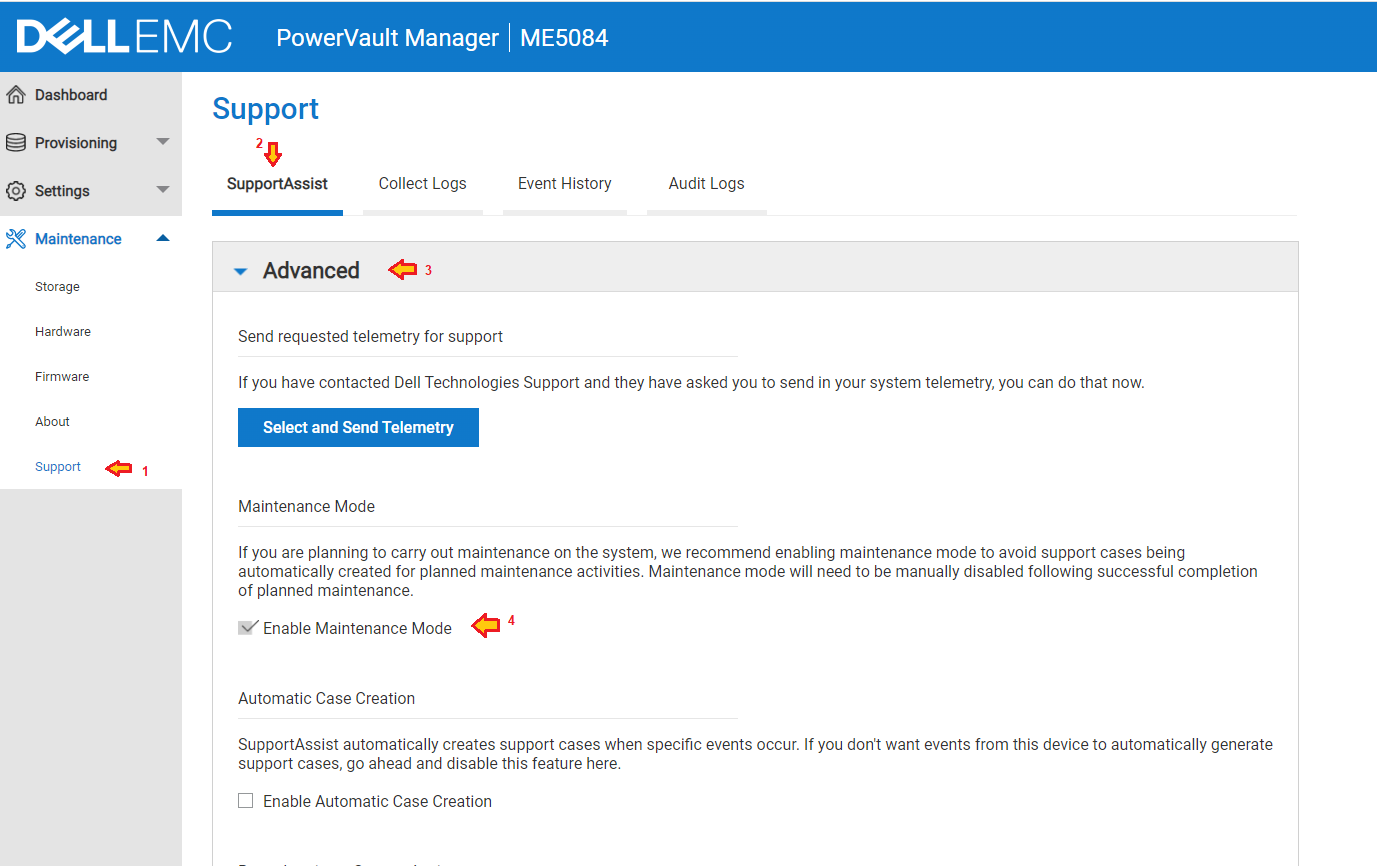
- Go to Maintenance > Support.
- Expand Advanced.
The following options are available:- Maintenance Mode—select to prevent support cases from being created during maintenance operations such as firmware updates.
- Automatic Case Creation—select to have SupportAssist automatically create support cases when specific events occur.
- Reauthenticate SupportAssist.
- Click Apply Changes and click OK on the confirmation prompt.
Affected Products
ME Series, Dell EMC PowerVault ME412 Expansion, Dell EMC PowerVault ME424 Expansion, Dell EMC PowerVault ME484, PowerVault ME5012, PowerVault ME5024, PowerVault ME5084Article Properties
Article Number: 000199903
Article Type: How To
Last Modified: 16 Jun 2023
Version: 6
Find answers to your questions from other Dell users
Support Services
Check if your device is covered by Support Services.