ECS: GeoDrive: How to Collect GeoDrive Logs
Summary: GeoDrive for Windows issues may be troublesome to diagnose. The purpose of this article is to provide a framework to successfully collect all necessary logs and memory dump for a faster resolution of GeoDrive issue. ...
This article applies to
This article does not apply to
This article is not tied to any specific product.
Not all product versions are identified in this article.
Instructions
- Verify what version of GeoDrive is installed.
From GeoDrive console (from left top corner) > click About
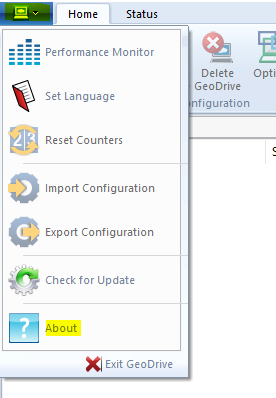
Generally, upgrading GeoDrive to the latest available version is advised.
- Export GeoDrive Configuration
From the above image (1) select Export Configuration and save the GeoDrive configuration file.
The following steps are to collect GeoDrive logs:
Collect GeoDrive logs.
- In the search on taskbar, type in
cmdright click the Command Prompt and selectRunas Administrator. - Create a temporary folder, this is the location where GeoDrive logs are saved.
(This can be created using Windows Explore or command line CMD.)
Go to C:\ by running below command
Command:
cd c:\
- Create a directory for saving GeoDrive logs using the following command.
The directory name does not have to be logdir, it can be anything the user decides.
Command:
mkdir logdir
- Run the GeoDrive CLI command to generate GeoDrive logs.
GDuploadLog /copy c:\logdir
- Confirm that there are three files listed under the
C:\logdir directory.
dir logdir
- The following is the list of files expected.
DumpQueues.txt
export.gdconf
Msg.gddf
The following steps are to collect AFT dump:
Collect AFM dump.
- Change Path to
C:\ProgramData\Dell GeoDrive Data>and run below command.
C:\ProgramData\Dell GeoDrive Data>cloud_cli dump_afm
-
This command creates the below file under the path
C:\ProgramData\Dell GeoDrive Data\:
DumpAFM.txt
The following steps are to collect HTTP trace:
Collect HTTP trace.
- Enable HTTP Trace and leave it for a few minutes.
Run the below command from the path C:\ProgramData\Dell GeoDrive Data and leave it for a couple of minutes.
Command:
cloud_cli tracehttp /on
- Disable HTTP Trace.
Run below command from path C:\ProgramData\Dell GeoDrive Data
cloud_cli tracehttp /off
Look for a file similar to the below under the path C:\ProgramData\Dell GeoDrive Data\
GD_srv.exe5752.0.txt
The following steps are to collect GeoDrive memory Dump:
Collect GeoDrive memory dump.
- Open the Task Manager.
(This can be achieved by Ctrl+Alt+Del key combination or right click the Taskbar and select Task Manager)
- Look for GeoDrive Server.
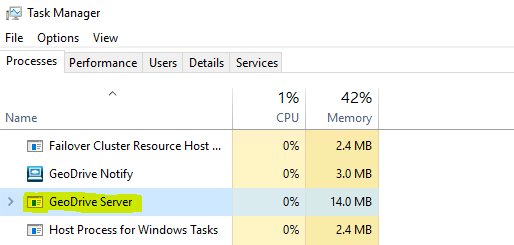
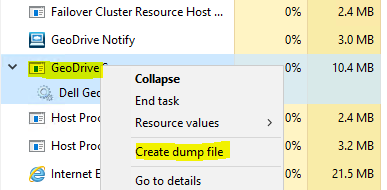
- Right-click the GeoDrive Server and select Create Dump File
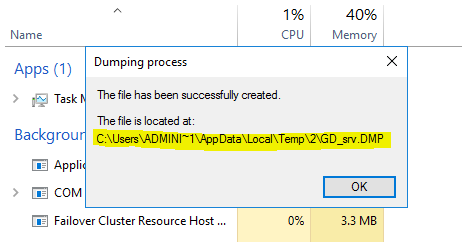
- Copy the path to the memory dump file from the newly opened dialog box and collect it.
Follow all the above steps to collect details for escalation or for further analysis.
Affected Products
Enterprise Applications, ECS ApplianceArticle Properties
Article Number: 000201122
Article Type: How To
Last Modified: 07 May 2025
Version: 4
Find answers to your questions from other Dell users
Support Services
Check if your device is covered by Support Services.