VxRail and VCF on VxRail: Working with GPUs
Summary: This KB describes how to install and manage GPU ESXi drivers on a VxRail or VCF on VxRail Node.
This article applies to
This article does not apply to
This article is not tied to any specific product.
Not all product versions are identified in this article.
Instructions
You may have been directed to this KB for the following reasons:
- You are checking how to handle GPUs before beginning your deployment, cluster expansion, installing GPUs in an existing cluster, or enabling vLCM on a cluster that contains GPUs.
- You are running through the VxRail Day1 deployment wizard, and you saw the following message:
| After version 8.0.010 and before version 8.0.300 | In version 8.0.300 | In version 8.0.320 and later | |
|---|---|---|---|
| Global Settings | You are required to upload the Graphics Processing Unit (GPU) driver because a GPU is detected in the selected hosts. See KB000202491 for details. | One or more hosts contain a Graphics Processing Unit (GPU). The GPU ESXi driver should be installed on the hosts after completing the deployment. See KB000202491 for details. | |
| Validate Configuration | No package for GPU driver is found in expected customized directory. | No package for GPU driver is found in expected customized directory |
You are required to install the GPU driver to every host because some hosts are detected to have GPU driver pre-installed, which would cause deployment failed. Follow KB000202491 guidance to install the GPU driver.
|
When VxRail or VCF on VxRail nodes contain Graphics Processing Units (GPUs), there are various ways to handle the ESXi driver install and updates. The installation methods differ, depending on whether you have enabled vSphere Lifecycle Manager (vLCM) on your VxRail cluster or if you are using VxRail Legacy LCM.
This knowledge base article guides you through the various ESXi GPU drivers install use cases with VxRail and VCF on VxRail. They are broken down into the following scenarios:
- Scenario 1: VxRail - Cluster upgrade using UI when vLCM is enabled and the nodes contain GPUs
- Scenario 2: VxRail - Cluster upgrade using UI when vLCM is not enabled and the nodes contain GPUs
- Scenario 3: VxRail - Cluster upgrade using API when vLCM is enabled and the nodes contain GPUs
- Scenario 4: VxRail - Cluster upgrade using API when vLCM is not enabled and the nodes contain GPUs
- Scenario 5: VCF on VxRail - Cluster upgrade when vLCM is enabled and the nodes contain GPUs
- Scenario 6: VCF on VxRail - Cluster upgrade when vLCM is not enabled and the nodes contain GPUs
- Scenario 7: VxRail and VCF on VxRail - Cluster deployment when vLCM is enabled and the nodes contain GPUs, and the GPU driver is not installed on any hosts.
- Scenario 8: VxRail and VCF on VxRail - Cluster deployment when vLCM is enabled and the nodes contain GPUs, and the GPU driver is installed on any hosts.
- Scenario 9: VxRail and VCF on VxRail - Cluster deployment when vLCM is not enabled and the nodes contain GPUs
- Scenario 10: VxRail and VCF on VxRail - Install GPUs into an existing cluster
- Scenario 11: VxRail and VCF on VxRail - Cluster expansion when vLCM is enabled and the nodes contain GPUs
- Scenario 12: VxRail and VCF on VxRail - Cluster expansion when vLCM is not enabled and the nodes contain GPUs
- Scenario 13: VxRail - Enable vLCM on a cluster when the nodes contain GPUs and the ESXi GPU driver is already installed
All the following steps require downloading the ESXi GPU driver from NVIDIA before you start.
Use the Broadcom | VMware | Hardware Compatibility Guide
Scenario 1: VxRail - Cluster upgrade using UI when vLCM is enabled and the nodes contain GPUs.
- Compare the GPU driver version required with the ESXi version that the nodes will be upgraded to. If there is no update required, you can perform the normal LCM upgrade. If an update is required, continue to the next step.
- Go to NVIDIA to download the GPU driver.
- Log in to the vSphere Web Client.
- Check whether any of your VMs have a vGPU enabled. By default, VMs with vGPU enabled cannot vMotion. See Note 2 for details about how to enable vMotion.
- Go to Cluster > Configure > VxRail > Updates.
- For Internet updates: Select Internet Updates. Under the version you want to update select Actions > Download and Update
- For Local updates: Select Local Update and select Update and upload the requested files.
- For VxRail v7.0.300 and later, review the update advisor report and click Next.
- Click ADD COMPONENTS. Upload your ESXi GPU driver file and then click Next.
- Follow the LCM wizard prompts to update your GPU firmware.
Scenario 2: VxRail - Cluster upgrade using UI when vLCM is not enabled and the nodes contain GPUs.
- Compare the GPU driver version required with the ESXi version that the nodes will be upgraded to. If there is no update required, you can perform the normal LCM upgrade. If an update is required, continue to the next step.
- Go to NVIDIA to download the GPU driver.
- Log in to the vSphere Web Client.
- Check whether any of your VMs have a vGPU enabled. By default, VMs with vGPU enabled cannot vMotion. See Note 2 for details about how to enable vMotion.
- Run LCM on your VxRail Cluster to upgrade to the new VxRail release using the vSphere UI or API.
- Go to Cluster > Configure > VxRail > Updates.
- For Internet Updates: Select Internet Updates. Under the version you want to update, select Actions > Download and Update
- For Local Updates: Select Local Update > Update and upload the requested files.
- For VxRail v7.0.300 and later, review the update advisor report and click Next.
- Click ADD COMPONENTS. Upload your ESXi GPU driver file and then click Next.
- Follow the LCM wizard prompts to update your GPU firmware.
Scenario 3: VxRail - Cluster upgrade using API when vLCM is enabled and the nodes contain GPUs.
- Compare the GPU driver version required with the ESXi version that the nodes will be upgraded to. If there is no update required, you can perform the normal LCM upgrade. If an update is required, continue to the next step.
- Log in to the vSphere Web Client.
- Check whether any of your VMs have a vGPU enabled. By default, VMs with vGPU enabled cannot vMotion. See Note 2 for details about how to enable vMotion.
- Go to NVIDIA to download the GPU driver.
- Follow the documentation on the Dell Developer Portal to perform an LCM using the API. Once you complete the LCM to the new VxRail version, continue onto the next step.
- Log in to the vSphere Web Client.
- Go to Lifecycle Manager > Actions > Updates > Import Updates.
- Select the GPU driver and then click Import.
- Go to Cluster > Updates > Hosts > Image and click Edit.
- Click Show details.
- Click ADD COMPONENTS.
- Select the GPU driver and click SELECT.
- On the Edit Image page, click SAVE.
- Scroll down to the Image Compliance section and select the first host. Click ACTIONS > Remediate.
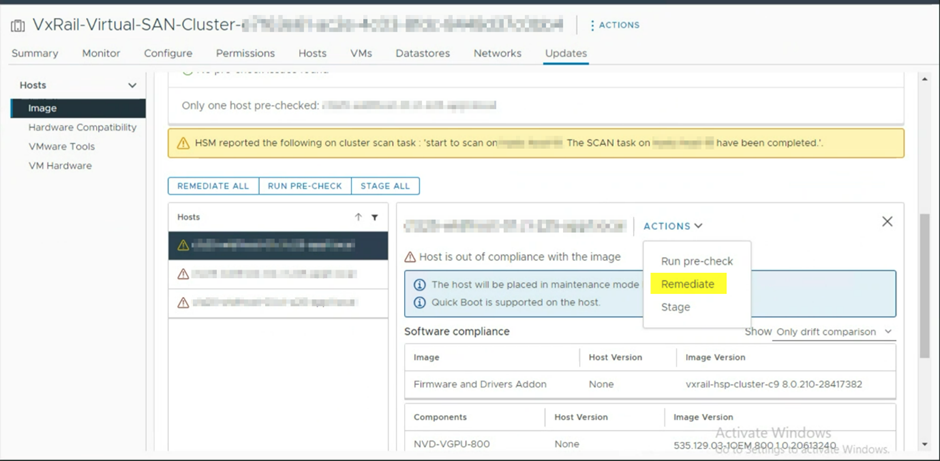
15. After the host remediation is complete, repeat the preceding steps for each host in the cluster.
Scenario 4: VxRail - Cluster upgrade using API when vLCM is not enabled and the nodes contain GPUs.
- Compare the GPU driver version required with the ESXi version that the nodes will be upgraded to. If there is no update required, you can perform the normal LCM upgrade. If an update is required, continue to the next step.
- Log in to the vSphere Web Client.
- Check whether any of your VMs have a vGPU enabled. By default, VMs with vGPU enabled cannot vMotion. See Note 2 for details about how to enable vMotion.
- Go to NVIDIA to download the GPU driver.
- Follow the documentation on the Dell Developer Portal on how to perform an LCM using the API. Once you complete the LCM to the new VxRail version, continue onto the next step.
- Copy the GPU driver to a directory on each of your ESXi hosts.
- Uninstall the current ESXi GPU driver from the nodes if that is recommended by the NVIDIA documentation for the new driver.
- Perform the following to install the updated driver on each host:
- Log in to the vSphere Web Client, right click the host, and select Maintenance Mode > Enter Maintenance Mode. Set the data evacuation mode to Ensure accessibility and click OK.
- Connect to the hosts ESXi management IP over SSH and run the following command to install the GPU driver
esxcli software vib install -v /path-to-vib/NVD-VMware_ESXi_<Version>_Driver - Verify that the GRID package installed and loaded correctly by checking for the NVIDIA kernel driver in the list of kernel-loaded modules.

- Log in to the vSphere Web Client, right-click the host and select Maintenance Mode > Exit Maintenance Mode.
- In the vSphere Web Client, select your host. Go to Configure > Hardware > Graphics > Graphics Devices and ensure that the Memory value is as expected.
Scenario 5: VCF on VxRail - Cluster upgrade when vLCM is enabled and the nodes contain GPUs.
- Compare the GPU driver version required with the ESXi version that the nodes will be upgraded to. If there is no update required, you can perform the normal LCM upgrade. If an update is required, continue to the next step.
- Log in to the vSphere Web Client.
- Check whether any of your VMs have a vGPU enabled. By default, VMs with vGPU enabled cannot vMotion. See Note 2 for details about how to enable vMotion.
- Go to NVIDIA to download the GPU driver.
- Log in to the SDDC Manager and follow the standard VCF upgrade process including the VxRail upgrade. Once this completes, continue onto the next step.
- Log in to the vSphere Web Client.
- Go to Lifecycle Manager > Actions > Updates > Import Updates.
- Select the GPU driver and then click Import.
- Go to Cluster > Updates > Hosts > Image and click Edit.
- Click Show details.
- Click ADD COMPONENTS.
- Select the GPU driver and click SELECT.
- On the Edit Image page, click SAVE.
- Scroll down to the Image Compliance section and select the first host. Click ACTIONS > Remediate.
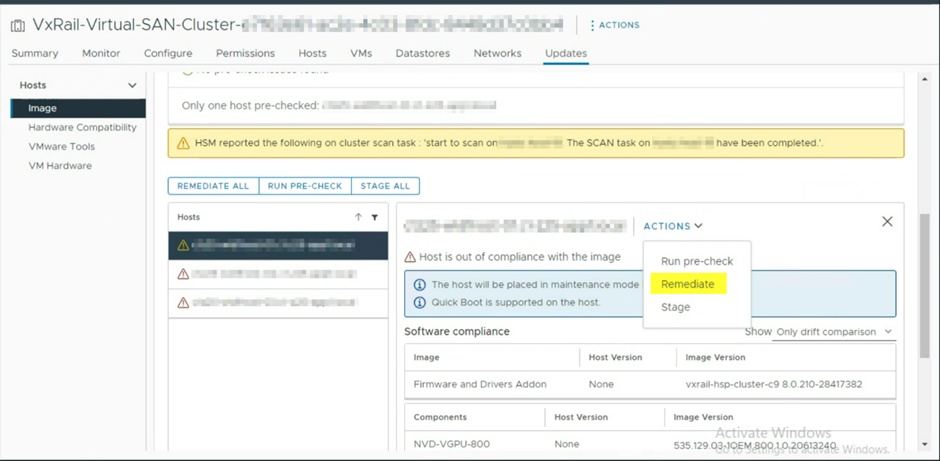
- After the host remediation is complete, repeat the preceding steps for each host in the cluster.
Scenario 6: VCF on VxRail - Cluster upgrade when vLCM is not enabled and the nodes contain GPUs.
- Compare the GPU driver version required with the ESXi version that the nodes will be upgraded to. If there is no update required, you can perform the normal LCM upgrade. If an update is required, continue to the next step.
- Log in to the vSphere Web Client.
- Check whether any of your VMs have a vGPU enabled. By default, VMs with vGPU enabled will not be able to vMotion. See Note 2 for details about how to enable vMotion.
- Go to NVIDIA to download the GPU driver.
- Log in to the SDDC Manager and follow the standard VCF upgrade process.
- Copy the GPU driver to a directory on each of your ESXi hosts.
- Perform the following to install the updated driver on each host:
- Log in to the vSphere Web Client. Right-click the host and select Maintenance Mode > Enter Maintenance Mode. Set the data evacuation mode to Ensure accessibility and click OK.
- Connect to the hosts ESXi management IP over SSH and run the following command to install the GPU driver:
esxcli software vib install -v /path-to-vib/NVD-VMware_ESXi_<Version>_Driver - Verify that the GRID package installed and loaded correctly by checking for the NVIDIA kernel driver in the list of kernel-loaded modules.

- Log in to the vSphere Web Client. Right-click the host and select Maintenance Mode > Exit Maintenance Mode.
- In the vSphere Web Client, select your host and go to Configure > Hardware > Graphics > Graphics Devices. Ensure that the Memory value is as expected.
Scenario 7: VxRail and VCF on VxRail - Cluster deployment when vLCM is enabled and the nodes contain GPUs, and the GPU driver is not installed on any hosts.
- If your version is before or in 8.0.300: On the Global Settings you see a message that directs you to this page. If you have a GPU ESXi driver not installed, go to step 3. If the GPU ESXi driver is installed before deployment, go to scenario 8.
- If your version is 8.0.320 or later: During the validation step of the VxRail Day 1 Wizard, a warning message "One or more of the hosts in this cluster contain a Graphics Processing Unit (GPU). See KB000202491 for guidance on installing and managing the ESXi GPU Driver on a VxRail system." will be displayed. This warning occurs because the system detects GPUs in the hosts. It is just a notification, and you can proceed with the next step.
- Complete the Day 1 wizard.
- Wait for the cluster deployment to complete.
- Go to NVIDIA to download the GPU driver.
- Log in to the vSphere Web Client.
- Go to Lifecycle Manager > Actions > Updates > Import Updates.
- Select the GPU driver and click Import.
- Go to Cluster > Updates > Hosts > Image and click Edit.
- Click Show details.
- Click ADD COMPONENTS.
- Select the GPU driver and click SELECT.
- On the Edit Image page, click SAVE.
- Scroll down to the Image Compliance section and select the first host. Click ACTIONS > Remediate.
- After the host remediation is complete, repeat the preceding steps for each host in the cluster.
Scenario 8: VxRail and VCF on VxRail - Cluster deployment when vLCM is enabled and the nodes contain GPUs, but the GPU driver is installed on any hosts.
- Confirm that the GPU driver in installed on every host by checking for the NVIDIA kernel driver in the list of kernel-loaded modules on the host.

- Upload GPU driver by "scp" command using "mystic" account to VxRail Manager "/tmp" directory (use the before Day 1 passwords in the below steps):
scp <local GPU driver component package file path.zip> mystic@<target VxRail Manager's IP>:/tmp - SSH to the VxRail Manager using the "mystic" account, then switch to the "root" account or use sudo for subsequent steps.
- Create the target directory if it does not exist
mkdir -p /data/store2/customized/components - Move the uploaded GPU driver component package file to the target directory
mv /tmp/<GPU driver component package file.zip> /data/store2/customized/components - Change the directory owner
chown -R tcserver:pivotal /data/store2/customized/components - Change the permission of the directory
chmod -R 755 /data/store2/customized/components - Browse the Day 1 process. If the uploaded file is correct, the Day1 validation will pass. If not, a validation error is reported, and you must re-upload the correct file until validation succeeds.
Scenario 9: VxRail and VCF on VxRail - Cluster deployment when vLCM is not enabled and the nodes contain GPUs.
- For version 8.0.300: Ensure that the GPU ESXi driver is not installed on the nodes before starting the VxRail Day 1 wizard. The node will have arrived from Dell with this ESXi driver uninstalled. If you have already installed the driver yourself, either uninstall the GPU driver from ESXi or reimage the node using the node image management tool.
- For version 8.0.320 or later: If the GPU ESXi driver is not installed on the nodes, go to step 3. If you have already installed the driver, during the validation step of the VxRail Day 1 Wizard, a warning message "One or more of the hosts in this cluster contain a Graphics Processing Unit (GPU). See KB000202491 for guidance on installing and managing the ESXi GPU Driver on a VxRail system." will be displayed. This warning occurs because the system detects GPUs in the hosts. It is just a notification, and you can proceed with the deployment.
- Complete the Day 1 wizard.
- Wait for the cluster deployment to complete.
- Go to NVIDIA to download the GPU driver.
- Copy the GPU driver to a directory on each of your ESXi hosts.
- Perform the following to install the driver on each host:
- Log in to the vSphere Web Client. Right-click the host and select Maintenance Mode > Enter Maintenance Mode. Set the data evacuation mode to Ensure accessibility and click OK.
- Connect to the hosts ESXi management IP over SSH and run the following command to install the GPU driver:
esxcli software vib install -v /path-to-vib/NVD-VMware_ESXi_<Version>_Driver - Verify that the GRID package installed and loaded correctly by checking for the NVIDIA kernel driver in the list of kernel-loaded modules.

- Log in to the vSphere Web Client. Right-click the host and select Maintenance Mode > Exit Maintenance Mode.
- In the vSphere Web Client, select your host and go to Configure > Hardware > Graphics > Graphics Devices. Ensure that the Memory value is as expected.
Scenario 10: VxRail and VCF on VxRail - Install GPUs into an existing cluster.
Go to https://solve.dell.com/ > VxRail Appliance > VxRail Procedures > Upgrade > Hardware Upgrade/Expansion Procedures for installation instructions.
Scenario 11: VxRail and VCF on VxRail - Cluster Expansion when vLCM is enabled and the nodes contain GPUs.
- For version before 8.0.320, you can proceed with step 3.
- For version 8.0.320 or later: If you have already installed the driver yourself, during the validation step of the VxRail Day 1 Wizard, a warning message "One or more of the hosts in this cluster contain a Graphics Processing Unit (GPU). See KB000202491 for guidance on installing and managing the ESXi GPU Driver on a VxRail system." will be displayed. This warning occurs because the system detects GPUs in the hosts. It is just a notification, and you can proceed with the deployment.
- Log in to the vSphere Web Client.
- Add your new node to the VxRail cluster in the standard way.
- Go to Lifecycle Manager > Actions > Updates.
- Scroll down to the Image Compliance section, select the newly added host.
- Click ACTIONS > Remediate.
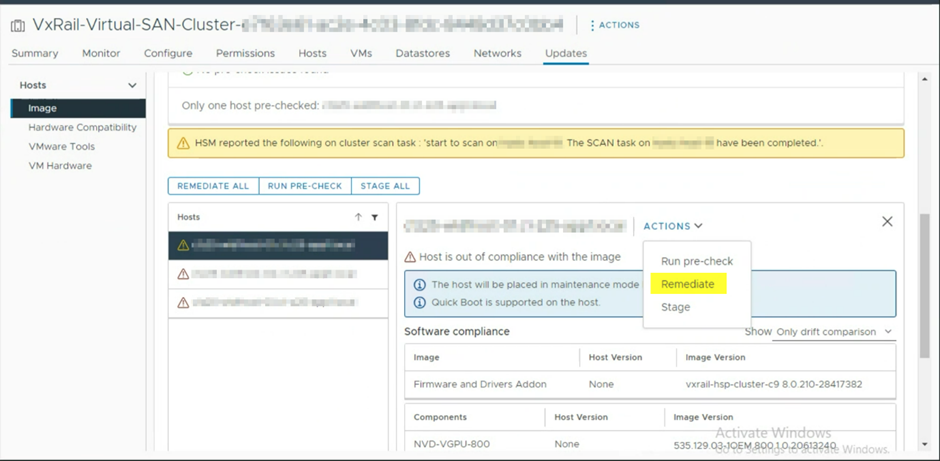
Scenario 12: VxRail and VCF on VxRail - Cluster expansion when vLCM is not enabled and the nodes contain GPUs.
- For version before 8.0.320, you can proceed with step 3.
- For version 8.0.320 or later: If you have already installed the driver yourself, during the validation step of the VxRail Day 1 Wizard, a warning message "One or more of the hosts in this cluster contain a Graphics Processing Unit (GPU). See KB000202491 for guidance on installing and managing the ESXi GPU Driver on a VxRail system." will be displayed. This warning occurs because the system detects GPUs in the hosts. It is a notification, and you can proceed with the deployment.
- Log in to the vSphere Web Client.
- Add your new node to the VxRail cluster in the standard way.
- Go to NVIDIA to download the GPU driver.
- Copy the GPU driver to a directory on each of your ESXi hosts.
- Perform the following to install the driver on each new host:
- Log in to the vSphere Web Client. Right-click the host and select Maintenance Mode > Enter Maintenance Mode. Set the data evacuation mode to Ensure accessibility and click OK.
- Connect to the hosts ESXi management IP over SSH and run the following command to install the GPU driver:
esxcli software vib install -v /path-to-vib/NVD-VMware_ESXi_<Version>_Driver - Verify that the GRID package installed and loaded correctly by checking for the NVIDIA kernel driver in the list of kernel-loaded modules.

- Log in to the vSphere Web Client. Right-click the host and select Maintenance Mode > Exit Maintenance Mode.
- In the vSphere Web Client, select your host and go to Configure > Hardware > Graphics > Graphics Devices. Ensure that the Memory value is as expected.
Scenario 13: VxRail - Enable vLCM on a cluster when the nodes contain GPUs and the ESXi GPU driver is already installed.
- Enable vSphere Lifecycle Manager (vLCM) on your cluster either.
- VxRail versions earlier than 7.0.450: Enable vLCM using VMware's documentation.
- VxRail versions 7.0.450 and later: Log in to your vSphere Web Client and go to VxRail Cluster > Configure > VxRail > Updates > Settings. Click Enable and follow the prompts.
- Go to NVIDIA to download the GPU driver if you do not already have it installed.
- Go to Lifecycle Manager > Actions > Updates > Import Updates.
- Select the GPU driver and click Import.
- Go to Cluster > Updates > Hosts > Image and click Edit.
- Click Show details.
- Click ADD COMPONENTS.
- Select the GPU driver and click SELECT.
- On the Edit Image page, click SAVE.
- Scroll down to the Image Compliance section, select the first host. Click ACTIONS > Remediate.
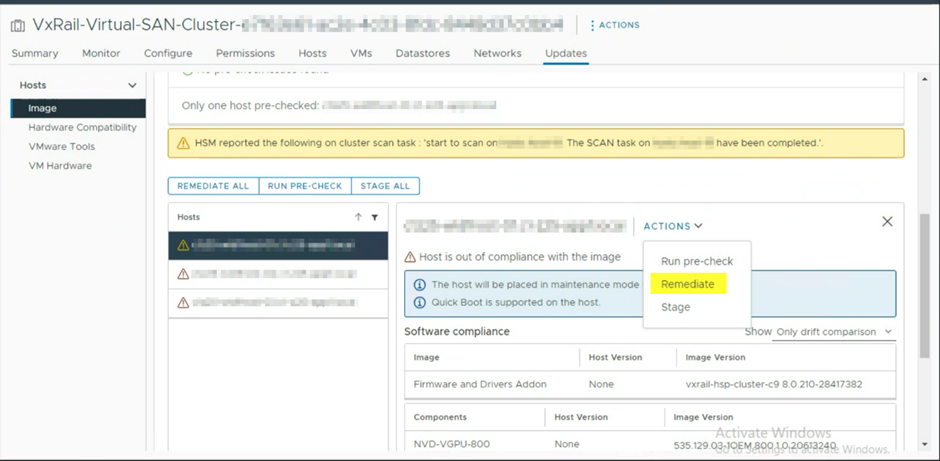
- After the host remediation is complete, repeat the preceding steps for each host in the cluster.
Additional Information
NOTE 1: If the GPU is being used in VM passthrough mode only, you do not need to install an ESXi host driver. Install the GPU driver on the VM that is attached to the GPU instead. The guidance in this KB is only for users who are attaching their GPUs to their VMs through the means of vGPUs leveraging the ESXi host driver.
NOTE 2:When VMs have a vGPU enabled, vMotion for the VM is disabled by default. If multiple hosts in the cluster are enabled for vGPU, see the following references for guidance on enabling vMotion:
- 7.0.x: https://docs.vmware.com/en/VMware-vSphere/7.0/com.vmware.vsphere.vcenterhost.doc/GUID-8FE6A0DA-49E9-472B-815B-D630CF2014AD.html
- 8.0.x: https://docs.vmware.com/en/VMware-vSphere/8.0/vsphere-vcenter-esxi-management/GUID-6068ECD7-E3FA-4155-A326-D996BDBDF00C.html
VxRail versions 7.0.400 and later and 8.0.000 and later support GPU with vLCM enablement.
VCF On VxRail 5.1 with 8.0.200 and later support GPU with vLCM enablement.
Affected Products
VxRail, VMWare Cloud on Dell EMC VxRail E560F, VMWare Cloud on Dell EMC VxRail E560N, VxRail Appliance Series, VxRail E560 VCF, VxRail E560F VCF, VxRail E560N VCF, VxRail P570 VCF, VxRail P570F VCF, VxRail P580N VCF, VxRail S570 VCF, VxRail Software
, VxRail V570 VCF, VxRail V570F VCF
...
Article Properties
Article Number: 000202491
Article Type: How To
Last Modified: 05 Dec 2025
Version: 9
Find answers to your questions from other Dell users
Support Services
Check if your device is covered by Support Services.