Avamar: Java Admin user interface: The font is small and difficult to read
Summary: Enable high DPI scaling for Avamar Java Admin by adjusting javaw.exe compatibility settings and restarting the application.
This article applies to
This article does not apply to
This article is not tied to any specific product.
Not all product versions are identified in this article.
Symptoms
Avamar Java Admin user interface does not scale properly, and screen font is difficult to read on a high-DPI Monitor.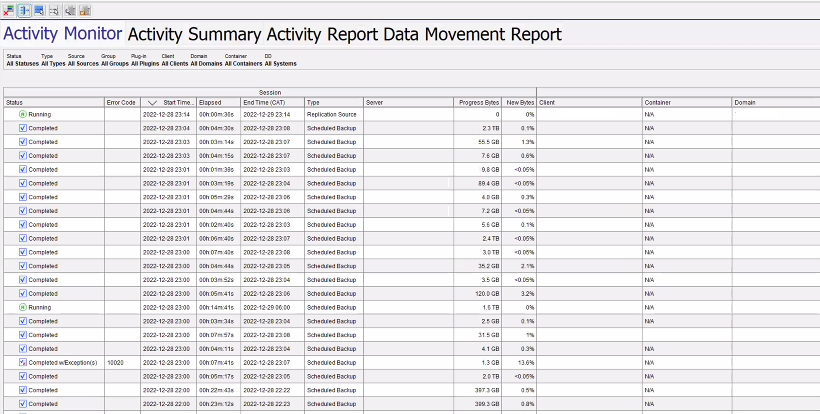
Cause
Java application does not scale properly on high-DPI displays, this makes the screen font difficult to read.
Resolution
Avamar Jave admin user interface does not scale, and the screen font is difficult to read.
Here are the steps to enable high-DPI scaling for the Avamar Java admin user interface (Java user interface):
1.Locate javaw.exe:
a. Navigate to the directory where Java is installed, typically
C:\Program Files(x86)\avs\administrator\<avamar version>\lib\Jre\bin\
2. Right-click javaw.exe and select Properties.
3. Go to the Compatibility tab.
4. Check the box for Override high-DPI scaling behavior.
5. Select System for from the dropdown menu.

6. Restart the application Java Admin user interface.
7. If using Remote Desktop, adjust the screen size in the remote desktop connection app under More Options.

7. If using Remote Desktop, adjust the screen size in the remote desktop connection app under More Options.
Affected Products
AvamarArticle Properties
Article Number: 000207042
Article Type: Solution
Last Modified: 14 May 2025
Version: 4
Find answers to your questions from other Dell users
Support Services
Check if your device is covered by Support Services.