Linux: How to increase the swap volume on Linux Server
Summary: Using the instructions below on a PowerEdge Server running Linux, we can explore how to increase the swap volume.
This article applies to
This article does not apply to
This article is not tied to any specific product.
Not all product versions are identified in this article.
Instructions
In Linux, swap space is utilized when RAM is at its maximum capacity. Inactive memory pages are transferred to the swap area if the system requires more memory resources but the RAM is already full. Even while machines with small amounts of RAM can benefit from swap space, more RAM should always be preferred.
In the below example, a Dell PowerEdge R7525 is used, the installed Operating System is Red Hat Enterprise Linux Release 8.4.
We used RAID-1 VD (Size 223.51 GB) on BOSS-S1 card for Operating System installation.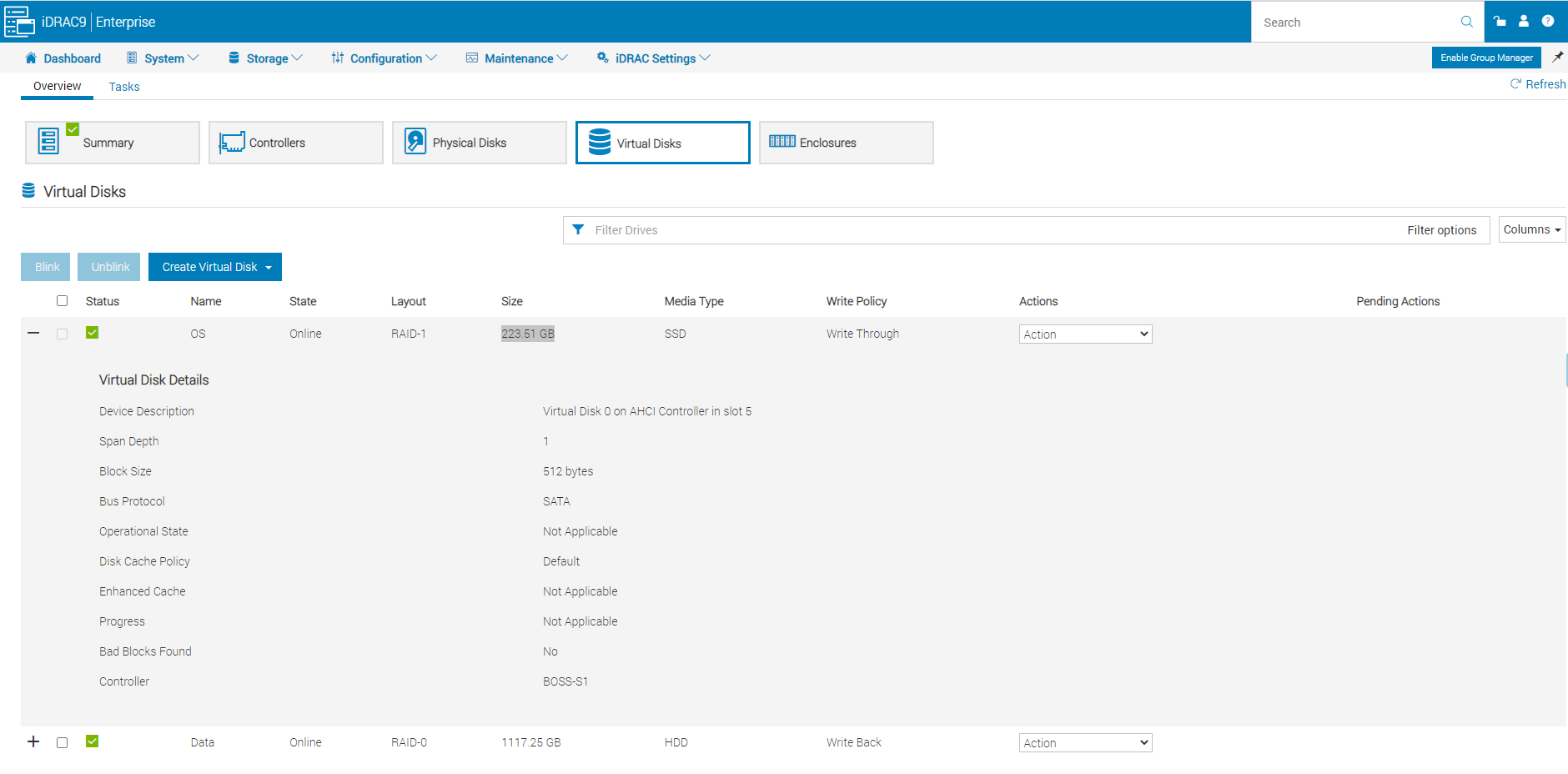
Operating system Installation Manual Partitioning Screen as shown below
Here, we opt for the 20G SWAP partition during Operating System installation. After installing the operating system, we verified the partition below.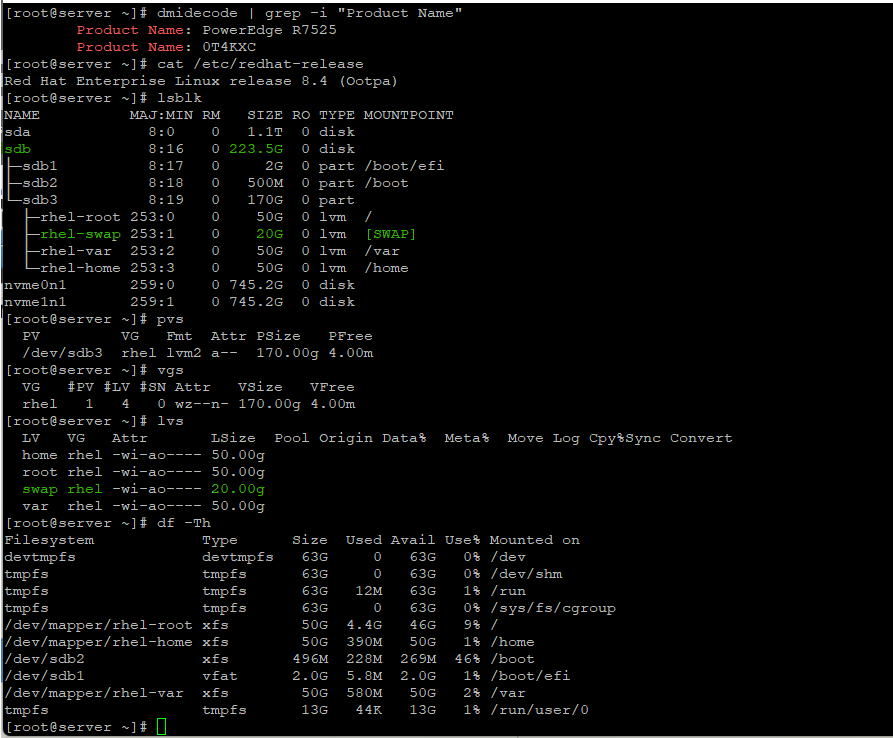
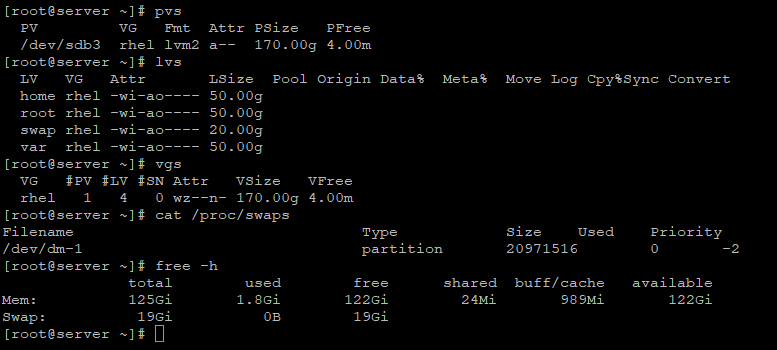
Also we may inspect active swap space by using the following command:
# cat /proc/swaps
# free -h
Reviewing the partition on this node right now
# fdisk -l
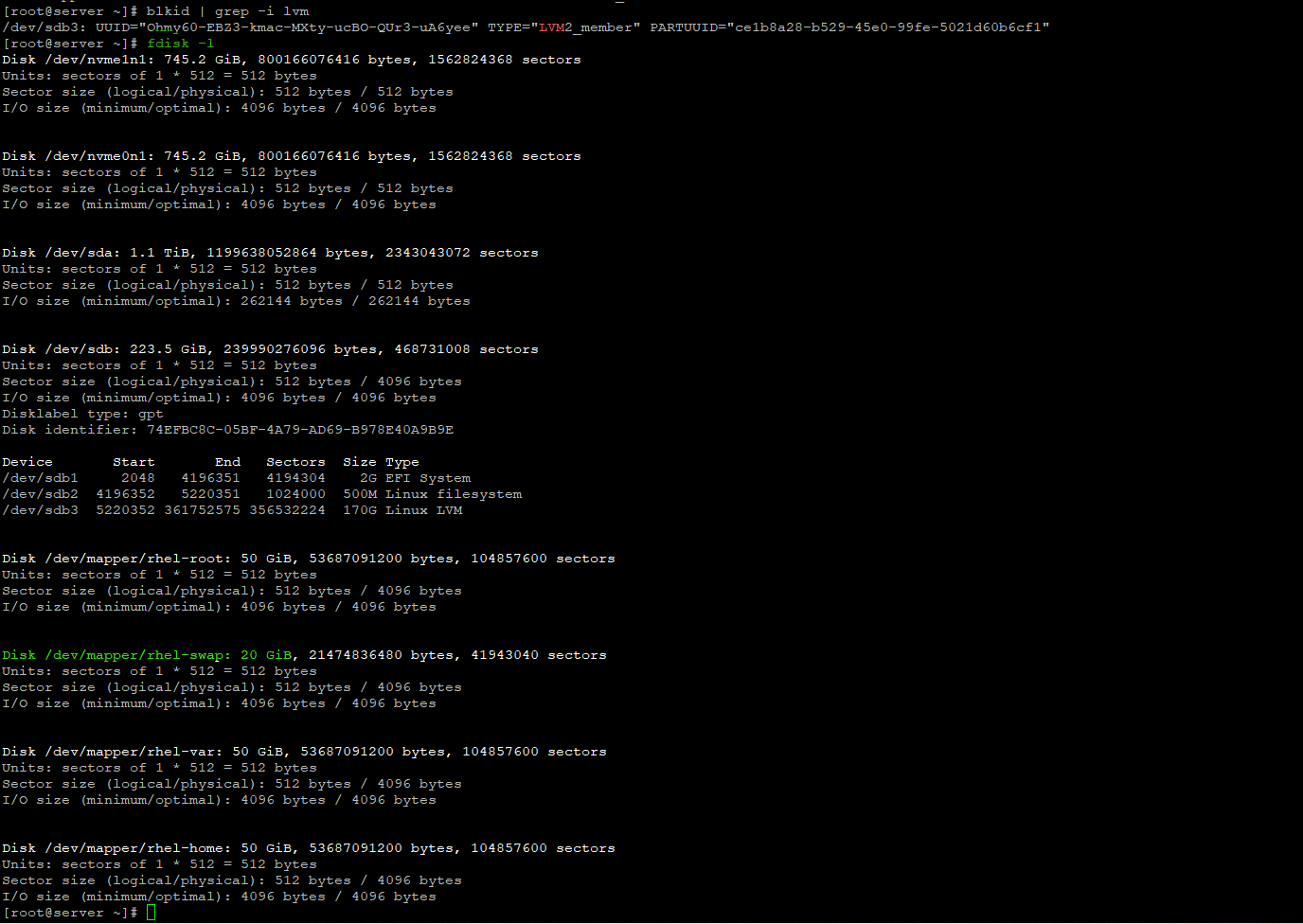
Let us use the remaining space on the same RAID 1 VD on the Boss Card to create a 10G LVM partition and then increase the swap size on the LVM2 logical volume from 20G to 30G.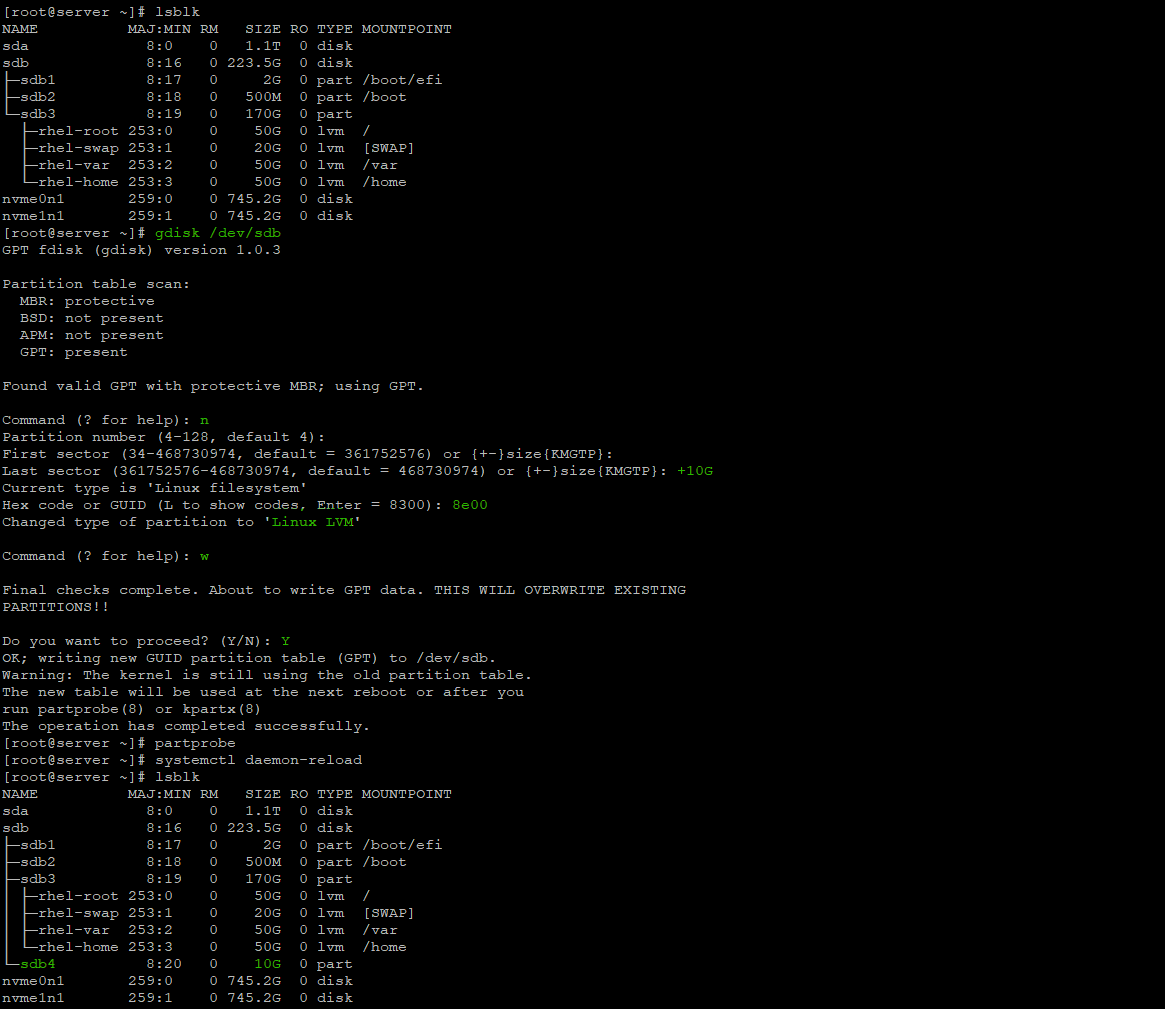
We created a new 10G partition (/dev/sdb4 here).
Create a physical volume first, and then extend the rhel logical volume to use the additional space that is available.
Once done, let us disable swapping for the associated logical volume:
Refer the commands as below.
Then extend the logical volume to use all the free space.
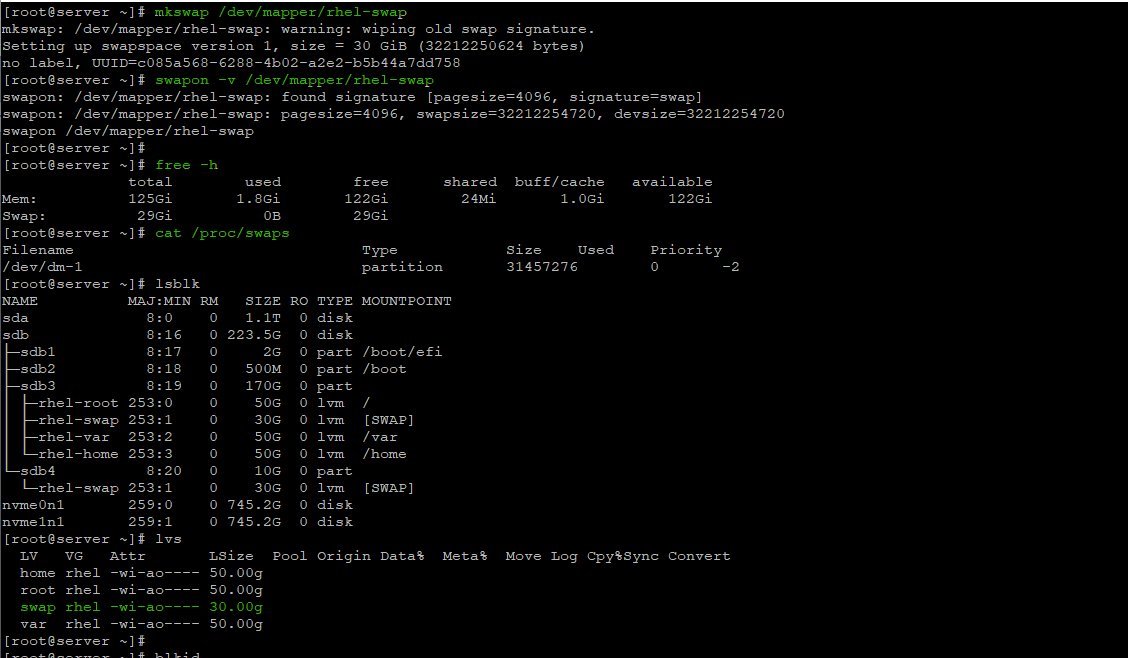
We could successfully increase the size of the Logical Volume from 20G to 30G.
The extended logical volume should then be enabled when we format the new swap space.
Use the following command to check on the status of the swap logical volume and see if it was successfully extended and activated: Inspect active swap space
# cat /proc/swaps
# free -h
Note: File systems and LVM2 volumes assigned as swap space should not be in use when being modified. Any attempts to modify swap fail if a system process or the kernel is using swap space. Use the free and cat /proc/swaps commands to verify how much and where swap is in use.
Resizing swap space requires temporarily removing the swap space from the system. This can be problematic if running applications rely on the additional swap space and might run into low-memory situations.
Affected Products
Red Hat Enterprise Linux Version 9, Red Hat Enterprise Linux Version 8Products
Red Hat Enterprise Linux Version 7, SUSE Linux Enterprise Server 15, Ubuntu Server LTSArticle Properties
Article Number: 000212630
Article Type: How To
Last Modified: 09 Jan 2025
Version: 5
Find answers to your questions from other Dell users
Support Services
Check if your device is covered by Support Services.