Intermittent Crash after Wake from Sleep on Latitude 7430 Laptop with Dual U2415 Displays
Summary: The following article provides information about a Latitude 7430 laptop that intermittently fails and restarts. (Logs show a WIN32K_POWER_WATCHDOG_TIMEOUT bug check error has occurred.) This is reported after waking from sleep with dual external U2415 monitors attached through a dock. ...
This article applies to
This article does not apply to
This article is not tied to any specific product.
Not all product versions are identified in this article.
Symptoms
Laptop intermittently fails to wake from sleep
Owners of Latitude 7430 laptops may intermittently experience a crash and restart under the following circumstances:
- The laptop has two Dell U2415 external monitors connected through a WD19 docking station using DisplayPort (DP).
- The laptop is waking from sleep mode.
- The error shown in the logs is a bug check code: WIN32K_POWER_WATCHDOG_TIMEOUT
Cause
The Multi-Stream Technology (MST) DP daisy chaining process is triggering the intermittent failure.
Resolution
The MST feature must be disabled at the end of the chain. This means you must disable DP version 1.2 on both of the external monitors that are attached to the docking station. (Connecting to the dock using DP 1.2 automatically starts the MST feature at the dock.)
The following steps take you through disabling DP 1.2 on a U2415 monitor:
-
Open the on-screen menu (OSD).
-
Press the menu button on the lower right corner of the first monitor.
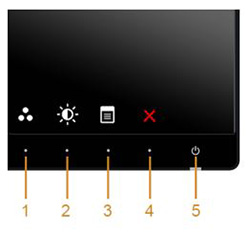
(Figure.1 U2415 Front Panel Option Buttons)
| Figure.1 Callouts | |
|---|---|
| 1 | Shortcut key/Preset Modes |
| 2 | Shortcut key/Brightness and Contrast |
| 3 | Menu |
| 4 | Exit |
| 5 | Power Button (with LED indicator) |

(Figure.2 U2415 Front Panel Navigation Buttons)
| Figure.2 Callouts | |
|---|---|
| 1 | Up Button |
| 2 | Down Button |
| 3 | OK Button |
| 4 | Back Button |
-
Use the navigation up or down buttons to highlight the Display option and press the OK button to select it.
-
Use the navigation up or down buttons to highlight the DisplayPort 1.2 option and press the OK button repeatedly to change the current selection to Disable.
-
Exit from the on-screen menu on the first monitor.
-
Repeat Steps two to five for the second monitor.
Affected Products
Dell U2415, Dell Dock WD19, Dell Performance Dock - WD19DC, Dell Performance Dock – WD19DCS, Dell Dock – WD19S, Dell Thunderbolt Dock - WD19TB, Dell Thunderbolt Dock – WD19TBS, Latitude 7430Article Properties
Article Number: 000215247
Article Type: Solution
Last Modified: 05 Jul 2023
Version: 1
Find answers to your questions from other Dell users
Support Services
Check if your device is covered by Support Services.