Data Protection Advisor:如何获取计划报告和关联电子邮件 ID 的列表
Summary: 如何获取在 DPA UI 上配置的计划报告列表及其关联的电子邮件收件人和 ID 列表。
This article applies to
This article does not apply to
This article is not tied to any specific product.
Not all product versions are identified in this article.
Instructions
必须为此目的创建自定义报告:


步骤:
- 在 DPA UI 上,转至ReportsReport>TemplatesCustom > Report Templates
- 选择 CREATE CUSTOM TEMPLATE
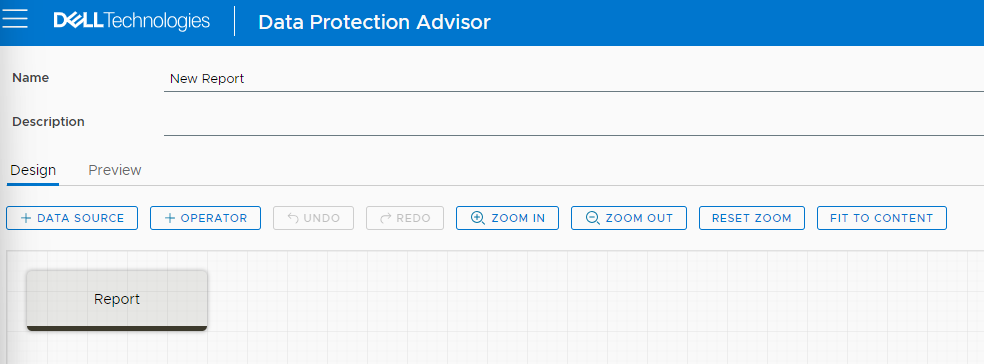
这会将用户带到以下屏幕:
- 提供使报告相关的Name和Description,例如“List of DPA Scheduled Reports”
选择上面的 + DATA SOURCE 选项卡。这会将用户带到一个包含数据源列表的窗口。单击Data Source列上的Filter按钮,然后键入Scheduled Report。
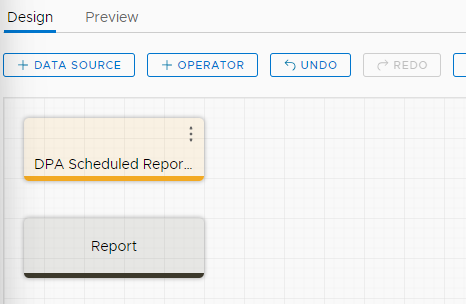
- 选择 第一个数据源 ,然后单击末尾的“ 选择”按钮。这会将用户带到以下窗口,例如:
- 单击 “数据源 ”,然后将其向下拖动到“ 报表”按钮上,使其连接。
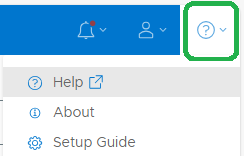
提醒:要计划此类报告或通过电子邮件发送此类报告,用户必须将报告添加到菜单中。请参阅 UI 上的 “帮助”部分。搜索 创建、编辑或复制报告菜单和菜单项,然后完成相应步骤。
Affected Products
Data Protection AdvisorArticle Properties
Article Number: 000222033
Article Type: How To
Last Modified: 13 Feb 2024
Version: 1
Find answers to your questions from other Dell users
Support Services
Check if your device is covered by Support Services.