How to Use the Dell Trusted Device Local Console
Summary: The Dell Trusted Device Local Console is an application that provides the security status of the local endpoint and recommended actions for security monitoring.
This article applies to
This article does not apply to
This article is not tied to any specific product.
Not all product versions are identified in this article.
Instructions
The Dell Trusted Device Local Console is a user interface that provides endpoint information such as:
- General information about the endpoint
- Dell Trusted Device security data (Security Score)
- Actions that would assist with improving the Security Score
The Dell Trusted Device Local Console displays the status of BIOS Verification, Intel Management Engine (Intel ME), and other layered security components.
Affected Products:
- Dell Trusted Device
Affected Operating Systems:
- Windows 10
- Windows 11
Affected Platforms:
- Latitude
- OptiPlex
- Precision
- XPS
Affected Versions:
- Dell Trusted Device v6.1 and later
Table of Contents:
- Getting Started with Dell Trusted Device Local Console
- Device Description
- Security Score
- Action Required
- No Action Required
Getting Started with Dell Trusted Device Local Console
To launch the Dell Trusted Device application, open the Windows Start menu and then search for Dell Trusted Device.

The Dell Trusted Device Local Console launches to display the following information:
- Device Description
- Security Score
- Security Score Information
- Action Required Panel

Device Description
The Device Description panel located at the left side of the console includes Windows System Links to provide more insight about the device and links to Dell Trusted Device information.

Security Score
The Security Score panel located at the top of the console displays the current Security Score of the device. This enables administrators to determine the security risk level of the device.
Security Score factors include:
- Anti-virus
- BIOS administrator password
- BIOS Verification
- Disk encryption
- Firewall
- Indicators of Attack
- Intel ME Verification
- Trusted Platform Module (TPM) use
Dell Trusted Device initiates a scan 15 minutes after the operating system boots up and every 24 hours thereafter. The Refresh Scan Result button retrieves the latest scan results from the security assessment.

More information about the Security Score can be found in the Dell Trusted Device Installation and Administrator Guide at Dell Trusted Device Documentation.
Action Required
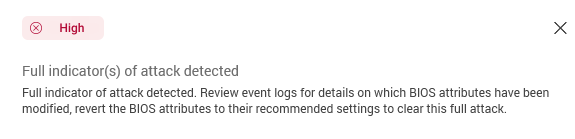
The Action Required panel located at the bottom of the console displays Medium and High-risk items to be reviewed with recommended paths for remediation.

Click the info icon for more information about the attributes affected.
No Action Required
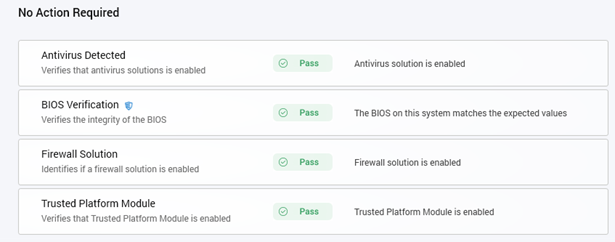
The No Action Required panel located below the Action Required panel attests to the device’s successful health status.
Affected Products
OptiPlex, XPS, Latitude, XPS, Fixed Workstations, Mobile Workstations, Dell Trusted DeviceArticle Properties
Article Number: 000223887
Article Type: How To
Last Modified: 17 Apr 2025
Version: 4
Find answers to your questions from other Dell users
Support Services
Check if your device is covered by Support Services.