Configuration of TechDirect Account in SCG Virtual Addition
Summary: This document helps us understand how to set up a customer's TechDirect Account to work with Secure Connect Gateway Virtual Addition.
This article applies to
This article does not apply to
This article is not tied to any specific product.
Not all product versions are identified in this article.
Instructions
Configuration of TechDirect Account in SCG
The connection between the secure connect gateway and TechDirect expires every two years, and the parts replacement is interrupted until the connection is restored. You receive an email notification when your connection expires. Ensure that you reintegrate the secure connect gateway with TechDirect before the connection expires.
In the SCG user interface this will look like the following:
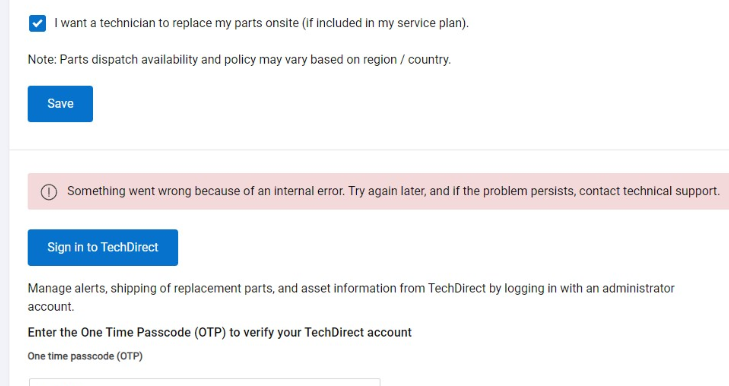
The advantages to setting TechDirect to work with Secure Connect Gateway include:
- A better end-user experience and control with AI-driven support and automation
- Actionable insights and robust self-service in an intuitive, unified experience
- Tailored views, dashboards, and on-demand reporting for faster issue resolution
- Self-dispatch and support for in-warranty client and enterprise systems
- Allows Dell Technologies partners to manage their activities and work on behalf of customers
Integrate Secure Connect Gateway with your TechDirect account:
Prerequisites
● Ensure that the local system connects to TechDirect.
In the TechDirect self-service experience, administrators in your organization can create rules to review and determine alerts that qualify for service request creation or parts dispatch before they are automatically forwarded to the backend.
To configure and manage alert rules and the alerts that are generated from the devices,
Go to Services > Connect and Manage > Manage Infrastructure Assets and Alerts in TechDirect.
Signing in to your TechDirect account from a secure connect gateway enables you to integrate automated parts dispatch with your TechDirect account.
To configure and manage alert rules and the alerts that are generated from the devices,
Go to Services > Connect and Manage > Manage Infrastructure Assets and Alerts in TechDirect.
Signing in to your TechDirect account from a secure connect gateway enables you to integrate automated parts dispatch with your TechDirect account.
NOTE: If you choose to automate technical support case requests on TechDirect, the alerts are forwarded to Dell Technologies for case creation. However, these cases cannot be viewed on TechDirect after they are forwarded.
NOTE: The connection between the secure connect gateway and TechDirect expires every two years, and the parts replacement is interrupted until the connection is restored. You receive an email notification when your connection expires.
Ensure that you reintegrate the secure connect gateway with TechDirect before the connection expires.
Steps:
1. Go to Settings > Preferred contact and shipping details.
2. Scroll down and click Sign In to TechDirect. The Dell My Account Sign In page is displayed.
3. Enter your TechDirect account credentials and click Sign In. A One-Time Password (OTP) is displayed.
NOTE: If you had already signed in to any Dell Technologies portal on the web browser, the OTP for the signed in account is displayed.
4. Enter the OTP and click Apply.
Results After your account is successfully verified, your TechDirect account username or email address is displayed and an option to switch your TechDirect account is displayed. To sign in with a different TechDirect account, click Switch Account.
● Configuration of Contact and Shipping Information:
Step 1: Navigate to Settings > Preferred contact and shipping details.
Step 2: In the Support contacts section:
- Choose your country or region.
- Enter primary and secondary support contact information. (Primary support contact information is auto-filled if entered during registration.)
- Enable automatic receipt of replacement parts.
Note: Primary and secondary contact details must be unique.
Step 5: If you require a technician to install dispatched hardware components, select the "I want a technician to replace my parts onsite" checkbox.
Step 6: For users in Canada or the United States:
- Click "Validate address."
- If the address is validated, "Save" becomes enabled.
- If the address is invalid, possible addresses are shown. Select the correct address and click "continue," or return to modify the address.
The above information is also available in the secure connect gateway user guide: https://dl.dell.com/content/manual54603293-secure-connect-gateway-5-x-virtual-edition-user-s-guide.pdf?language=en-us
More information about Tech Direct is available in the link: https://tdm.dell.com/portal
=>Also, you have the option to integrate or disable integration with your Tech Direct account. See the instructions for integrating Secure Connect Gateway with your Tech Direct account if needed.
=> Automated parts dispatch is only available for servers with an active Pro Support, Pro Support Plus, Pro Support One, or Pro Support Flex service entitlement.
Affected Products
TechDirect, Secure Connect Gateway - Virtual EditionArticle Properties
Article Number: 000224804
Article Type: How To
Last Modified: 17 Jul 2024
Version: 2
Find answers to your questions from other Dell users
Support Services
Check if your device is covered by Support Services.