Connectrix: Brocade: How to change switch name by CLI and SAN navigator
Summary: This KB explains the steps involved changing the switch name over CLI method and San navigator.
This article applies to
This article does not apply to
This article is not tied to any specific product.
Not all product versions are identified in this article.
Instructions
Step 1: Log in to switch by SSH.
Step 2: Note the switch name of the switch to be changed and if VF is enabled.
Step 3: For Non-VF, issue the command switch name <new name >.
Step 4: If VF is enabled, enter the respective switch context ID using #setcontext <FID > and issue the command.
Example:
NOTE: The switch prompts switch name changes only post next login attempt. This is a non-disruptive action and NO reboot required. 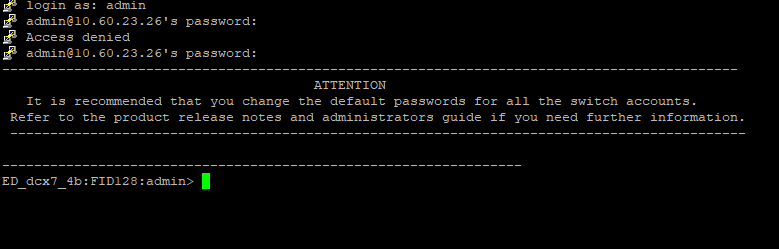
How to change switch name using SAN Navigator.
- Click Inventory in the navigation bar, and then select Switches

- Select the switches that you want to rename, switch action and click Rename in upper right corner
Enter the naming values in the Rename Tab 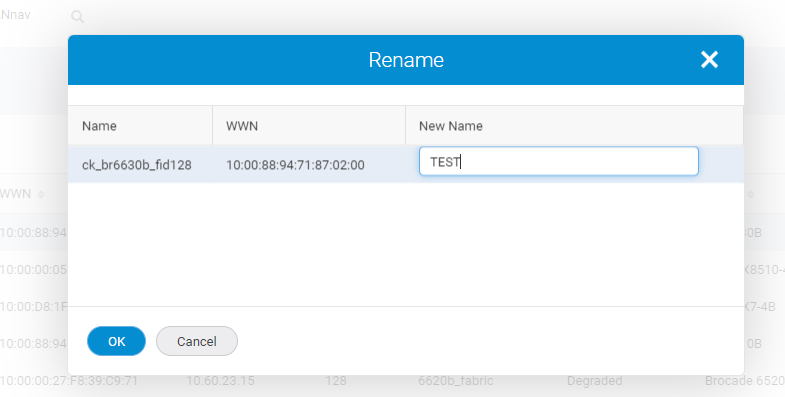
- Click OK
- Note the switch name changes in the Inventory --> Switches TAB
Affected Products
Connectrix B-Series Hardware, Connectrix SANnavArticle Properties
Article Number: 000227218
Article Type: How To
Last Modified: 02 Apr 2025
Version: 2
Find answers to your questions from other Dell users
Support Services
Check if your device is covered by Support Services.