Secure Connect Gateway - Configure SMTP with Office 365
Summary: Configure SMTP using Office 365 by setting the SMTP server to smtp.office365.com, port to 587, and using your Office 365 email and password with STARTTLS for encryption.
This article applies to
This article does not apply to
This article is not tied to any specific product.
Not all product versions are identified in this article.
Instructions
1. **Access the Secure Connect Gateway (SCG) Interface**:
- Log in to your SCG management interface using the administrator credentials.
2. **Navigate to Email Server Settings**:
- Locate the section for email server or SMTP settings within the SCG interface. This is usually found under "Settings" or "Configuration."
3. **SMTP Server Configuration**:
- **SMTP Server**: Enter `smtp.office365.com`.
- **Port**: Set to 587.
- **Encryption**: Enable STARTTLS for secure communication.
4. **Authentication Settings**:
- **Username**: Enter the full Office 365 email address that will be used for sending emails (e.g., `yourname@yourdomain.com`).
- **Password**: Enter the password for the Office 365 email account.
- Ensure that SMTP authentication is enabled by checking the "SMTP authentication" option.
5. **Sender Restrictions**:
- Check if there are any restrictions on who can send emails through this SMTP configuration.
- Configure allowed sender addresses or domains as needed to ensure only authorized users can send emails.
6. **Test the Configuration**:
- Save the SMTP settings.
- Use the test functionality in the SCG interface to send a test email to verify the configuration. Check both the SCG logs and the recipient's inbox to confirm delivery.
7. **Firewall and Network Configuration**:
- Ensure that your firewall allows outgoing connections on port 587 to `smtp.office365.com`.
- Verify that any network security settings do not block communication with the Office 365 SMTP server.
8. **TLS Certificate Validation**:
- Ensure that the SCG validates the TLS certificate of the SMTP server to prevent man-in-the-middle attacks.
- Configure the SCG to reject self-signed or invalid certificates if this option is available.
9. **Monitor and Log Settings**:
- Enable logging for SMTP traffic if your SCG supports it. This can help in troubleshooting any issues that arise.
- Regularly monitor the logs to ensure that emails are being sent successfully and to detect any potential issues.
10. **Compliance and Security Policies**:
- Ensure that your SMTP configuration complies with your organization's security and compliance policies.
- Implement any additional security measures required by your organization's IT policies, such as two-factor authentication or IP whitelisting.
11. **Documentation and Support**:
- Document the SMTP configuration settings and procedures for future reference.
- Consult your SCG and Office 365 documentation or support for any specific configurations or troubleshooting steps.
12. **Advanced Settings (if applicable)**:
- Configure any additional advanced settings that may be available in your SCG interface to enhance security and performance.
- This could include setting up rate limits, configuring backup SMTP servers, or implementing additional security measures.
By following these instructions, you can configure SMTP using Office 365 within your Secure Connect Gateway (SCG) effectively and securely.
Resolution:
Please find the below KB.
Microsoft link for customers wanting to use Office 365 as their email notifications server on SCG. The customer needs to perform the steps described in the link to their Office 365 before it will function with SCG.
https://learn.microsoft.com/en-us/exchange/mail-flow-best-practices/how-to-set-up-a-multifunction-device-or-application-to-send-email-using-microsoft-365-or-office-365
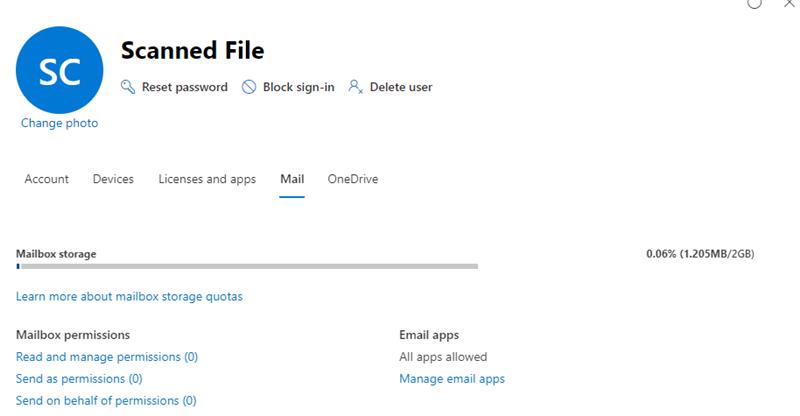
>>Here are some screenshots for reference.
To make it work, the account must satisfy the following:
Exchange license assigned, e.g. Exchange Online Kiosk (cheapest option)
The account's sign-in details must be known, not requiring reset upon login, and does not expire.
Authenticated SMTP must be enabled (most organizations have this disabled globally by default) - This option is not under Exchange Online admin Centre, but Office 365 admin Centre - active users; if there is no option on this page, there is no license assigned to the account, go back to step 1.


Also note the email will always be sent to the contact when registering the SCG:
Affected Products
Secure Connect Gateway - Virtual EditionArticle Properties
Article Number: 000227894
Article Type: How To
Last Modified: 22 Oct 2024
Version: 1
Find answers to your questions from other Dell users
Support Services
Check if your device is covered by Support Services.