Install PERCCLI and collect TTY logs on Windows systems
Summary: This article describes how to install PERCCLI on Windows and how to collect TTY logs.
This article applies to
This article does not apply to
This article is not tied to any specific product.
Not all product versions are identified in this article.
Instructions
Download the PERCCLI driver
Select the version of the Windows PERCCLI utility for your controller model:Windows PERCCLI Utility Version for HBA9, HBA10, HBA11, PERC9, PERC10, and PERC11 Controllers.
- Winserver 2012R2: https://dl.dell.com/FOLDER09765442M/36/PERCCLI_7.2313.0_Windows_ZPE.exe
- Winserver 2016/2019/2022: https://dl.dell.com/FOLDER11080134M/21/PERCCLI_7.2616.0_Windows_ZPE.exe
Install the PERCCLI tool and collect TTY logs
-
Install PERCCLI Double-click the PERCCLI
.exe file that you downloaded and click "Continue" to install.
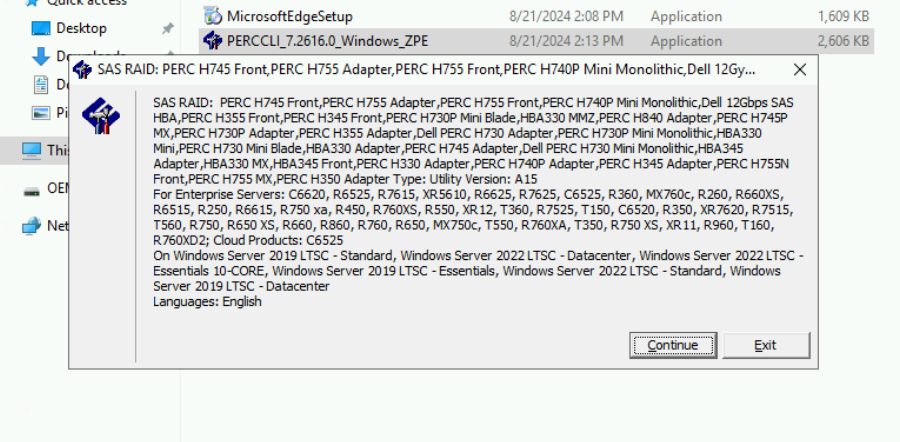
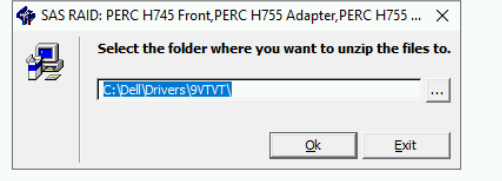
Use the default installation path and wait for the installation to complete.
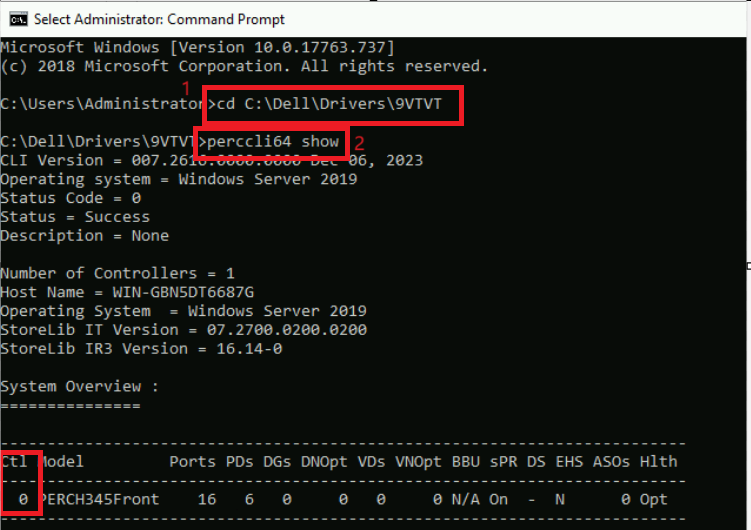
- Open a command prompt and navigate to the directory and check the controller index (default path is C:\Dell\Drivers\9VTVT)
- Enter cd C:\Dell\Drivers\9VTVT
- Enter perccli64 show
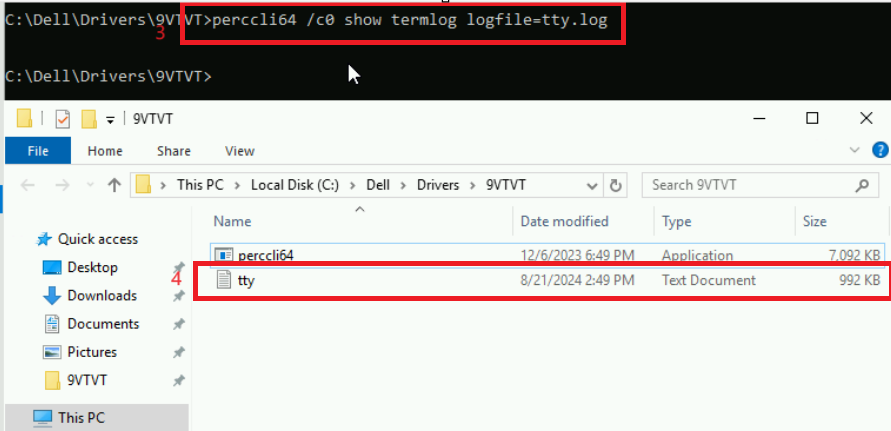
- Collect TTY logs
enter perccli64 /c0 show termlog logfile=tty.log
Affected Products
ServersArticle Properties
Article Number: 000227938
Article Type: How To
Last Modified: 29 Aug 2024
Version: 3
Find answers to your questions from other Dell users
Support Services
Check if your device is covered by Support Services.