Avamar: Restoring VMware Image backups with physical RDM disks involved
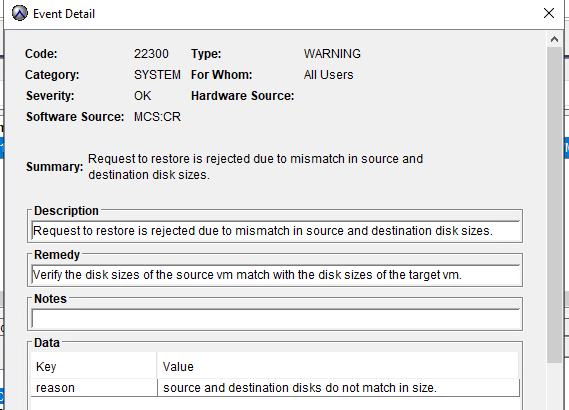
Summary: Request to restore is rejected due to mismatch in source and destination disk sizes" during a VMware Image backup restore.
This article applies to
This article does not apply to
This article is not tied to any specific product.
Not all product versions are identified in this article.
Symptoms
The error message appears in the Avamar user interface when attempting to restore a VMware Image backup for a VM with a physical RDM disk mounted to a different existing virtual machine.
Cause
This is expected behavior because the "Restore to different (existing) virtual machine" option requires the target VM to have the same number of disks, disk sizes, and disk order as the original VM when it was backed up. Since physical RDM disks are not supported by Avamar for VMware Image backups, they are skipped during the backup process. This causes complications during the restore, as the target VMs disk configuration does not match the source VM's configuration, leading to a size mismatch error.
Resolution
To resolve this issue, follow the steps below:
1. Create a New Virtual Machine:
Build a new virtual machine in vSphere with the same number of virtual disks, matching the sizes and order of the disks as they were in the source VM at the time of the backup. (Including down to the detail of each disk, ie. SCSI controller and order.)
2. (Optional) Confirm Disk Sizes - Advanced Method:
If the virtual disk sizes are not standard or easily divisible (for example, not in GB increments), use the Avamar server CLI to retrieve the exact disk sizes:
avtar --quiet --list VMFiles/ -v --include=*-flat.vmdk --exclude=* --path=/<vcenter.domain.c>/VirtualMachines/<VM_name_ID>
Example output:
-rw-r--r-- 0/0 64424509440 0% 2024-09-26 22:31:17 VMfiles/1/virtdisk-flat.vmdk
-rw-r--r-- 0/0 119185342464 0% 2024-09-26 22:39:24 VMfiles/2/virtdisk-flat.vmdk
-rw-r--r-- 0/0 141733920768 0% 2024-09-26 22:39:53 VMfiles/3/virtdisk-flat.vmdk
Use these values to ensure that the new VM disks match the original sizes exactly.
Note: Physical RDM disks do not appear in the output of this command.
3. Create New Disks: Use the ESXi CLI to create new disks that match the disk sizes retrieved:
vmkfstools -c <disk size>b -d thin /vmfs/volumes/<datastore>/VM_name.vmdk
4. Retry the Restore: Once the target VM is configured to match the disk sizes and order, retry the restore operation using Avamar. This ensures that the restore is successful without encountering size mismatch errors.
Affected Products
AvamarArticle Properties
Article Number: 000229482
Article Type: Solution
Last Modified: 13 Nov 2024
Version: 2
Find answers to your questions from other Dell users
Support Services
Check if your device is covered by Support Services.