PowerMax: Add Device Pair to Metro ActiveActive Storage Group which has Mixed Configuration
Summary: Unisphere for PowerMax, Solutions Enabler: How to add a new device pair to Metro ActiveActive Storage Group which has mixed configuration (TDEV and RDFG).
This article applies to
This article does not apply to
This article is not tied to any specific product.
Not all product versions are identified in this article.
Instructions
With the PowerMaxOS 5978 release, we are now able to create new device pairs and add them into an existing active SRDF Metro configuration. This is accomplished with the addition of -exempt option to the createpair command. This PowerMax is running PowerMaxOS 5978.479.479 (ID# 8373), so the option is available.
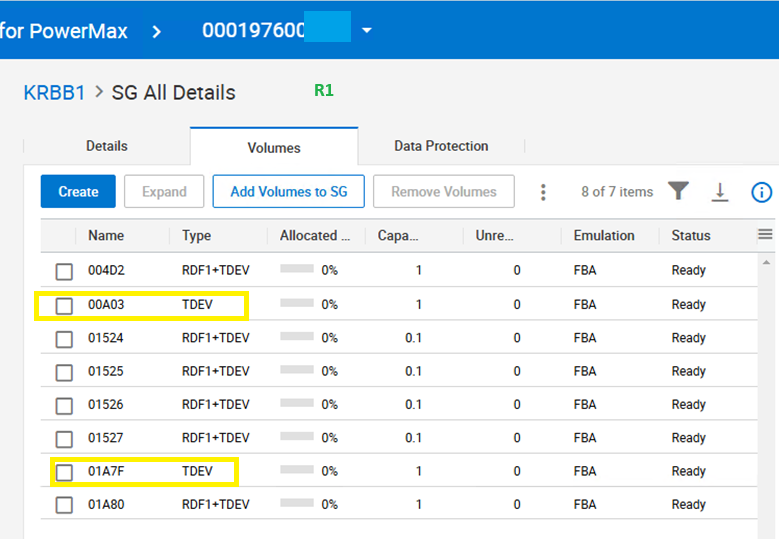
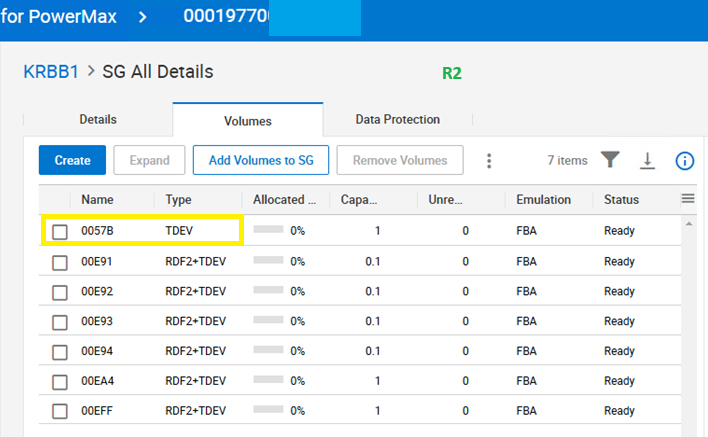
In this case, the Storage Group (SG) has mix configuration of TDEV and RDF1+TDEV. Usually, this type of configuration is not recommended as it makes SG unmanageable for metro operations.
- R1 array SG
- R2 array SG
To add new dev pair to existing Metro SRDF:
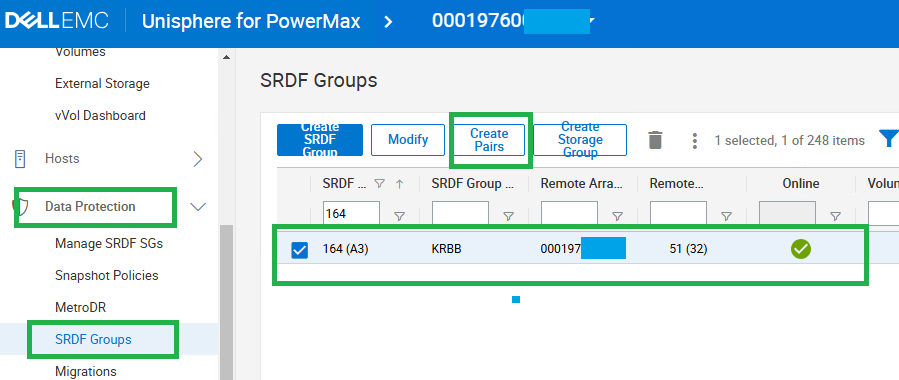
- Go to Data Protection > SRDF Group
- Select the RDFG Group Number (example 164)
- Select Create Pair
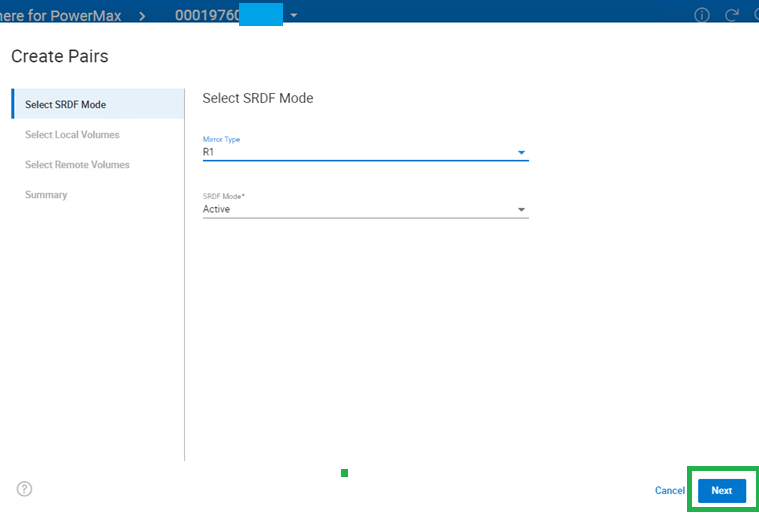
- If you select Automatic, then new device is created
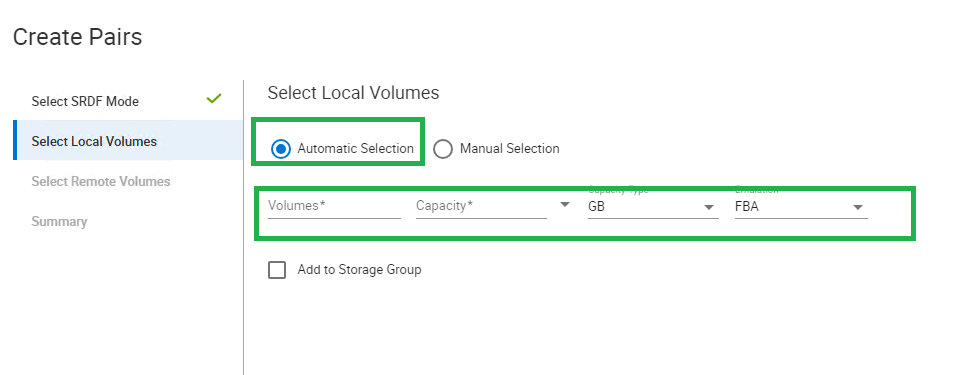
- Once we have a device, select Manual Selection > Select Volume
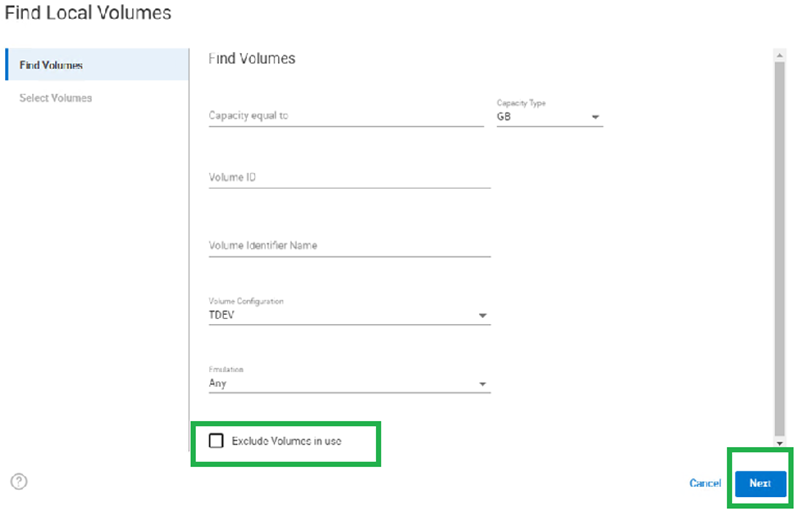
Note: Clear the box, Exclude volume in use, if you do not see the device.
- Repeat the same steps with Remote Volume selection.
Note: SG is not listed as both R1 and R2 have a mixed configuration (TDEV, RDF dev)


- Check the query output, the new device pair should be in ActiveActive State.
symrdf -sid xxx -rdfg 164 query 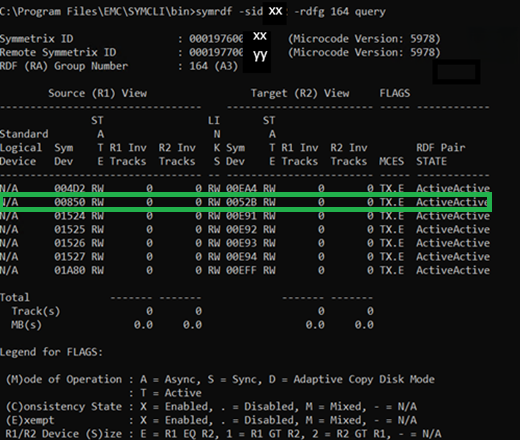
- Manually add the R1 devices to the SG.
- Select the SG
- Click Volumes
- Add Volumes


- Click OK

- Repeat the same steps in R2 side SG

From Symcli
- Create Devices (r1 and r2) manually
- Use file to create new device pair with
-exemptoption
Command using file:
symrdf -f <file name> -sid <SymmID> -rdfg <GrpNum> createpair -type <R1|R2> -metro -exempt

- Add device to SG manually
symsg -sg KRBB1 -sid xxx add dev 01A81
Note: If the TDEV devices are already in SG and must create pairs, the same steps can be used, but in the R2 side, devices must be added manually to R2 SG.
Article Properties
Article Number: 000266666
Article Type: How To
Last Modified: 22 Jan 2025
Version: 1
Find answers to your questions from other Dell users
Support Services
Check if your device is covered by Support Services.