Live Optics | Hitachi | Collect Configuration and Performance Data Files
Summary: This article describes how to collect configuration and performance data files for the following supported Hitachi Virtual Storage Platform (VSP).
This article applies to
This article does not apply to
This article is not tied to any specific product.
Not all product versions are identified in this article.
Instructions
Overview
This article describes how to collect configuration and performance data files for the following supported Hitachi Virtual Storage Platform (VSP) Series models:
- G200
- G400
- G600
- G800
- G1000
- G1500
- G350
- G370
- G700
- G900
Configuration – Collect AllConf file for single/multiple system management
- Open the Create Configuration Report window.
From Hitachi Command Suite, select the Resources tab, and expand the Storage Systems tree. Right click the local storage system, and select Reports > Create Report.
From Device Manager - Storage Navigator, select General Tasks > Create Configuration Report. - Enter a task name and click Apply. The task name is applied to the report in the Reports window. The process takes approximately 10 minutes to complete.
- Click refresh to update the Reports window. The new report appears in the list.
- To download the report as a .TGZ file, expand the Storage Systems tree and select Reports. Choose the report you wish to download, and click Download Reports. The report is downloaded to your specified folder.
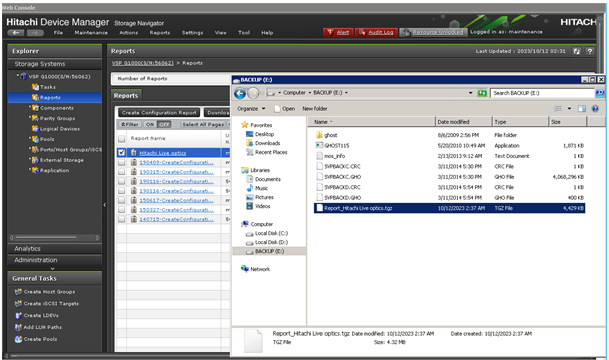
- Extract the compressed report and select the Allconf.csv file to upload.
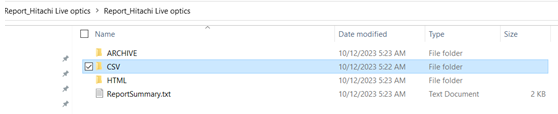

Performance – Collect using Export Dump
NOTE: The Export Tool version MUST match the Hitachi OS version.
- Click Download Script to download a .ZIP file containing the runWin.renametobat (Windows), runUnix.renametobat (Unix), and command_uspv.txt files.
- Rename the files to runWin.bat (Windows) or runUnix.bat (Unix). Save your selected OS file and the command_uspx.txt file to the server running the Hitachi Export Tool.
- In the command_uspx.txt file, update the IP address, user ID, password, and collection period.
- Enable performance monitoring for each device and logical device. See the Hitachi Performance Guide for further information. NOTE: Performance monitoring is disabled by default.
- Install the Export Tool. See the Hitachi Performance Guide for further information.
- Run the Export Tool using the runWin.bat or runUnix.bat script from the Windows or Unix host that has access to the SVP. The Export Tool version must match the SVP microcode version.
Packaging the Data Files
- Identify the location of the export files (C:\export\output*).
- Move the configuration and performance files to a new folder. The files must be in the following formats:
- CSV
- LDEVEachOfCU_dat
- Port_dat
For further information see the Hitachi System Administrator Guide. For issues or assistance, contact Hitachi support.
Additional Information
If you have any questions, please reach out to Live Optics Support at liveoptics.support@dell.com.
Affected Products
LiveOpticsArticle Properties
Article Number: 000297807
Article Type: How To
Last Modified: 11 Apr 2025
Version: 2
Find answers to your questions from other Dell users
Support Services
Check if your device is covered by Support Services.