Avamar: How to Use GoAV Client Windows Avamar Logs Collector Menu
Summary: This article explains how to use the 'goav client winlogs get-logs' command.
This article applies to
This article does not apply to
This article is not tied to any specific product.
Not all product versions are identified in this article.
Instructions
This feature is supported in GoAV version 1.95 and later.
- Download and install the GoAVtool from Avamar: GoAV Product Tool for Management and Troubleshooting
- Once GoAV is placed on Avamar, go to the directory and make the tool executable.
chmod a+x goav
- The
goav client winlogs get-logscommand collects a log bundle (tar.gz file) containing Avamar, and Event Viewer Logs from a Windows Client registered with Avamar Server:
- Avamar logs - Avamar client logs from Avamar Client installation path (Avamar var folder), excluding cache files (*.dat) and some folders like
avfscacheandupdate. - Event Viewer Logs - Event Viewer Logs from the client (in .csv format):
-
- Application Logs
- System Logs
- Virtual Machine Management Service (VMMS) Logs (for Hyper-V Servers)
Client winlogs get-logs command:
Usage:
  goav client winlogs get-logs [flags]

Aliases:
  get-logs, get

Flags:
      --domain string     Domain Name (default "/")
      --fields strings    Fields to display (default [name,domainFqdn,id,enabled,activated,clientType,overtimeOption])
      --filter strings    Filter the result using key,value pair, --filter KEY=VALUE, for example --filter domain=/clients
  -h, --help              help for get-logs
      --name string       Client Name (Partial names are allowed)
      --no-mft            Do not prompt to upload log bundles to Dell MFT site.
      --no-warn           Do not display warning messages and prompts.
      --password string   Password for Dell MFT.
      --recursive         Recursive
      --site string       Domain for Dell MFT.
      --username string   Username for Dell MFT.

Global Flags:
  -d, --debug                debug output
  -f, --force                Ignore Configuration
  -n, --noheader             Do not display header
  -s, --validate-signature   Validate GoAV digital Signature
Usage examples:
The log collection-script warning and Manage File Transfer (MFT) prompt appear when gathering log bundles from /clients/client-1.mydomain.com and saving to /home/admin/goavlogs/ on the Avamar Server. This warning also appears when uploading it to Dell MFT.
./goav client winlogs get-logs --domain /clients --name client-1.mydomain.com


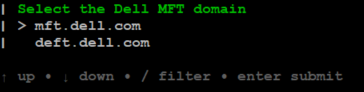
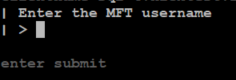
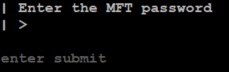
Collect a log bundle from /clients/client-1.mydomain.com and save it to /home/admin/goavlogs/ on Avamar Server (no script and MFT prompts are displayed):
./goav client winlogs get-logs --domain /clients --name client-1.mydomain.com --no-warn --no-mftThe client for which the log set is being collected should be registered with the Avamar Server and be able to connect to Data Domain systems.
If there are any issues using the GoAV tool to collect logs from a Windows client, use Avamar Log collector for Windows client script in Avamar: Avamar Log collector for Windows client
Affected Products
AvamarProducts
Avamar Client for WindowsArticle Properties
Article Number: 000317368
Article Type: How To
Last Modified: 05 Jun 2025
Version: 2
Find answers to your questions from other Dell users
Support Services
Check if your device is covered by Support Services.