Dell Pro Rugged Laptop Does Not Post with LED Blinking Three Amber and Three, Four, or Six Green
Summary: Learn how to recover a Dell Pro Rugged laptop from no post issue.
This article applies to
This article does not apply to
This article is not tied to any specific product.
Not all product versions are identified in this article.
Symptoms
Dell Pro Rugged laptop may not post with LED indicator blinking three amber and three, four, or six green. The computer may have failed to automatically recover during the BIOS recovery process.
Affected Platforms:
- Dell Pro Rugged 13 RA13250
- Dell Pro Rugged 14 RB14250
Cause
The computer hard drive does not contain the required BIOS recovery file named BIOS_CUR.RCV. This file is necessary for BIOS recovery to perform automatic repair. Without it, the computer cannot initiate recovery, resulting in a black screen.
Resolution
Perform the following steps to recover from the issue:
- Refer to How to Download and Install Dell Drivers and Firmware to locate the BIOS version 1.9.0 or later. Click View full driver details at the bottom and expand Available formats. Find the BIOS_IMG.rcv file and copy it to the USB flash drive (formatted in FAT32).
- Ensure that the USB flash drive is properly connected to the computer.
- Press and hold the ESC + CTRL keys and then connect the AC adapter to trigger auto recovery.
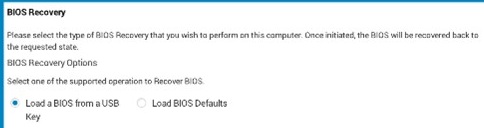
- Select Load a BIOS from a USB Key.
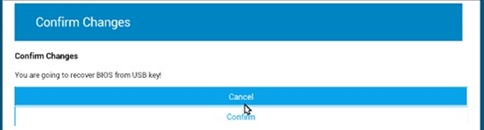
- Press Confirm to recover BIOS from USB key.
- After the update is completed, press F2 during POST to enter Boot Setup and verify that the BIOS version matches the expected version.
Affected Products
Dell Pro Rugged 13 RA13250, Dell Pro Rugged 14 RB14250Article Properties
Article Number: 000381810
Article Type: Solution
Last Modified: 23 Oct 2025
Version: 1
Find answers to your questions from other Dell users
Support Services
Check if your device is covered by Support Services.