Dell Networking MX7000 SmartFabric Automation with OMNI and VMware ESXi
Summary: This article will advise and guide you through the process of setting up OpenManage Network Integration (OMNI) automation between VMware ESXi, and an MX7000 chassis whose networking is managed in a SmartFabric. The article lists basic steps as well as requirements, caveats, and limitations. ...
This article applies to
This article does not apply to
This article is not tied to any specific product.
Not all product versions are identified in this article.
Instructions
Index
Prerequisites:
- Must be using OMNI version 2.0 or greater
- MX system is healthy with no failed components.
- The PowerEdge MX network switches must be configured in SmartFabric mode and operational.
- The entire PowerEdge MX system must be on the MX 1.20.10 baseline or later.
- MX servers that are considered for automation must be deployed through OpenManage Enterprise Modular (OME-M) server profiles.
- The OME-Modular server template should include vCenter infrastructure VLANs such as management and vMotion but not virtual machine VLANs.
- MX servers must have ESXi installed and be connected to the target vCenter.
- Dell Technologies recommends using VMware ESXi version 6.7 and later.
- OMNI must be able to communicate with OME-M and vCenter to provide automation.
- NIC Teaming (LAG mode) configuration in OME-M should match with the Teaming configuration (uplink) in vCenter. If there is a mismatch between OME-M and vCenter configuration, OMNI automation does not publish the port-groups to the IOMs as expected.
- Must NOT be using MX servers with NIC partitioning enabled, with the exception of FCoE or iSCSI storage partitions.
NOTE: These prerequisites are taken from the OMNI User guide, found on the OMNI Support Documentation Page.
Process
Configure and Deploy Server
MX7000 server and switch configurations and deployments are outside of the scope of this document. See Dell PowerEdge MX VMware ESXi with SmartFabric Services Deployment Guide for initial deployment. The details here may touch some aspects, but will only cover options as they are relevant to OMNI automation with an MX7000 SmartFabric.Profiles and Templates
To work with SmartFabric and automation, the server profile (which is derived from a server template) must be applied to a server as opposed to a slot. If deployed to a slot, an error similar to this will be seen for the server in question in the fabric section of the OME-M: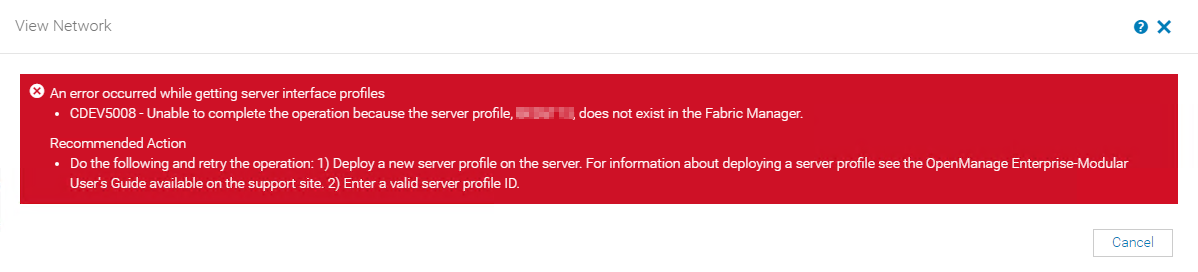
If the profile is assigned to the slot, it must be unassigned and a new profile assigned to the server in that slot. If the server is already deployed, care must be taken to avoid catastrophic changes. Any change to the storage MAY cause the installed operating system to be lost. The following template options can be successfully applied without causing catastrophic changes or loss of stored data: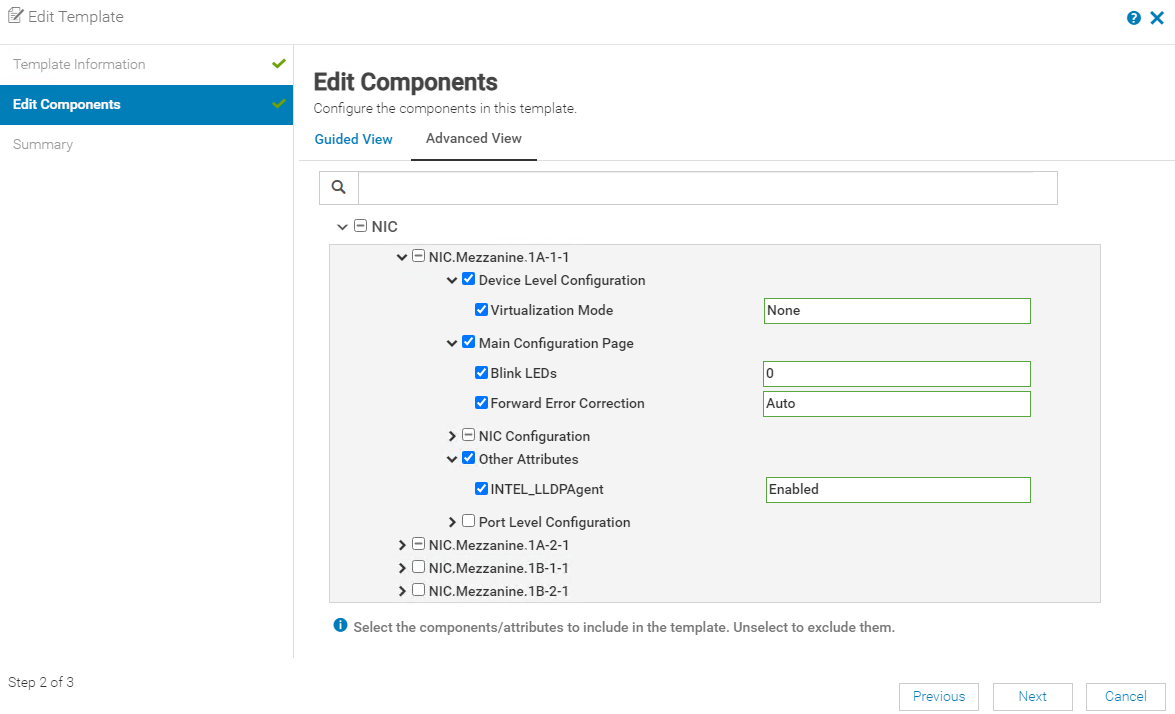
Any additional template options can cause irreversible changes to occur on the server.
Editing Networks
To edit the relevant networks (vlans) applied to the server in the fabric, you must alter the assigned template, which we can discover on the Configuration > Profiles page: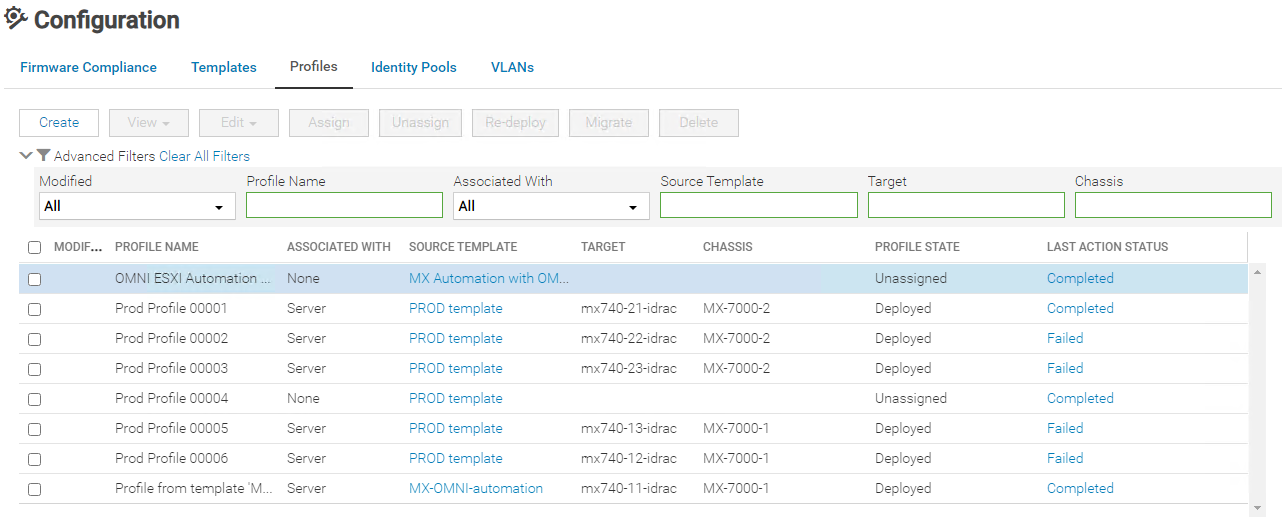
In the example screenshots, mx740-11 is the server being configured. Its source template is "MX-OMNI-automation", so that is where the editing of networks must take place.
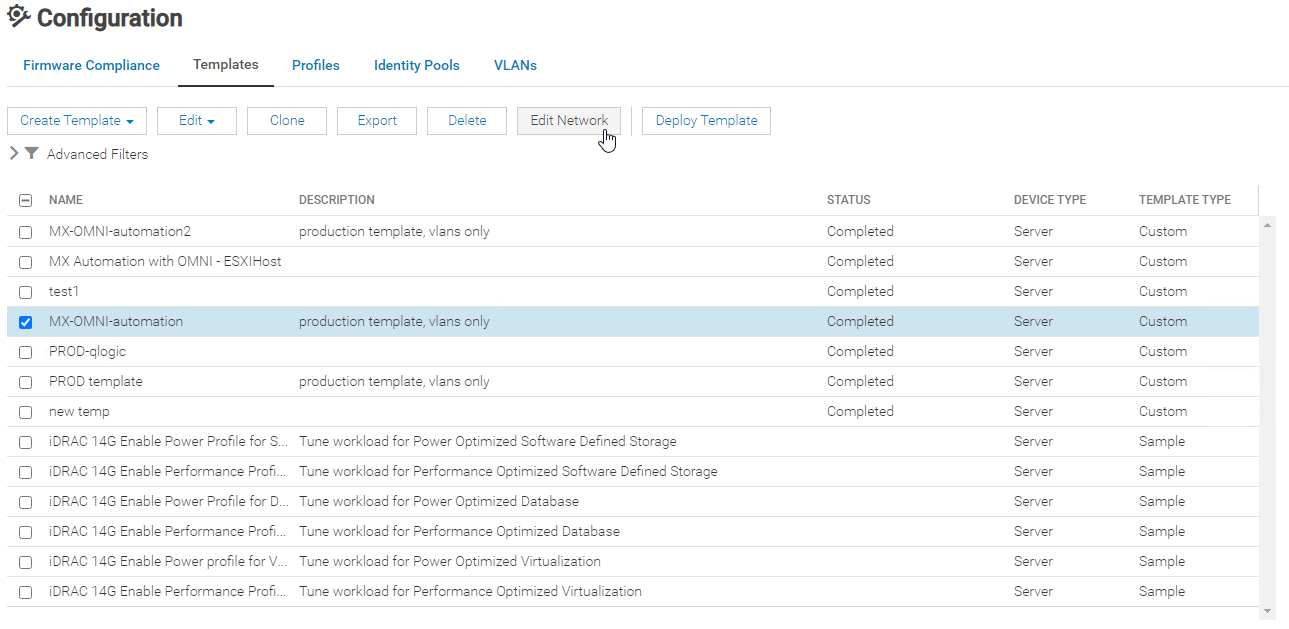
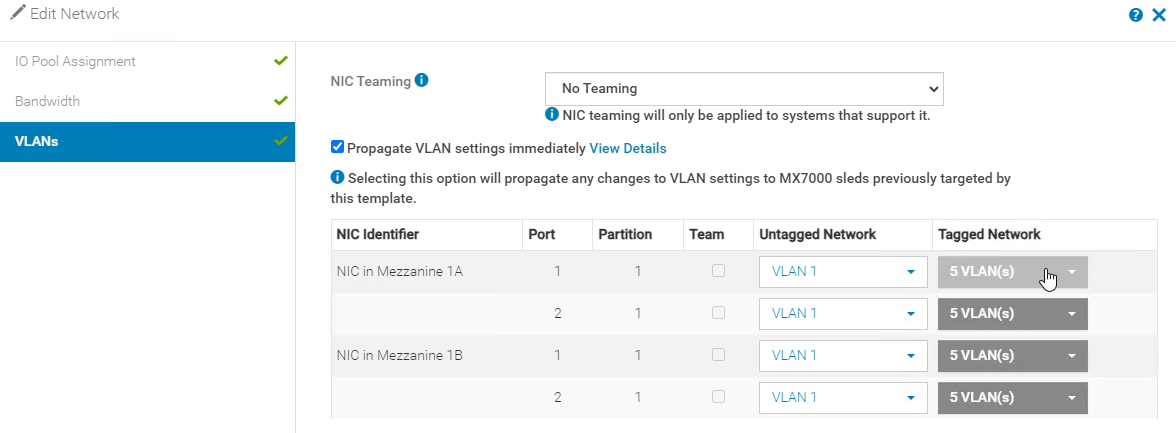
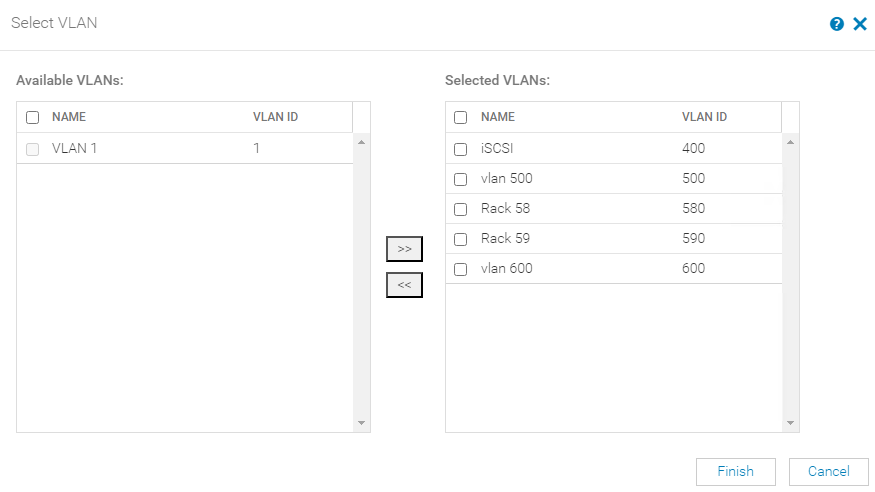
Here we can select the tagged and untagged networks.
Configuring OMNI
Initial deployment of OMNI is outside of the scope of this document. See OMNI Support Documentation for OMNI deployment. The details here may touch some aspects, but will only cover options as they are relevant to OMNI automation with an MX7000 SmartFabric.Adding vCenter
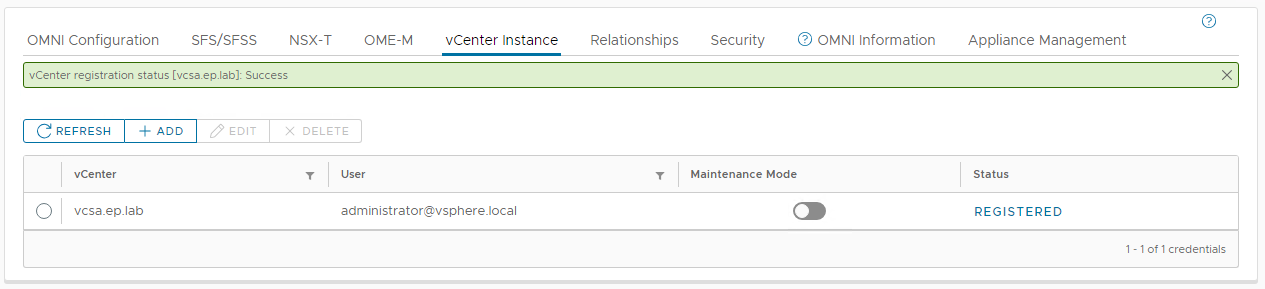
vCenter instances are added in the tab of the same name in the OMNI Fabric Management portal. The relevant vCenter should be added here, and a green "Success" banner should appear if everything is successful.
Adding OME-M
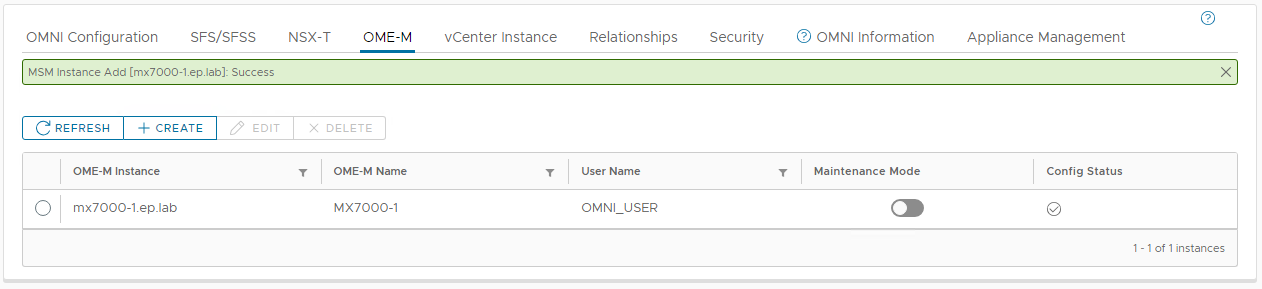
The OME-M instances are added in the tab of the same name in the OMNI Fabric Management portal. The relevant OME-M should be added here, and a green "Success" banner should appear if everything is successful. In a multi-chassis group, this should be the lead chassis.
Verifying Automation
For the automation to work, it is important to match the vlans configured and deployed to the server template with the port-groups present on the distributed virtual switch (dvswitch). The following dvswitch and port-group configuration matches the configuration of the server template shown in the previous section.
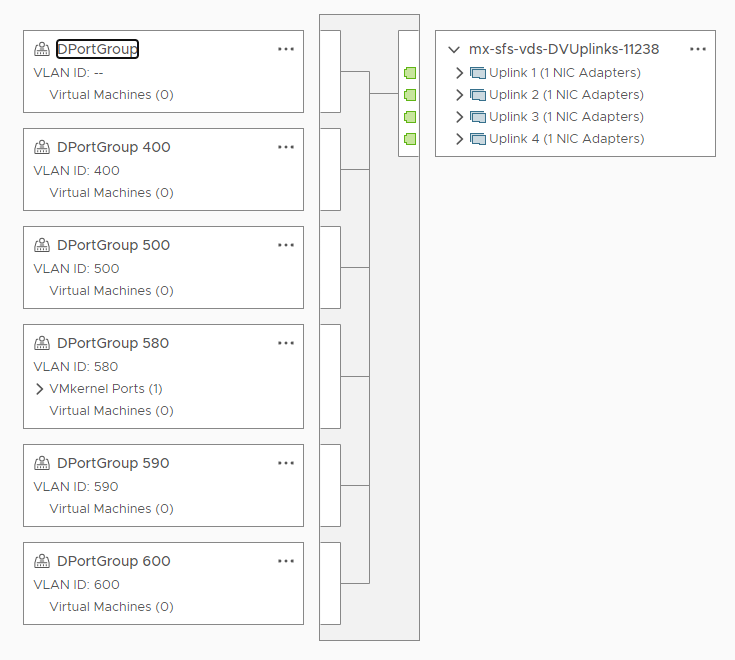
If these do not match, the following message will be seen after attempting to add a new port-group to the dvswitch:
The instructions for adding a vlan to the fabric are found in Dell Networking SmartFabric Services with PowerEdge Servers, PowerStore Storage Appliance, and Isilon Storage.
A successful addition and verification of successful automation:
The automation can be verified in OME-M in the section Configuration > VLANs. Note that networks created by OMNI have a unique name and description in OME-M.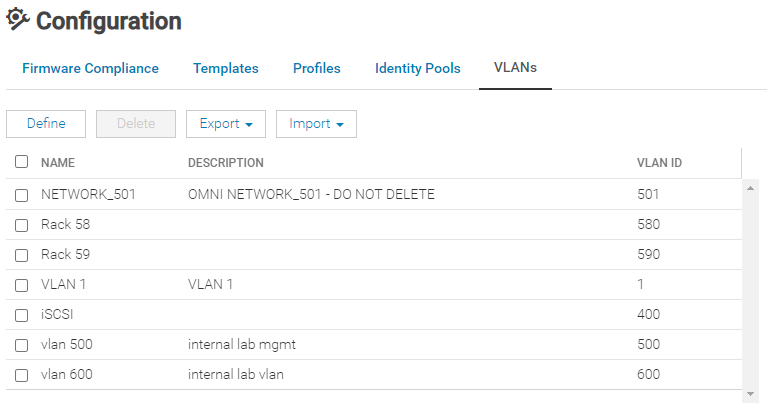
The assignment to the applicable server can be seen in Devices > Fabric > View Details > Servers > View Network. 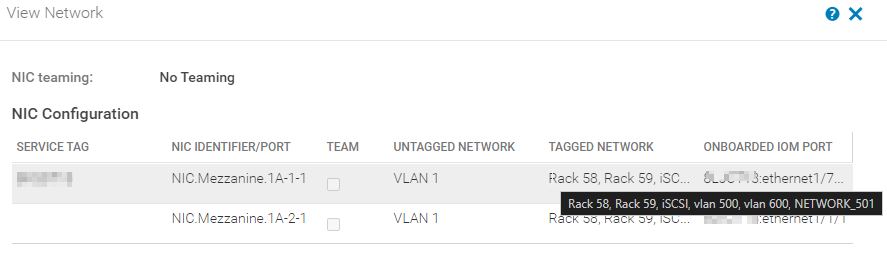
Affected Products
Dell OpenManage Network IntegrationArticle Properties
Article Number: 000222332
Article Type: How To
Last Modified: 18 Feb 2026
Version: 3
Find answers to your questions from other Dell users
Support Services
Check if your device is covered by Support Services.