Alienware or Dell Tower Plus Does Not Display After Changing BIOS Settings
Summary: When Secure Boot is enabled and Secure Boot Mode is set to Audit, the Alienware or Dell Tower Plus does not display on-screen.
Symptoms
When Secure Boot is enabled, Enable Custom Mode is set to On, and Secure Boot Mode is set to Audit in the BIOS Setup, there is no display. The keyboard still functions, but nothing is seen on-screen.
Affected Platforms:
- Alienware Area-51 AAT2250
- Alienware Aurora ACT1250
- Dell Tower Plus EBT2250
Cause
The computer displays a warning message when enabling Custom Mode:
WARNING: Enable Custom Mode
Modifying Secure Boot Databases could render your system unable to boot. System graphics may not function. Some devices might not function properly. The system could become unrecoverable.
Are you sure you want to enable Custom Mode?
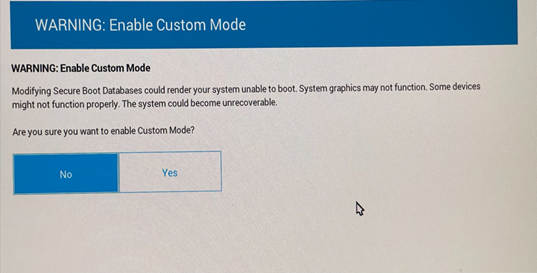
After Enable Custom Mode is set to On, the discrete graphics card image is removed and is prevented from displaying. This is expected behavior.
Resolution
Connect the monitor to the Thunderbolt port and then boot to BIOS Setup. Select Reset All Keys, set Enable Custom Mode to Off, then save and exit the BIOS. The monitor displays again after reconnecting it to the discrete graphics card.