PowerFlex 3.X: How to Perform a Clean Shut Down or Power on for System
Summary: This article explains the procedure to perform a clean Shut Down or Startup of a PowerFlex system running in ESXi or Two Tier Environment.
This article applies to
This article does not apply to
This article is not tied to any specific product.
Not all product versions are identified in this article.
Instructions
This procedure outlines how to perform a clean power off or power on in a PowerFlex HCI and Two-Tier environment.
Note: All VMs and applications using PowerFlex Storage must be gracefully shut down prior to Protection Domain Inactivation. The exception is Storage Virtual Machines which stay running until the end of the Shutdown steps.
Shutdown Steps:
PowerFlex CLI:- Verify Clients or SDC's activity:
ScaleIO-:~ # scli --query_all_sdc
MDM restricted SDC mode: Disabled
Query all SDC returned 3 SDC nodes.
SDC ID: bb292e1300000000 Name: ESX-10.1.2.33 IP: 10.1.2.33 State: Connected GUID: 9126907D-8830-44BC-8ECE-178852394E76
    Read bandwidth:  0 IOPS 0 Bytes per-second
    Write bandwidth:  0 IOPS 0 Bytes per-second
SDC ID: bb292e1400000001 Name: ESX-10.1.2.34 IP: 10.1.2.34 State: Connected GUID: 500D185D-E0F6-4257-9C24-65BCAAC5B50B
    Read bandwidth:  0 IOPS 0 Bytes per-second
    Write bandwidth:  0 IOPS 0 Bytes per-second
SDC ID: bb29552300000002 Name: ESX-10.1.2.35 IP: 10.1.2.35 State: Connected GUID: CF3CA597-BD9A-46E5-A08F-F6BBB9433A83
    Read bandwidth:  0 IOPS 0 Bytes per-second
    Write bandwidth:  0 IOPS 0 Bytes per-second
- Verify system health using CLI or UI:
PowerFlex CLI:
watch -n 1 "scli --query_all | grep 'capacity\|IOPS'"

 Maximum capacity: Unlimited
        24.5 TB (25087 GB) total capacity
        15.8 TB (16157 GB) unused capacity
        0 Bytes snapshots capacity
        400.0 GB (409600 MB) in-use capacity
        0 Bytes thin capacity
        400.0 GB (409600 MB) protected capacity
        0 Bytes failed capacity
        0 Bytes degraded-failed capacity
        0 Bytes degraded-healthy capacity
        0 Bytes unreachable-unused capacity
        0 Bytes active rebalance capacity
        0 Bytes pending rebalance capacity
        0 Bytes active fwd-rebuild capacity
        0 Bytes pending fwd-rebuild capacity
        0 Bytes active bck-rebuild capacity
        0 Bytes pending bck-rebuild capacity
        0 Bytes rebalance capacity
        0 Bytes fwd-rebuild capacity
        0 Bytes bck-rebuild capacity
        0 Bytes active moving capacity
        0 Bytes pending moving capacity
        0 Bytes total moving capacity
        8.3 TB (8529 GB) spare capacity
        400.0 GB (409600 MB) at-rest capacity
        0 Bytes decreased capacity
        Primary-reads                            0 IOPS 0 Bytes per-second
        Primary-writes                           0 IOPS 0 Bytes per-second
        Secondary-reads                          0 IOPS 0 Bytes per-second
        Secondary-writes                         0 IOPS 0 Bytes per-second
        Backward-rebuild-reads                   0 IOPS 0 Bytes per-second
        Backward-rebuild-writes                  0 IOPS 0 Bytes per-second
        Forward-rebuild-reads                    0 IOPS 0 Bytes per-second
        Forward-rebuild-writes                   0 IOPS 0 Bytes per-second
        Rebalance-reads                          0 IOPS 0 Bytes per-second
        Rebalance-writes                         0 IOPS 0 Bytes per-second
Note: An indication that the system is idle would be zero IOPS or zero bytes per second.
3.0 UI:
System Activity and Data Availability can be seen in the UI As well:
System Activity and Data Availability can be seen in the UI As well:
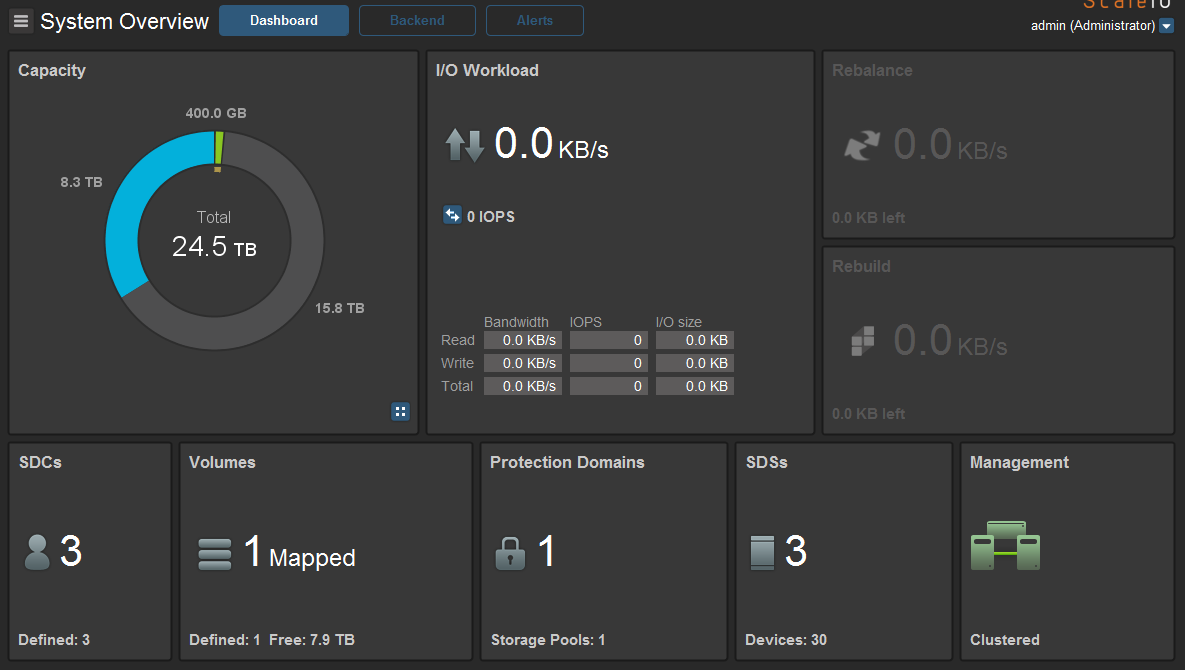
Note: An indication of a system being idle and healthy is zero IOPS or zero bytes per second.
3.5+ Presentation Server:
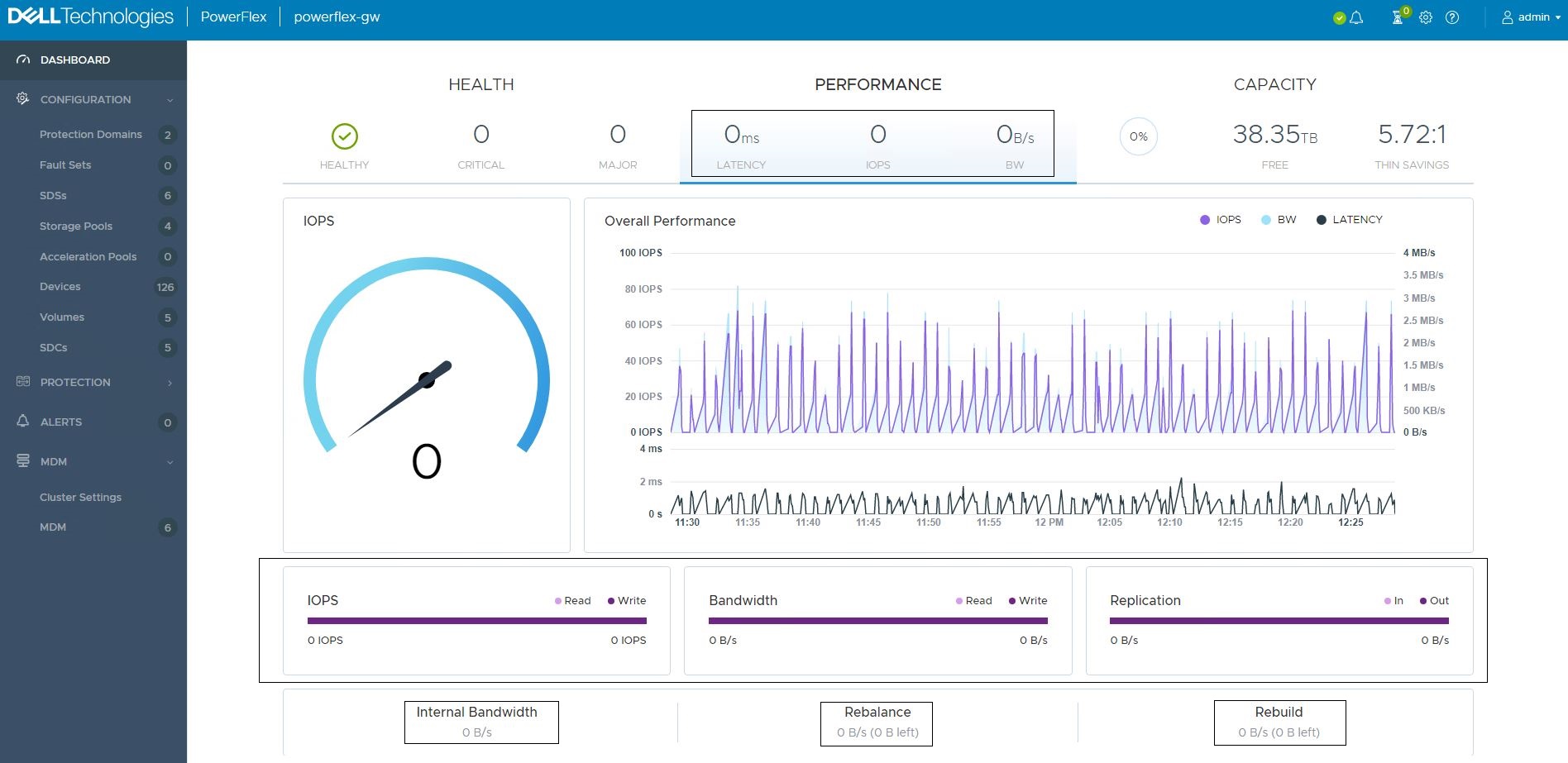
- Shut down all the Virtual machines except for the SVMs.
- Unmount the relevant datastores.
Note: If this step was not successful for any reason, go to the next steps. When remounting the datastores after rescanning the datastores, it should be successful. If not, then a reboot of the host resolves any datastores mounting issues.
On PowerFlex:
- Unmap volumes from SDCs.
Note: If all volumes are not mapped to all SDCs, ensure to note SDC <-> Volume mapping prior to proceeding with this step.
- Inactive the protection domain using CLI or UI:
Note: Inactivating a protection domain causes all IOPS to stop (requires downtime)
CLI:
ScaleIO:~ # scli --inactivate_protection_domain --protection_domain_name PD00
All application IOs will not be serviced. Press 'y' to confirm.
Protection Domain PD00 is being shutdown asynchronously
Please wait for the operational state of the Protection Domain to become 'Inactive'
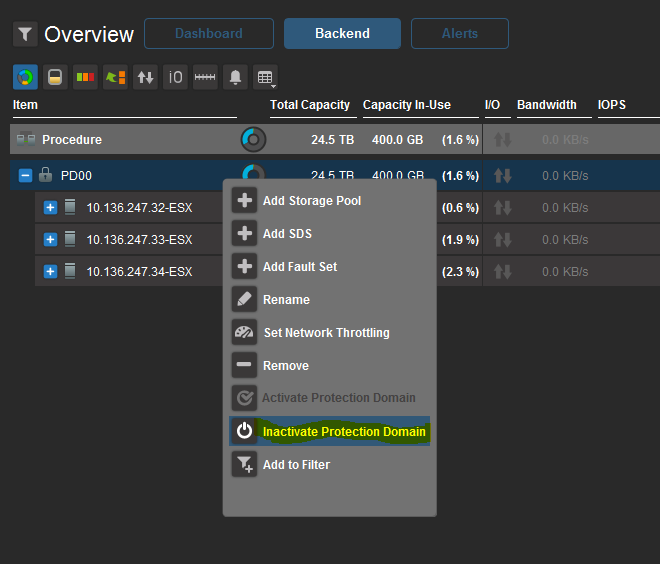
3.0 UI:
Right click Protection Domain (on Backed Section) > choose Inactivate Protection Domain, then Confirm Operation with Password.
3.5+ Presentation Server:
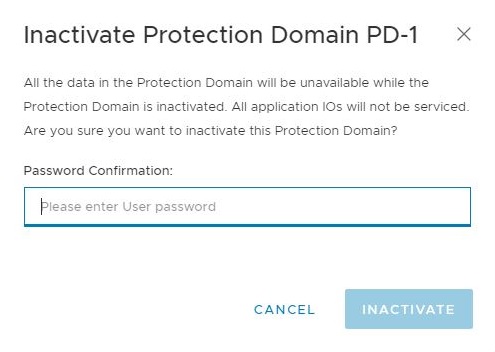
Click Protection Domains > click the checkbox to select the Protection Domains associated with the system being turned off > click More > click Inactivate.

Confirm that you want to Inactivate a Protection Domain by entering the Password > click INACTIVATE.
- Validate that the Protection Domain has been deactivated:
ScaleIO:~ # scli --query_protection_domain --protection_domain_name PD00 | grep Oper
Operational state is Inactive
On ESXi:
- Shut down SVMs with the SDS Only role but first make note of the SVM names that host the MDM role, then shut down the remaining SVMs with MDM/SDS Role.
- Place all ESXi hosts in the cluster into maintenance mode and shutdown the physical hosts.
The HCI storage and compute components should be fully shut down.
Two-Tier Shut Down Process.
Compute Only Layer:
- Shutdown all the Virtual machines in the compute cluster that consumes PowerFlex storage.
- Unmount all the relevant PowerFlex datastores. See VMware article VMware vSphere 7.0 Storage
for assistance.
- Place ESXi hosts into maintenance mode and shutdown
- All I/O should be stopped from the compute to the storage backend. See Step 1 and 2 at the beginning of the article to validate.
- Set the Protection Domain to Inactive.
- Log in to the Primary MDM and run:
scli --query_cluster.
- Make note of the hostnames and role. You require this information for the start up order procedure.
- Shut down all SO nodes with SDS only role first.
- Shut down the SO nodes with the TB role.
- Shut down the SO nodes with the Secondary MDM role.
- Shut down the SO node that holds the Primary MDM role.
The storage and compute component tiers should be fully shut down.
Two-Tier Power On Steps:
See HCI Power On Steps for SDC and Volume Rescan examples.
On Storage Only Layer:
- Power on the SO node that holds the Primary MDM role.
- Power on the SO nodes with the Secondary MDM role
- Power on the SO nodes with the TB role
- Power on all SO nodes with SDS only role
- Activate the Protection Domain.
Compute Only Layer:
- Power on all compute hosts and exit ESXi Maintenance Mode
- Mount the PowerFlex Volumes to the ESXi hosts. See VMware article VMware vSphere 7.0 Storage
- Power on the compute hosted VMs.
HCI Power On Steps:
On ESXi:
- Power on all ESXi hosts and exit maintenance mode.
- Power on all five of the SVMs with the MDM role first. Then Power on the remaining SVMs with SDS Only role.
On PowerFlex:
- Verify system health and ensure all PowerFlex system components are up and running using CLI.
SDSs:
ScaleIO-10-136-243-8:~ # scli --query_all_sds
Query-all-SDS returned 3 SDS nodes.
Protection Domain 9d4a73f100000000 Name: PD00
SDS ID: a764dbaf00000002 Name: 10.136.247.32-ESX State: Connected, Joined IP: 10.10.10.132,10.10.100.132 Port: 7072
SDS ID: a764b4a000000001 Name: 10.136.247.34-ESX State: Connected, Joined IP: 10.10.10.134,10.10.100.134 Port: 7072
SDS ID: a764b49f00000000 Name: 10.136.247.33-ESX State: Connected, Joined IP: 10.10.10.133,10.10.100.133 Port: 7072
SDCs:
ScaleIO-10-136-243-8:~ # scli --query_all_sdc
MDM restricted SDC mode: Disabled
Query all SDC returned 3 SDC nodes.
SDC ID: bb292e1300000000 Name: ESX-10.136.247.33 IP: 10.10.100.33 State: Connected GUID: 9126907D-8830-44BC-8ECE-178852394E76
    Read bandwidth:  0 IOPS 0 Bytes per-second
    Write bandwidth:  0 IOPS 0 Bytes per-second
SDC ID: bb292e1400000001 Name: ESX-10.136.247.34 IP: 10.10.100.34 State: Connected GUID: 500D185D-E0F6-4257-9C24-65BCAAC5B50B
    Read bandwidth:  0 IOPS 0 Bytes per-second
    Write bandwidth:  0 IOPS 0 Bytes per-second
SDC ID: bb29552300000002 Name: ESX-10.136.247.32 IP: 10.10.10.32 State: Connected GUID: CF3CA597-BD9A-46E5-A08F-F6BBB9433A83
    Read bandwidth:  0 IOPS 0 Bytes per-second
    Write bandwidth:  0 IOPS 0 Bytes per-second
- Activate the Protection Domain:
PowerFlex CLI:
ScaleIO-10-136-243-8:~ # scli --activate_protection_domain --protection_domain_name PD00
Protection Domain PD00 is active
3.0 UI:
- Right click Protection Domain (on Backed Section) > choose Activate Protection Domain
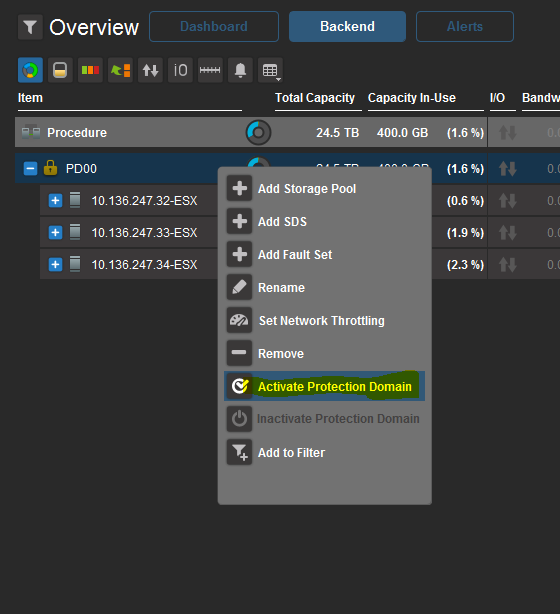
- Confirm Operation with Password
3.5+ Presentation Server:
- Click Protection Domains > click the checkbox to select the Protection Domains associated with the system being powered on > click More > click Activate.

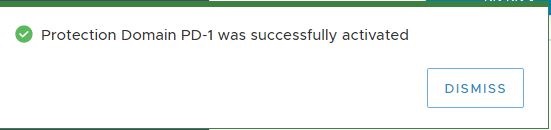
- Validate Protection Domain state:
ScaleIO-10-136-243-8:~ # scli --query_protection_domain --protection_domain_name PD00 | grep -i Oper
Operational state is Active
- Map all volumes (ensure that you follow the notes taken prior to the unmap, if all volumes were not mapped all to SDCs)
- Mount the relevant datastores.
- Verify Clients and SDC's connection state
Note: When a full system reboot is done, the VMs hosted on the PowerFlex volumes are in an inaccessible state. To regain full access to the datastores, perform a datastore rescan using the UI or vSphere Client or ESXCLI. If not successful, then a reboot of the host resolves any datastores mounting issues.
UI or vSphere Client:
- Right click the Cluster Level or Data Center Level > Storage > Rescan Storage.
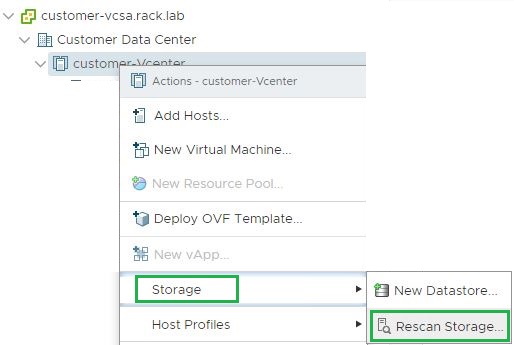
- Both check boxes are selected by default. Click OK
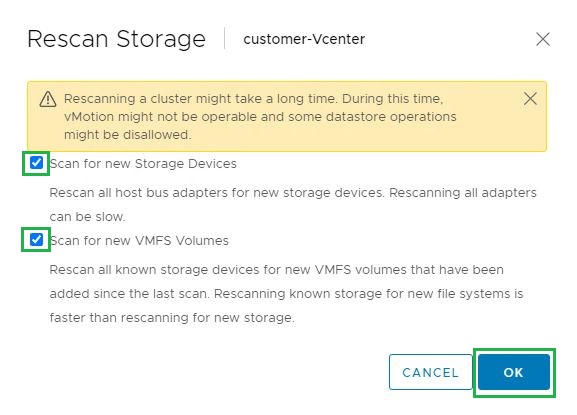
ESXCLI:
~ # esxcli storage filesystem rescan
~ # esxcli storage filesystem list
Mount Point                                        Volume Name   UUID                                 Mounted  Type            Size          Free
-------------------------------------------------  ------------  -----------------------------------  -------  ------  ------------  ------------
/vmfs/volumes/56b34f54-26baa940-9c22-90e2ba7db974  datastore1    56b34f54-26baa940-9c22-90e2ba7db974     true  VMFS-5  890937278464  869082857472
/vmfs/volumes/56b88587-b128dfa0-bae3-90e2ba7db974  Scaleio-VOL0  56b88587-b128dfa0-bae3-90e2ba7db974     true  VMFS-5  214479929344  159767330816
/vmfs/volumes/56b34f59-17132a1c-c5ab-90e2ba7db974                56b34f59-17132a1c-c5ab-90e2ba7db974     true  vfat      4293591040    4283039744
/vmfs/volumes/8c458879-8851767e-1bfc-1bc275a81828                8c458879-8851767e-1bfc-1bc275a81828     true  vfat       261853184      96518144
/vmfs/volumes/4291fa71-b2e69ac1-2a3d-467dc1160ff0                4291fa71-b2e69ac1-2a3d-467dc1160ff0     true  vfat       261853184      96346112
/vmfs/volumes/56b34f44-ee30fc1f-8426-90e2ba7db974                56b34f44-ee30fc1f-8426-90e2ba7db974     true  vfat       299712512      96813056
The PowerFlex Rack or Appliance Compute and Storage should be fully operational. You can proceed with Virtual Machine Power On.
Products
PowerFlex rack, VxFlex Ready Nodes, PowerFlex custom node, PowerFlex appliance R650, PowerFlex appliance R6525, PowerFlex appliance R760, PowerFlex appliance R640, PowerFlex appliance R740XD, PowerFlex appliance R7525, PowerFlex appliance R840Article Properties
Article Number: 000021739
Article Type: How To
Last Modified: 10 Oct 2025
Version: 12
Find answers to your questions from other Dell users
Support Services
Check if your device is covered by Support Services.