ECS: PowerScale: CloudPools performance issues
Summary: Configure ECS and PowerScale (formally Isilon) to use Virtual Style addressing and get better performance.
Symptoms
When ECS is not configured with a Virtual IP and virtual style addressing, there is a potential issue that can cause slow transfer speeds.
CloudPools supports both styles of bucket addressing (Virtual Style Addressing, Path Style Addressing), however, always tries virtual-style addressing first.
Cause
The way that PowerScale and CloudPools read their stored data is in 1MB fragments.
When doing reads for a file larger than 1MB they fetch these fragments serially and every ninth fragment is a 168-Byte Header file that contains.
The issue arises when they are making several thousand or hundreds of thousands of these requests. That serially the inherent overhead in making an S3 request adds up to make the file retrieval and transfer rates slow.
Since it attempts to use virtual style addressing first it can cause a delay between requests if it is not configured to use virtual style addressing.
Resolution
Prologue:
- VIP = "Virtual IP (VIP) is the load-balancing instance where the world points its browsers to get to a site. A VIP has an IP address, which must be publicly available to be usable. Usually a TCP or UDP port number is associated with the VIP, such as TCP port 80 for web traffic. A VIP has at least one real server assigned to it, to which it dispenses traffic."
- CP = CloudPools
- DNS RR = DNS Round Robin
- CNAME = A Canonical Name record is a type of resource record in the Domain Name System which maps one domain name to another, referred to as the Canonical Name. This can prove convenient when running multiple services from a single IP address.
The following is needed when setting up virtual style addressing with a short base URL:
- VIP of load-balancer used in CP setup (or VIP of DNS RR)
- Wildcard CNAME entry in DNS for load-balancer VIP so that bucket-name.loadbalancer-fqdn.emc.com resolves any PowerScale CP bucket name resolves to the VIP of the load-balancer (or DNS RR)
- CNAME entry for loadbalancer.emc.com
- Base URL of VIP configured in ECS UI
Virtual Host Style Addressing (Recommended for CloudPools):
In the virtual host addressing scheme, the bucket name appears in the hostname. For example, the bucket called "mybucket" on host ecs1.yourco.com, would be accessed using:
http://mybucket.ecs1.yourco.com
In addition, ECS also allows the inclusion of a namespace in the address. For example:
<bucketname>.<namespace>.ecs1.yourco.com
To use this style of addressing, you must configure ECS so that it knows which part of the URL is the bucket name. This is done by configuring the Base URL. In addition, you must ensure that your DNS system can resolve the address. The following sections provide more information:
Path Based Addressing:
In the path-based addressing scheme, the bucket name is added to the end of the path. For example:
ecs1.yourco.com/mybucket
When including a namespace, use the following format:
ecs1.yourco.com/mynamespace/mybucket
Part 1: DNS Configuration:
When accessing ECS storage using the S3 service, ensure that the URL resolves the address of the ECS data node, or the load balancer.
Where your application is using virtual host style addressing, the URL includes the bucket name and can include a namespace. Under these circumstances, you must ensure that you include a DNS entry that resolves the virtual host style address. You can do this by using a wildcard in the DNS entry.
For example, if your application issues requests in the form bucket.ecs.example.com, you must have two DNS CNAME entries.
*.cloudpools_uri.example.com - This wildcard CNAME allows DNS to resolve our requests that have the bucket name in the URL. (This is what CloudPools uses by default)
cloudpools_uri.example.com - This CNAME will allow the basename to be resolved after ECS determines which part of the request is the bucket and or namespace.
ecs-loadbalancer.example.com - This should be an existing A record in your environment for the FQDN of your LoadBalancer, GTM, or RoundRobin DNS.
NAME                    TYPE   VALUE
--------------------------------------------------
*.cloudpools_uri.example.com       CNAME  ecs-loadbalancer.example.com
cloudpools_uri.example.com         CNAME  ecs-loadbalancer.example.com

ecs-loadbalancer.example.com        A      192.0.2.23
These entries allow the base name to be resolved when issuing service-level commands (list buckets) and the virtual host style bucket address to be resolved.
Part 2: Configuring the base URL in the ECS UI:
If you have an S3 application that uses virtual host style addressing and you want to use it to connect to ECS, the Base URL must be set to enable ECS to know which part of the address refers to the bucket and, optionally, namespace. The Base URL can be set using the ECS Portal, or using the ECS Management REST API, and requires the ECS System Administrator role.
The Base URL Management page shows the Base URLs that have been created and how ECS should use the them.
Settings > Object Base URL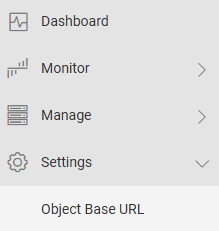

In order that ECS knows how to treat the bucket location prefix, the Base URL must be configured by choosing one of the following options.
- Use Base URL with namespace
- Use Base URL without namespace
When processing a request, ECS will:
- Try to extract namespace from the x-emc-namespace header. If found, skip the steps below and process the request.
- Get the hostname of the URL from the host header and check if the last part of the address matches any of the configured Base URLs.
- Where there is a Base URL match, use the prefix part of the hostname (the part left when the Base URL is removed), to obtain the bucket location.
The following examples demonstrate how ECS handles incoming HTTP requests with different structures.
Example Base URL without namespace:
Name:                  Example_BASEURL
BaseURL:               cloudpools_uri.example.com
Use with Namespace:    No
This allows it to determine which part of the request is the bucket name. Below is an example request:
d0007430acf369abf0d5681089a1a96abc8fdi16.cloudpools_uri.example.com
If you configure it with a namespace, it looks back one more subdomain to determine the namespace and bucket.
Adding the Base URL in ECS:
- This operation requires the system admin role in ECS.
- You must ensure that the domain specified in a request that uses a URL to specify an object location resolves to the location of the ECS data node or a load balancer that sits in front of the data nodes.
Procedure:
- At the ECS Portal, select Settings > Object Base URLs.
- Select New Base URL.
The New Base URL page is displayed.
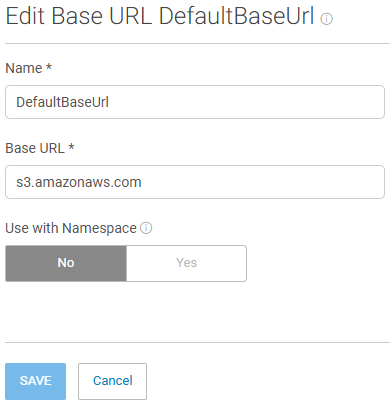
- Enter the name of the Base URL. This provides additional information about the base URL when looking at the base URL table.
- Enter the Base URL.
If your objects location URLs are in the form: d0007430acf369abf0d5681089a1a96abc8fdi16.cloudpools_uri.example.com, the base URL would be cloudpools_uri.example.com.
You can specify which format in the namespace selector. - Choose the format in which your object address is encoded in the URL: With a namespace or without a namespace
- Select Save.
Part 3: Configuring the URI for CloudPools:
Finally we must set the proper URI in the CloudPools configuration. You may already have the URI configured properly, but now is the time to check.
The URI should be the CNAME we setup in Part 1 that points to your Load Balancer, GTM, or Round Robin.
Your URI is:
cloudpools_uri.example.com
Optionally you can put a port number like so, but it is not required:
cloudpools_uri.example.com:9020

cloudpools_uri.example.com:443
Do not add any prefix "subdomain" to the base URL while configuring the cloud account.
For example, do not configure the cloud account using URI http://powerscale.cloudpools_uri.example.com:9020
The exception would be when PowerScale is the namespace on ECS and in the previous step Part 2, you checked "Use base URL with namespace"
Part 4: Verifying CloudPools is properly using the new configuration.
If you need assistance with any of these steps, open a service request with either the PowerScale or ECS support team.
IP of our Load Balancer = 192.0.2.12
IP of our DNS = 192.0.2.53
IP of ECS = 192.168.219.254
IP address of our PowerScale = 192.0.2.70
- Check that your DNS is resolving the wildcard properly, it should resolve to the IP of your VIP or LB.
admin@:> nslookup TEST.cloudpools-uri.example.com
Server:         192.0.2.53
Address:        192.0.2.53#53

TEST.cloudpools-uri.example.com    canonical name = ecs-loadbalancer.example.com
Name:   ecs-loadbalancer.example.com
Address: 192.0.2.12
- Check that your DNS is resolving the base properly, it should resolve to the IP of your VIP or LB.
admin@:> nslookup cloudpools-uri.example.com
Server:         192.0.2.53
Address:        192.0.2.53#53

cloudpools-uri.example.com    canonical name = ecs-loadbalancer.example.com
Name:   ecs-loadbalancer.example.com
Address: 192.0.2.12
- Verify that your CloudPools URI is set properly.
- Verify the Base URLS you configured in the ECS UI.
- Start a CloudPools Job on the PowerScale.
Note the time in UTC when the job was created and when the job was completed. - From ECS CLI, verify that the requests are issuing properly and there are no errors using the times we gathered in step 5:
Use svc_request to look at the requests for that time period:
svc_request -start "2018-09-05T18:22:53" -stop "2018-09-05T18:36:05" -t HEAD summary
Example output where it fails to use Virtual style addressing and reverts to path style (If you see this open a service-request and reference this KB):
- You can see the first two requests from the CloudPools Job using the virtual style addressing getting an HTTP 403 response. - purple highlight
- Then the second two requests reverting to the path style addressing - blue highlight
- Example of what requests should look like - green highlight
admin@> svc_request -start "2025-09-05 T18:22:53" -stop "2025-09-05 18:36:05" -t HEAD summary
svc_request v0.0.10 (svc_tools v1.0.0)                 Started 2018-09-05 18:54:12


Time range:  2018-09-05 18:22:53 - 2018-09-05 18:36:05
Running against node(s): <All nodes>
Request Type: HEAD
                                                                                                                              Resp
                                                                                                                  Node             Time                Request ID                         Prot  Type  MPU   Client IP        Status (bytes)     (ms)     URL
169.254.1.2      2025-09-05 18:34:07   0aa18451:1641e1e6334:565b3:3f      s3    HEAD  -     192.0.2.70       403    0           3        //d0007430acf369abf0d5681089a1a96abd8fdi16.cloudpools-uri.example.com/
169.254.2.3      2025-09-05 18:34:07   0aa1845a:1641e1ded8e:55d9f:77      s3    HEAD  -     192.0.2.70       403    0           3        /m0007430acf369abf0d5681089a1a96abd8fdi16.cloudpools-uri.example.com/

169.254.1.1      2025-09-05 18:34:12   0aa18450:1641e1dea6e:56189:5       s3    HEAD  -     192.0.2.70       200    0           6        d000e1e56aa209c8e7558b30d6d368c1a7b95i1/
169.254.1.1      2025-09-05 18:34:12   0aa18450:1641e1dea6e:56181:4d      s3    HEAD  -     192.0.2.70       200    0           3        m000e1e56aa209c8e7558b30d6d368c1a7b95i1/