Troubleshooting Shield Protected Status
Summary: Overview of the protected calculation for shield and how to identify the cause for a device showing unprotected.
Instructions
Affected Products:
- Dell Encryption
- Dell Security Management Server
- Dell Security Management Server Virtual
- Dell Data Protection | Encryption
- Dell Data Protection | Enterprise Edition
- Dell Data Protection | Virtual Edition
To identify why an endpoint is not showing as protected in the Dell Security Management Server (formerly Dell Data Protection | Enterprise Edition) console, we must determine what type of issue the endpoint has. In general, there are three types of issues that cause an endpoint to not show protected:
- Client Communication Issues - Such as incorrect Shield configuration, restrictive firewall rules, and misconfigured DNS.
- Server Side Inventory Processing Issues - Such as inventory parse errors, database settings errors, and communication issues between services.
- Protected Status Calculation Issues - Such as missing or incomplete device sweep times, missing or incomplete user sweep times, and updated or incorrect policy
Client Communication Issues
One of the most common causes of an endpoint not showing protected is an error in the Shield when communicating to the Policy Proxy service. This is often the result of misconfiguration on the Shield or an error in the Policy Proxy service.
The quickest way to identify a communication issue is through the Remote Management Console from the States section in the Details & Actions tab on the endpoint details page. To go to the States section from the Remote Management Console login page:
- Click the Populations link.
- Click the Endpoints link.
- From the Endpoints section, click the link for the specific endpoint in question.
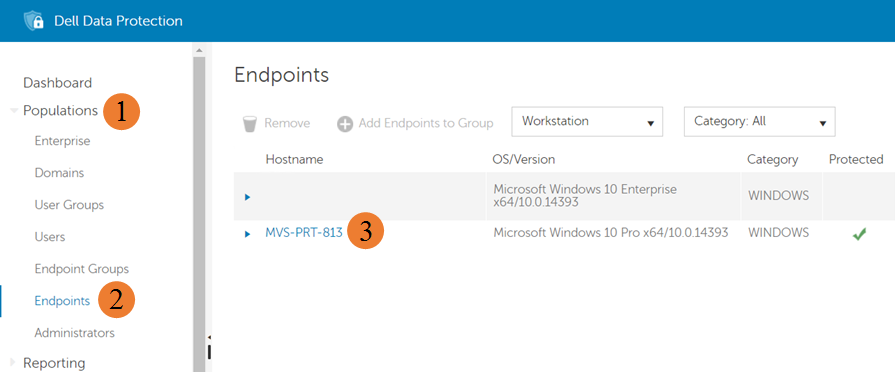
Figure 1: (English Only) Endpoint Details
- From the specific endpoint page, click the Details & Actions tab.
- Scroll down within the Details & Actions tab to the States section.
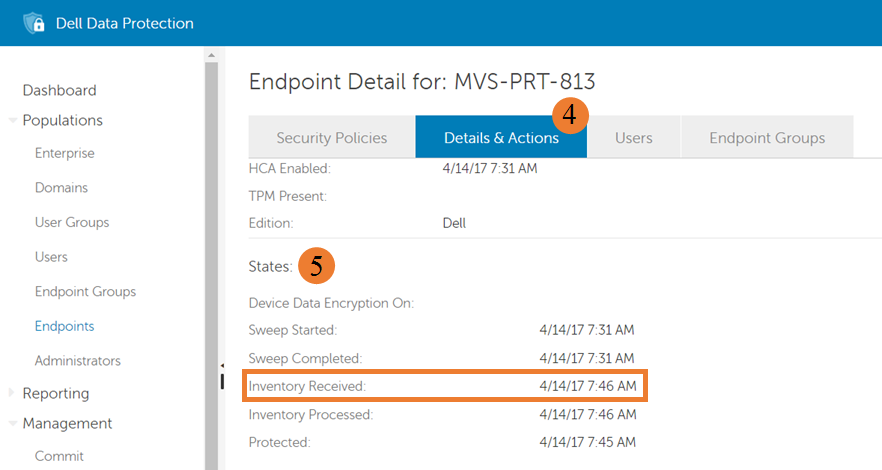
Figure 2: (English Only) Inventory Received
The Inventory Received field, highlighted above, indicates the last time that an inventory was received from the client and inserted into the database inventory queue table for processing. If there is no date present, or a date is present and it is not current, there is likely an issue with communications between the Shield and the Policy Proxy service.
The following examples show a subset of log messages for a successful communication from the Shield to the Policy Proxy service and an unsuccessful communication from the Shield to the Policy Proxy service. These examples are not comprehensive and are included to help provide a starting point at which to begin researching communication issues from the client side. By default, the shield log is at C:\ProgramData\Dell\dell data protection\Encryption\CMGShield.log.
Successful communication
The following messages are part of the set of messages output to the Shield log during a successful communication with the Policy Proxy.
PolicyGrabber: 680 H] Upload Inventory: Begin

PolicyGrabber: 755 H] Upload Inventory: Contacting GK at Host = serverName, IP = serverIP, Port = 8000

CMLNetEx: 118 I] Connect - Connected to host successfully

PolicyGrabber: 929 H] Upload Inventory: done (Result = 1).
Unsuccessful communication
The following Shield log messages are examples of unsuccessful attempts.
PolicyGrabber: 420 I] Policy Poll: Begin

PolicyGrabber: 451 H] Policy Poll: Attempt to contact Gatekeeper at Host = serverName, IP = serverIP, Port = 8001

CMLNetEx: 81 E] Connection to the host failed. (error = 10060)

PolicyGrabber: 512 I] Policy Poll: Attempt 1 of 3 to connect and retrieve policy FAILED.

CMLNetEx: 81 E] Connection to the host failed. (error = 10060)

PolicyGrabber: 512 I] Policy Poll: Attempt 2 of 3 to connect and retrieve policy FAILED.

CMLNetEx: 81 E] Connection to the host failed. (error = 10060)

PolicyGrabber: 512 I] Policy Poll: Attempt 3 of 3 to connect and retrieve policy FAILED.
The most common cause of communications issues between the Shield and Policy Proxy service is misconfiguration of the Shield. The following Shield settings are configured at installation and are the default settings that control the server and port to which the Shield connects to send inventory information. These settings are not comprehensive and, depending on the environment setup, may not change the location to which the Shield attempts to connect. If the example settings are correct or modifying them does not resolve the issue, contact Dell Data Security ProSupport.
Default configuration settings
HKEY_LOCAL_MACHINE\SOFTWARE\Microsoft\Windows NT\CurrentVersion\Winlogon\CMGshield]
"GK"="serverName"
"GKPort"=dword:00001f40
Server Side Inventory Processing Issues
Another less common cause of an endpoint not showing protected is an error on the Dell Security Management Server when processing the inventory data provided by the Shield. This can be the result of corruption in transit, an unexpected character in the inventory XML data, or an error communicating with SQL.
Similar to a communications issue, the quickest way to identify an inventory processing issue is through the Remote Management Console from the States section in the Details & Actions tab on the endpoint details page.
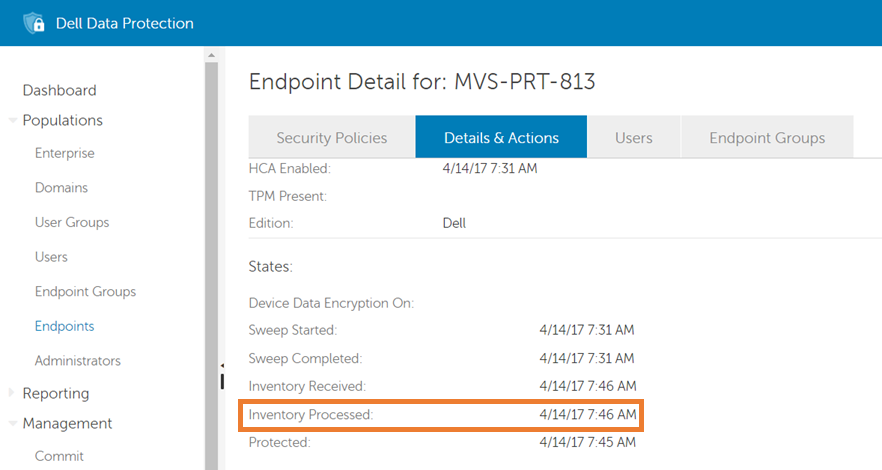
Figure 3: (English Only) Endpoint Details
The Inventory Processed field, highlighted above, indicates the last time an inventory from the client was successfully processed and the database that is updated to reflect the current state of the endpoint. If there is no date present or a date is present and it is not current, and there is a current date in the Inventory Received field, then there is likely an issue with processing the endpoint’s inventory.
The following examples show a subset of log messages from the Core Server service logs that indicate inventory processing errors. These examples are not comprehensive and are included to help provide a starting point at which to begin researching processing issues from the server side. The current Core Server service log is written to C:\Program Files\Dell\Enterprise Edition\Core Server\Logs\output.log by default.
ERROR INVENTORY [75] - Error updating user shield state

ERROR INVENTORY [75] - Error updating device shield state

ERROR INVENTORY [75] - Error updating device entity data.

ERROR INVENTORY [75] - Error updating shield entity data.
Due to the variety and complexity of issues that can occur, there are no common solutions that address a large percentage of processing issues. If an inventory processing issue is suspected, contact Dell Data Security ProSupport.
Protected Status Calculation Issues
Issues with the protected status calculation are by far the most common cause of a Shielded endpoint being in the unprotected state. This can be the result of previous issues that are combined with Shield features (that is, a processing error causing a full inventory to fail then after only receiving optimized inventories), or an unmanaged user being logged in, resulting in no inventory being sent.
Once both client communication and inventory data processing issues have been eliminated as causes that leaves an issue with the server protected status calculation. The process for determining whether a Shielded endpoint is protected or not is shown in the following image.
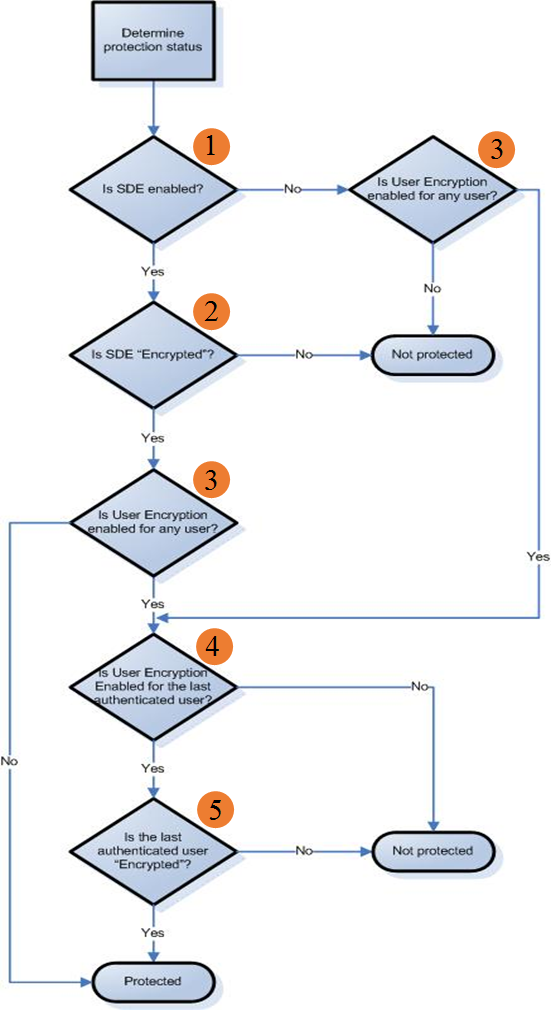
Figure 4: (English Only) Troubleshooting workflow
The following images show the location in the console to find the information necessary to address the questions in the process flow above:
- Is SDE enabled? - The first step in determining whether a device is protected is if SDE or device encryption is enabled. To determine if it is enabled, open the Remote Management Console, login, and go to the States section of the Details & Actions tab on the endpoint details page for the endpoint in question.
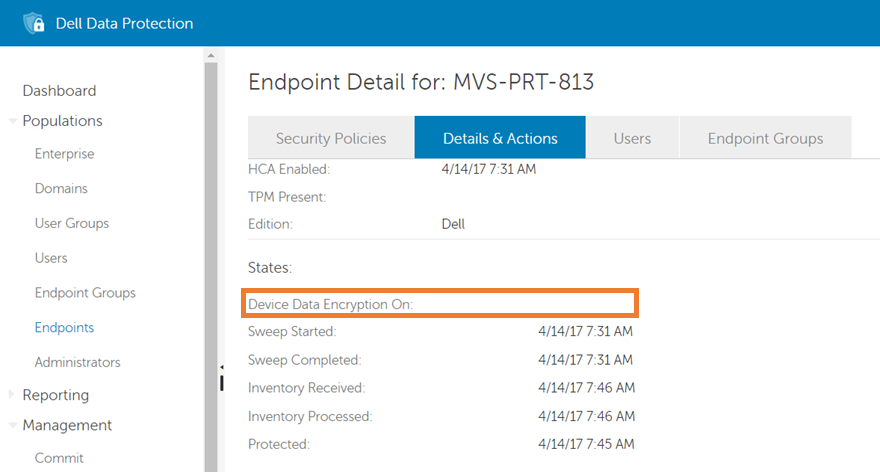
Figure 5: (English Only) Device Data Encryption On
The Device Data Encryption On field, highlighted above, shows the time at which the SDE policy was enabled. If the field has a date and time, is SDE enabled? is Yes. If the field does not have a date and time, as in the image above, the answer is No.
- Is SDE encrypted? - If SDE or device encryption is enabled, the next step in the protected calculation is to determine if SDE is encrypted. This can be determined using information from the States section of the Details & Actions tab of the endpoint detail page for the endpoint in question.
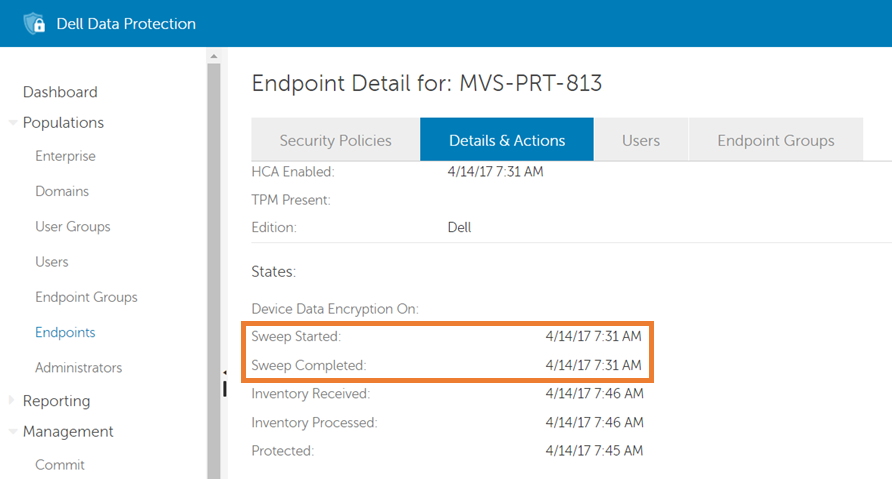
Figure 6: (English Only) Sweep Started and Sweep Completed
The Sweep Started and Sweep Completed fields, highlighted with an orange box above, show the times at which the SDE/device sweep began and ended respectively. If both fields have a date and time and the Sweep Started time is prior or the same time as the Sweep Completed time, "Is SDE enabled," is 'Yes.' Otherwise, the answer is 'No' and the device is determined to be in the not protected state.
- Is User Encryption enabled for any user? - If SDE encryption is disabled, or if it is enabled and encrypted, the next step is to determine if User encryption is enabled for any user that has activated on the endpoint. This can be determined using information from the Users tab of the endpoint detail page for the endpoint in question.
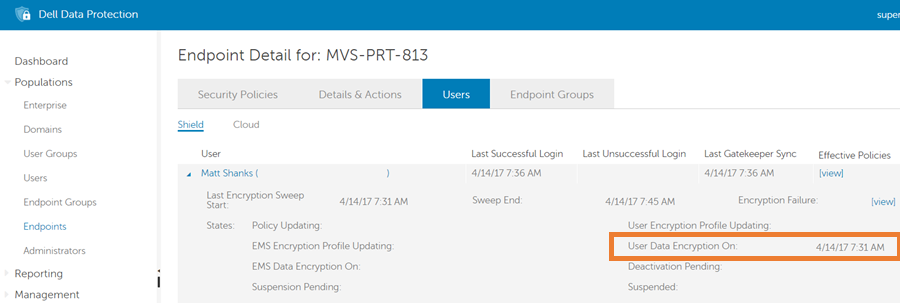
Figure 7: (English Only) User Data Encryption On
The Users tab shows every user that has activated on the endpoint. The User Data Encryption On field, highlighted with an orange box above, shows the time at which the User Encryption policy was enabled for each specific user. If the field has a date and time for any activated user, as in the image above, then the answer to the question "Is User Encryption enabled for any user?" is 'Yes.' If the field does not have a date and time for any activated user, the answer is No, and the endpoint is determined to be in the protected state.
- Is User Encryption enabled for the last authenticated User? - If User Encryption is enabled for any activated user on the endpoint, the next part of the protected calculation is to determine if the most recent authenticated user has User Encryption enabled. This can be determined using the information present on the Users tab of the endpoint detail page for the endpoint in question.
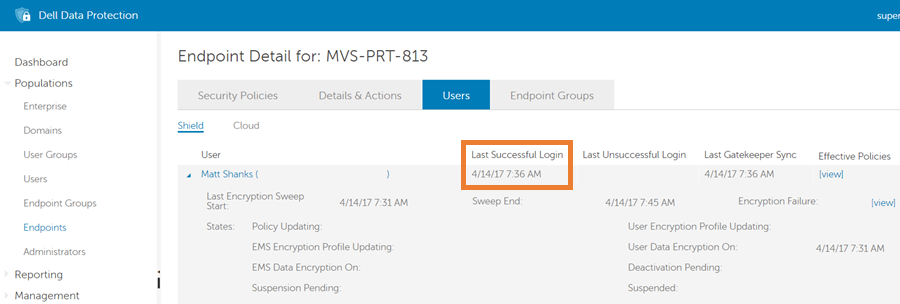
Figure 8: (English Only) Last Successful Logon
The Users tab shows every user that has activated on the endpoint. The Last Successful Login field, highlighted with an orange box above, shows the last time at which the specific user successfully logged into the Shield. If the user with the most recent Last Successful Login time also has a time in the User Data Encryption On field, as in the image above, and then the answer to the question Is User Encryption enabled for the last authenticated User? is Yes. If the user with the most recent Last Successful Login time does not have a time in the User Data Encryption On field, and then the answer is No.
- Is the last authenticated user Encrypted? - If the last authenticated user had encryption that is enabled, then the process moves to the last step, checking to see if that user is encrypted. This can be determined using the information present for the last authenticated user on the Users tab of the endpoint detail page for the endpoint in question.
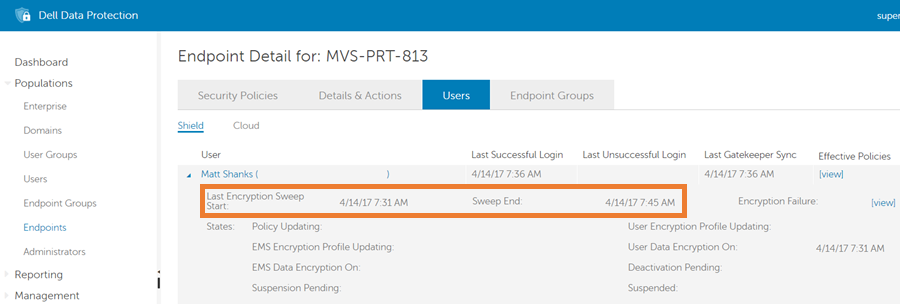
Figure 9: (English Only) Last Encryption Sweep Start
The Last Encryption Sweep Start and Sweep End fields, highlighted with an orange box above, show the times at which the user sweep began and ended, respectively. If both fields have a date and time and the Last Encryption Sweep Start time is prior, or the same time, as the Sweep Completed time, then the answer to the question Is the last authenticated user Encrypted? is Yes and the device is determined to be in the protected state. Otherwise the answer is 'No' and the device is determined to be in the not protected state.
There are no log messages that help with determining which step within the protected workflow causes the device to be put into the not protected state. Review the section Identifying a Protected Status Calculation Issue to determine which step of the workflow caused the endpoint to show as not protected.
The following table contains several solutions to common protected status calculation issues.
- Back up the Registry before proceeding, reference How to Back Up and Restore the Registry in Windows
.
- Editing the Registry can cause the computer to become unresponsive on the next reboot.
- Contact Dell Data Security International Support Phone Numbers for assistance if you have concerns about performing this step.
| Issue | Solution |
|---|---|
| The Device Data Encryption On field is populated, but there is not a Sweep Started or a Sweep Completed time |
If device data encryption is on, but there are no sweep times, that it is often an indicator that a Self-Encrypting Drive (SED) is installed on the shielded endpoint. By default, the Shield does not apply SDE rules when an SED is present. The following messages are present in the Shield logs when this issue is occurring: "Blocking/Disabling SDE policies, because either FVE is enabled/in progress or there is an SED on the computer."
To allow the Shield to apply SDE even when an SED is present, add the following registry value and reboot the endpoint. Once the setting is picked up by the Shield, the SDE sweep starts. Configuration Settings
|
| The Device/SDE sweep complete time is blank, and the sweep start time is constantly updating. |
The Device/SDE sweep start time constantly updating typically indicates one of two things:
|
| A Device/SDE or User sweep is not complete in the Remote Management Console, but the local console shows that the sweep completes when the user is logged into the endpoint. |
When a sweep is not complete on the server, and the endpoint does not show a sweep in progress, the issue can typically be resolved by performing one or more of the following steps:
Configuration Settings
|
To contact support, reference Dell Data Security International Support Phone Numbers.
Go to TechDirect to generate a technical support request online.
For additional insights and resources, join the Dell Security Community Forum.