Dell Networking OS10: Installing a New Image with ONIE
Summary: New OS10 image installs using ONIE
Instructions
Prerequisites:
NOTE: Once ONIE started in ONIE install mode, ONIE install mode persists until an OS is installed successfully.
- Active console connection to the switch
- Access to the ONIE>ONIE Install
- File Server details with operating system loaded with HTTP, TFTP, or FTP services must be available to the switch (HTTP is used for this article).
- IP address, subnet mask, and default gateway (if needed) assigned to the management interface either using Dynamic Host Configuration Protocol(DHCP) or manually
Instructions:
ONIE Uninstall: If the switch has any operating system installed, before ONIE installing a new operating system, ONIE uninstall must be performed.
-
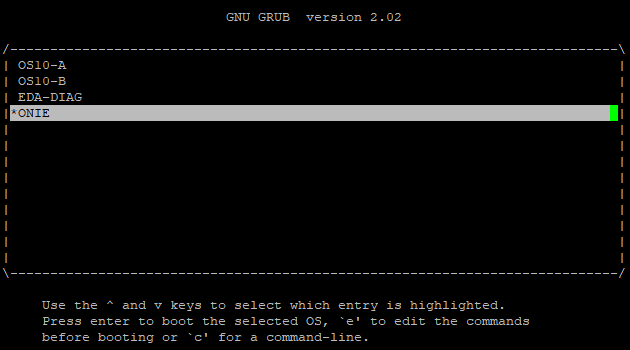
As the switch boots up, there is a screen with the installed software version or a choice to enter ONIE. Use the up or down arrows to select ONIE. Using the arrows also stops the automated countdown timer (Figure 1).
-
Once the ONIE menu is available, use the up and down arrows to select ONIE: Uninstall OS and press ENTER. Again, there is a countdown timer, which stops once the arrows are used (Figure 2).
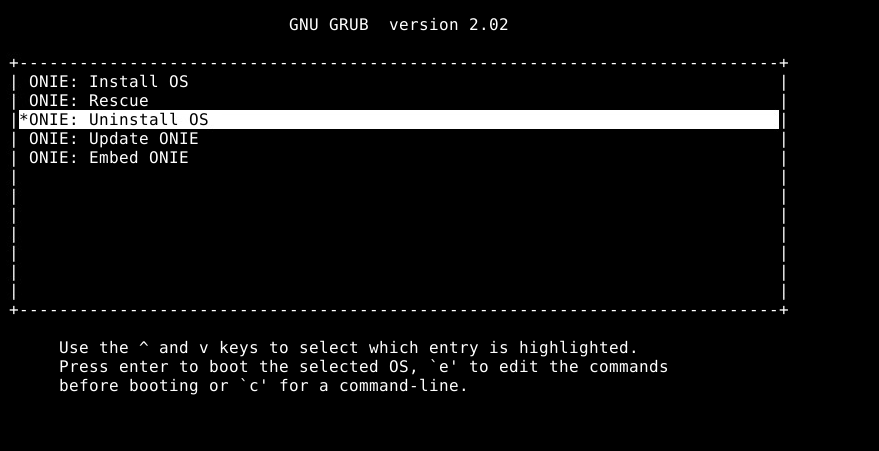
Figure 2: ONIE Sub-Menu
-
ONIE uninstalls all the existing operating system (Figure 3).

Figure 3: ONIE Uninstall Example
-
The switch reboots and starts the ONIE Install process.
ONIE Manual OS Install: Installing an operating system manually with a specific IP address, service, and file name.
- Using the
onie-nos-installcommand. HTTP, FTP, and TFTP options available.
ONIE:/ # onie-nos-install ftp://user:password@x.x.x.x/PKGS_OS10-Enterprise-10.5.3.2.89buster-installer-x86_64.binNOTE: Do not change the OS10 filename.
- The switch uploads the OS10 and then installs the image into both partitions.
Example system output:
discover: installer mode detected.
Stopping: discover... done.
Info: Attempting ftp://user:password@x.x.x.x/PKGS_OS10-Enterprise-10.5.3.2.89buster-installer-x86_64.bin ...
Connecting to x.x.x.x (x.x.x.x:21)
installer            100% |*******************************|   776M  0:00:00 ETA
ONIE: Executing installer: ftp://user:password@x.x.x.x/PKGS_OS10-Enterprise-10.5.3.2.89buster-installer-x86_64.bin
Initializing installer ... OK
Verifying image checksum ... OK
OS10 Installer: machine: dellemc_s5248f_c3538
Deleting logical volume SYSROOT ... OK
Creating logical volume SYSROOT ... OK
Creating ext4 filesystem on SYSROOT ... OK
Extracting OS10 ...
OK
Installing OS10 on primary volume ...
OK
Setting up shared data ... OK
Synchronizing standby image ... OK
OS10 installation is complete.
3. Once the switch has completed image install into both partitions, the switch reboots and boots using the primary partition. OS10 example:
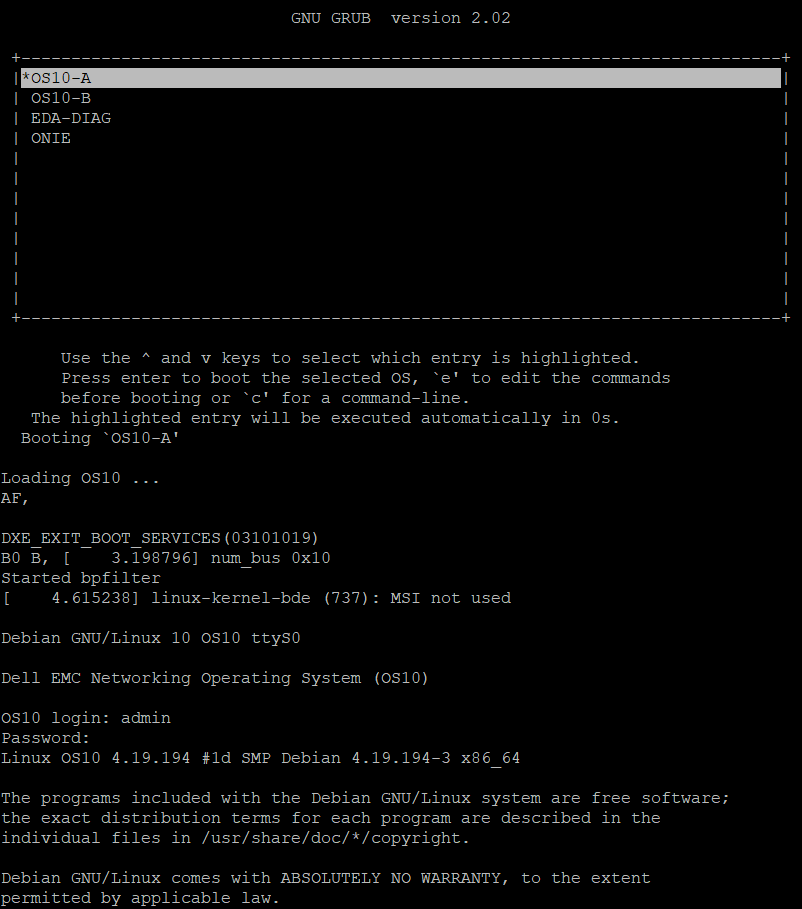
Figure 4: ONIE Uninstall Example
- Once switch presents the username prompt, log in to the switch using default credentials (
OS10: user=admin, password=admin).

Figure 5: OS10 Login Example
- Verify that the OS was successfully loaded into partitions. OS10 example:

Figure 6: Show Version Output example

Figure 7: Show Boot Detail Output example
For further assistance, see Dell SmartFabric OS10 User Guide Release Documentation or reach out to Dell Technical Support.
See related KB article 125512: Dell SmartFabric OS10 Info Hub.