MHC Azure Stack 14G | Admin portal shows incorrect CPU Cores and Memory as zero after replacing hardware on a node
Summary: After replacing a DIMM in an Azure Stack Hub node, and then resuming from maintenance mode, the admin portal does not reflect the CPU Cores and memory.
This article applies to
This article does not apply to
This article is not tied to any specific product.
Not all product versions are identified in this article.
Symptoms
Azure Stack Admin portal is displaying zero (0) for the number of cores and memory after replacing a DIMM.
In the example below we see Node S1-N10 with zero CPU Cores and no memory.
Resuming the node from maintenance mode in the admin portal does not reflect the CPU Cores and memory.
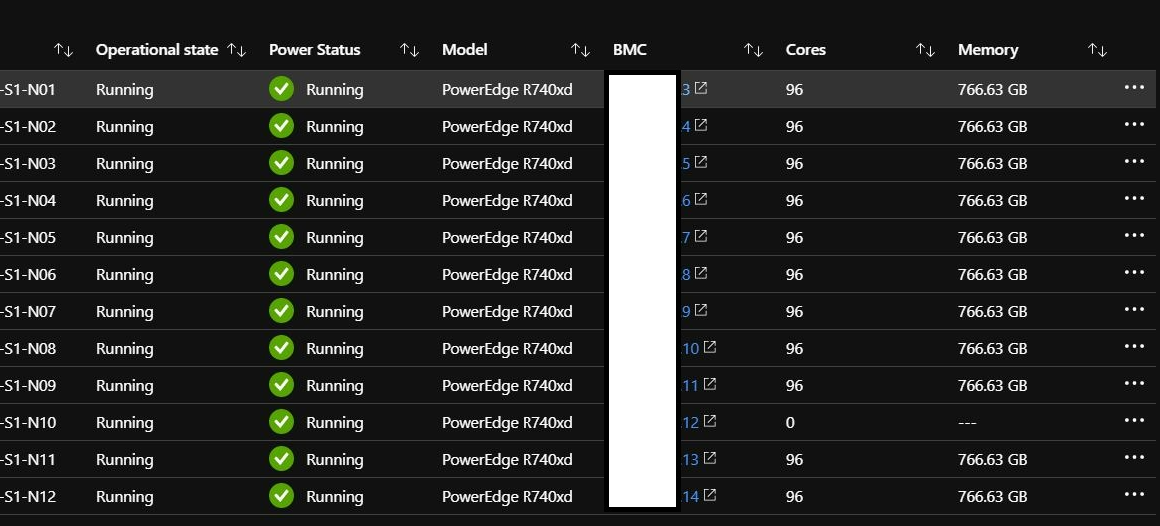
In the example below we see Node S1-N10 with zero CPU Cores and no memory.
Resuming the node from maintenance mode in the admin portal does not reflect the CPU Cores and memory.
Cause
The cause of this is unknown, but likely an issue in Azure Stack Hub.
Resolution
To resolve this issue:
1. Resume the node more than once in the admin portal or by PowerShell PEP session. Microsoft best practices, it is better to be operated from a PEP session.
2. If the above does not resolve, use the following commands to manually update the CPI. For the latter step, we recommend engaging Microsoft together to ensure the service quality since strictly speaking it belongs to Microsoft scope not OEM scope.
Note: CPI stands for Compute Platform Interface. It is an infrastructure control layer hosted in the XRP VMs. We use this command to check whether the CPI state does not match the fabric state.
3. Wait another 30 minutes. Core and memory information should now be displayed properly.
1. Resume the node more than once in the admin portal or by PowerShell PEP session. Microsoft best practices, it is better to be operated from a PEP session.
- Admin Portal: https://www.dell.com/support/kbdoc/en-us/000039019
- PEP session (break glass first): Resume-ClusterNode AzHub-S1-N10 -Cluster S-Cluster
- Wait for 30 minutes and refresh the page again from the admin portal to check if the Cores and or memory information returns.
2. If the above does not resolve, use the following commands to manually update the CPI. For the latter step, we recommend engaging Microsoft together to ensure the service quality since strictly speaking it belongs to Microsoft scope not OEM scope.
Note: CPI stands for Compute Platform Interface. It is an infrastructure control layer hosted in the XRP VMs. We use this command to check whether the CPI state does not match the fabric state.
Import-Module C:\Azs.Support
Set-AzsSupportCpiClusterNodeState -ComputerName "AzHub-S1-N10" -Disable
Get-AzsSupportCpiClusterNodeState
Set-AzsSupportCpiClusterNodeState -ComputerName "AzHub-S1-N10" -Enable
Get-AzsSupportCpiClusterNodeState
3. Wait another 30 minutes. Core and memory information should now be displayed properly.
Article Properties
Article Number: 000212437
Article Type: Solution
Last Modified: 11 Dec 2023
Version: 2
Find answers to your questions from other Dell users
Support Services
Check if your device is covered by Support Services.