Dell Networking Power Supply Troubleshooting
Summary: Best practices for troubleshooting Power Supply Units (PSUs) errors or failure on Dell Ethernet switches
Instructions
If local access to the switch is available, physically checking the power supplies first makes sense. However, this is not always possible and it is permissible to start with the log review if needed.
Physical Troubleshooting
Log Review and Software Troubleshooting
-
Check if the expected number of power supplies are installed and plugged in. PSUs show failed if they are not connected to power
-
Test a known good power cable
-
Test a known good power outlet. If possible, bypass Uninterruptible Power Supplies (UPS) or test a different one to rule out the UPS
-
Check for LED indicators on the PSU itself, and on the front panel
-
LED diagnostic light behavior is documented in the Installation Guide for the switch model
-
Navigate to Dell Support
-
Enter the service tag or model number in the search box
-
Choose the "Documentation" tab
-
Find the Installation guide in the "Manuals and Documents" section
-
In this document, find the "LED Display" section. This section should have both front panel and PSU LED behavior
-
-
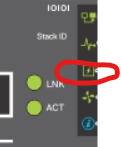
Sample S4148 front panel, with the PSU LED indicator circled:
-

-
-
Sample N3200 front panel with PSU LED indicator circled:
-
-
-
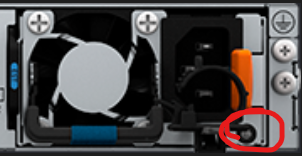
PSU indicator light on a removable PSU:
-
-
Does reseating the PSU resolve the issue?
-
Not all models have removable PSUs, N1500 and N2000 series, and S4112F, S4112T, S5212F have integrated power supplies
-
-
If possible, swap the PSU to a known good PSU slot, whether on the same or a different switch. Does the issue follow the slot or the PSU
-
If it follows the PSU, or if unable to test, replace the PSU
-
If the issue stays in the slot when a known good PSU is installed, replace the chassis
-
-
Do both PSUs show up and healthy in the logs?
-
On SONiC
S5248F-1# show platform psustatus
--------------------------------
PSU                  Status
--------------------------------
PSU 1                OK
PSU 2                OK
-
-
-
On OS10 and OS9
OS10# show system brief

Z9332-2# show system brief

Node Id           : 1
MAC               : c8:f7:50:xx:xx:xx

-- Unit --
Unit  Status      ReqType     CurType     Version
----------------------------------------------------------------
1     up          Z9332F      Z9332F      10.5.6.1

-- Power Supplies --
PSU-ID  Status      Type    AirFlow   Fan  Speed(rpm)  Status
----------------------------------------------------------------
1       up          AC      NORMAL    1    15800       up

2       up          AC      NORMAL    1    15600       up


-- Fan Status --
FanTray  Status      AirFlow   Fan  Speed(rpm)  Status
----------------------------------------------------------------
1        up          NORMAL    1    12450       up
                               2    15000       up
-
On OS6
OS6# show system power

Power Supplies:

Unit  Description    Status      Average     Current          Since
                                  Power       Power         Date/Time
                                 (Watts)     (Watts)
----  -----------  ------------  ----------  --------  -------------------
1     System       Non-critical   0.1        28.9
1     PS-1         OK            N/A         N/A       12/01/2023 23:56:15
1     PS-2         No Power      N/A         N/A
-
If the power shows good, check if there was a historical event that caused the log entry. The switch displays a PSU fault when the PSU is unplugged, so check for historical maintenance that may have disrupted the cabling or power source
-
-
For Open Networking switches (-ON) Is the switch firmware on the minimum supported version?
-
To check, navigate to the Dell Support Site
-
Enter the service tag or model number in the search box
-
Choose the download tab
-
Find the most recent Firmware Updater File and click "view full driver details"
-
Choose the release notes PDF file and review for the minimum required versions
-
-
Check the release notes for updated OS versions for any known issues
-
For example, the S5232F-ON has false PSU alerts on firmware before 10.5.6.0 (backported to 10.5.5.8 or newer)
-