How to Configure Updates in Dell Threat Defense
Summary: Learn about how to configure updates in Dell Threat Defense by following these instructions.
This article applies to
This article does not apply to
This article is not tied to any specific product.
Not all product versions are identified in this article.
Instructions
Note:
- As of May 2022, Dell Threat Defense has reached End of Maintenance. This product and its articles are no longer updated by Dell. For more information, reference Product Life Cycle (End of Support and End of Life) Policy for Dell Data Security. If you have any questions on alternative articles, either reach out to your sales team or contact endpointsecurity@dell.com.
- Reference Endpoint Security for additional information about current products.
This article covers how to configure updates in Dell Threat Defense.
Affected Products:
- Dell Threat Defense
The base configuration for the Dell Threat Defense console automatically updates devices to the latest version. A Threat Defense Administrator can optionally deploy builds to test and pilot zones before production.
- From a web browser, go to the Dell Threat Defense administration console at:
- North America: https://dellthreatdefense.cylance.com
- Europe: https://dellthreatdefense-eu.cylance.com
- Asia Pacific: https://dellthreatdefense-au.cylance.com
- North America: https://dellthreatdefense.cylance.com
- Log in to the Dell Threat Defense administration console.
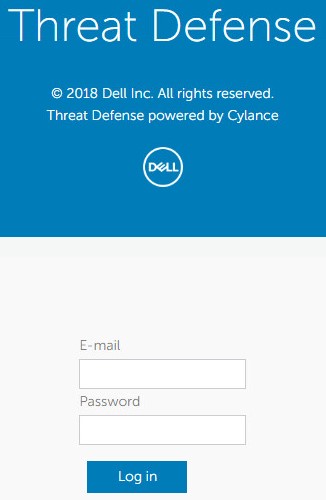
- In the console, click the Settings tab.

- Under Settings, click Agent Update.
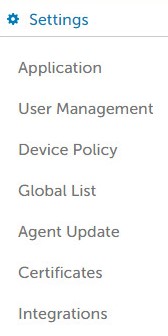
- The Production zone is set to Auto-Update by default. It can be changed to a specific agent version or set to Do Not Update. By default, Test and Pilot zones cannot be configured if Production is set for Auto-Update. To enable the option for Test and Pilot zones, change Auto-Update to a specific version or Do Not Update.
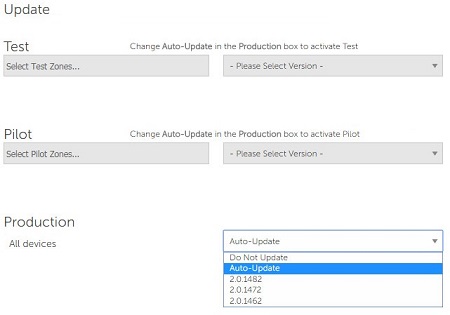
 Note: The builds may differ from the pictured example.
 - Select at least one Test zone and the build version from the drop-down lists.
 Note:
Note:- A zone must be created before setting up a Test or Pilot group. Reference the Add Zone portion of How to Manage Zones in Dell Threat Defense for more information.
- The zones and builds may differ from the pictured example.
- Select at least one Pilot zone and the build version from the drop-down lists.
 Note:
Note:- A Test zone and Pilot zone are independent of each other. You can either create one, both, or none of them.
- The zones and builds may differ from the pictured example.
- Once updates are configured, click Apply.
Note: Devices check for updates over update.cylance.com on port 443. If an update is available, the build is downloaded over download.cylance.com on port 443.

To contact support, reference Dell Data Security International Support Phone Numbers.
Go to TechDirect to generate a technical support request online.
For additional insights and resources, join the Dell Security Community Forum.
Affected Products
Dell Threat DefenseArticle Properties
Article Number: 000123806
Article Type: How To
Last Modified: 14 Feb 2025
Version: 10
Find answers to your questions from other Dell users
Support Services
Check if your device is covered by Support Services.