Dell Headsets, Speakers, and Soundbars Do Not Perform as Expected Using Microsoft Teams
Summary: This article discusses multiple issues with Dell headsets, speakers, and soundbars using the dongle connection while using Microsoft Teams.
This article applies to
This article does not apply to
This article is not tied to any specific product.
Not all product versions are identified in this article.
Symptoms
Affected Products:
- Dell Pro Plus Wired ANC Headset WH5024
- Dell Pro Plus Wireless ANC Headset WL5024
- Dell Pro Premium Wireless ANC Headset - WL7024
- Dell Pro Wired Headset WH3024
- Dell Pro Wireless Headset WL3024
- Dell Slim Conferencing Soundbar SB522A
- Dell Speakerphone with Multiport adapter MH3021P
- Dell Pro Plus Wireless Speakerphone SL525
- Dell Pro Wired Speakerphone SP325
- Dell Pro Premium Conferencing Soundbar SB725
Symptoms:
- Teams button functionality does not work:
- When attempting to launch the application.
- When using the Raise hand function.
- Microphone mute does not synchronize to Teams when flipping the boom mic or pressing the mute button on the headset during a call or meeting.
- Call control functions such as accept, reject, and end call do not work when pressing the call or hook button.
Cause
There is a known Microsoft Teams application issue with the New Teams client (24033.813.2773.520). There is no recovery action to users using New Microsoft Teams application. Only the Classic Microsoft Teams application has the workaround.
Resolution
Note: Updates for the Microsoft Teams client are automatically received (managed by IT Admins).
For user running on the Classic Microsoft Teams application, it is recommended to do the following:
Workaround:
Disable Intel Smart Sound Technology audio driver from computer:
- Right-click the Start button and then click Run.
- Type
devmgmt.mscand then press Enter. - In Device Manager, look for Sound, video and game controller > Intel Smart Sound Technology > click Driver tab > Select Disable Device

- Unplug and plug-in USB dongle again to fresh enumeration.
- Clear Microsoft Teams application cache.
- Quit the Teams application.
- Right-click the Start button and then click Run.
- Enter
%appdata%\Microsoft\Teamsand then click Run. - Delete all files and folders in the directory.
- Restart Teams application
Note: For more information reference, Clear the Teams client cache 
To check Teams version:
Select the three ellipses (…) at the upper right corner > About > Version.
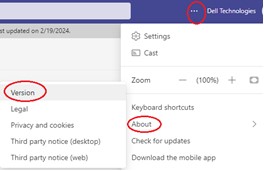
- Classic Teams: v1.7.00.7956 or later
- New Teams: v24033.813.2773.520 or later
Affected Products
Dell Speakerphone with Multiport Adapter – MH3021P, Dell Pro Premium Conferencing Soundbar SB725, Dell Pro Plus Wireless Speakerphone SL525, Dell Slim Conferencing Soundbar - SB522A, Dell Pro Wired Speakerphone SP325, Dell Pro Wired Headset WH3024
, Dell Pro Plus Wired ANC Headset WH5024, Dell Pro Wireless Headset WL3024, Dell Pro Plus Wireless ANC Headset WL5024, Dell Pro Premium Wireless ANC Headset WL7024
...
Article Properties
Article Number: 000223675
Article Type: Solution
Last Modified: 07 Nov 2025
Version: 10
Find answers to your questions from other Dell users
Support Services
Check if your device is covered by Support Services.