Dell S2425HS Monitor Usage and Troubleshooting Guide
Summary: This article provides information about how to set up and use the Dell S2425H monitor. Learn how to troubleshoot common display or video issues with the Dell S2425H monitor.
Instructions
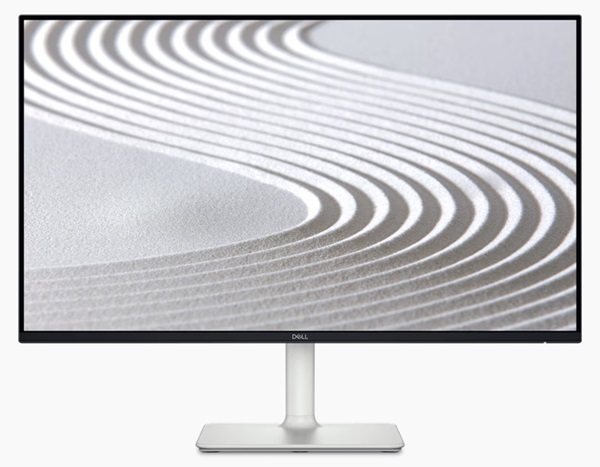
The key features of the Dell S2425HS monitor are:
- Supports the refresh rate of 100 Hz.
- Color gamut of 99% sRGB (typical).
- Digital connectivity with 2 HDMI ports.
- Plug-and-play capability if supported by your computer.
- Integrated speakers (2 x 5W).
- On-Screen Display (OSD) adjustments for ease of setup and screen optimization.
- Removable stand and 100 mm Video Electronics Standards Association (VESA) mounting holes for flexible mounting solutions.
- Tilt, swivel, rotate, and height adjustment capabilities.
- Security-lock slot for Kensington locks (sold separately).
- Offers Premium Panel Exchange during warranty period.
- Supports Dell ComfortView Plus feature.
- Dell ComfortView Plus is an integrated low blue light screen feature that improves eye comfort by reducing potentially harmful blue light emissions without compromising color. Through ComfortView Plus technology, Dell has reduced harmful blue light exposure from ≤50% to ≤35%. This monitor is certified with TUV Rheinland Eye Comfort 3.0 with a 4-star rating. It incorporates key technologies that also deliver a flicker-free screen, up to 100 Hz refresh rate, and a color gamut of minimum 95% sRGB. Dell ComfortView Plus feature is enabled by default on your monitor.
- This monitor uses a low blue light panel. When the monitor is reset to factory settings or default setting, it is in compliance with TÜV Rheinland’s hardware low blue light certification.*
Blue light ratio:
The ratio of light in the range from 415nm-455nm compared to 400nm-500nm should be less than 50%.Category Blue light ratio 1 < 20% 2 20% < R < 35% 3 35% < R < 50% - Decreases the level of hazard blue light emitted from the screen to make viewing more comfortable for your eyes without distortion of color accuracy.
- The monitor adopts Flicker-Free technology, which clears the eye visible flicker, brings a comfortable viewing experience and preventing users suffer from eye strain and fatigue.
* This monitor is in compliance with TÜV Rheinland hardware low blue light certification under Category 2.
This section provides some technical specifications of the Dell S2425HS monitor. For more information, see the user manual of the Dell S2425HS monitor.
| Screen type |
|
|---|---|
| Panel technology |
|
| Aspect ratio |
|
| Viewable image |
|
| Pixel pitch |
|
| Pixel per inch (PPI) |
|
| Viewing angle |
|
| Luminance output |
|
| Contrast ratio |
|
| Faceplate coating |
|
| Backlight |
|
| Response time |
|
| Color depth |
|
| Color gamut |
|
| Connectivity |
|
| Border width (edge of monitor to active area) |
|
| Adjustability |
|
| Built-in speakers |
|
| Cable management |
|
| Dell Display Manager compatibility |
|
| Security |
|
For the best viewing experience, assemble the monitor stand, connect and organize the cables, and set up the monitor ergonomically.
Attaching the stand
The standard monitor stand is detached when it is shipped from the factory. To learn how to attach the standard monitor stand, see the user manual of the Dell S2425HS monitor.
To learn how to set up any other monitor stand or monitor arm, see the setup guide of the product.
Ergonomics
Where you put your monitor is almost as important as what model you buy.
- The monitor must be directly in front of you, at an arm’s length away (between 20-40 inches from your eyes).
- The top edge of the screen must be set at eye level when you are sitting comfortably. Adjust your chair height or the height of the monitor to achieve this.
Connecting your monitor to the computer
To connect your Dell S2425HS monitor to your computer:
- Turn off the computer.
- Connect the power cable to the monitor.
- Connect the video cable (USB-C, DisplayPort, or HDMI) between the computer and the monitor.
NOTE: Setting up the monitor with a Dell docking station? Learn How to Connect and Set Up a Docking Station With a Dell Laptop.NOTE: Setting up more than one monitor? Learn How to Set up Multiple Monitors or see the user manual of the Dell S2425HS monitor.
- Connect the USB upstream cable between the monitor and computer (if available).
- Turn on the monitor.
- Turn on the computer.
For additional product-specific information, see the user manual of the Dell S2425HS monitor.
Dell S2425HS monitor orientation must always be in landscape mode. This includes any wall-mounted monitors, monitors on a stand, or a monitor arm. In a multiple monitor setup, the Dell S2425HS must not be rotated either to 180° (landscape) or 90° (portrait).
Using the tilt, swivel, and vertical extension
The monitor stand allows you to tilt and swivel the monitor to set the most comfortable viewing angle.

Figure 1: Using Tilt and Swivel on a Dell S2425HS monitor.
Use the joystick at the rear of the monitor to access the On-Screen Display (OSD) menu of the monitor. To access the On-Screen Display (OSD) menu, press joystick at the rear of the monitor.
Use the joystick at the rear of the monitor to access the On-Screen Display (OSD) menu of the monitor. To access the On-Screen Display (OSD) menu, press joystick at the rear of the monitor. Learn more about using the On-Screen Display (OSD) menu. See the user manual of the Dell S2425HS monitor.
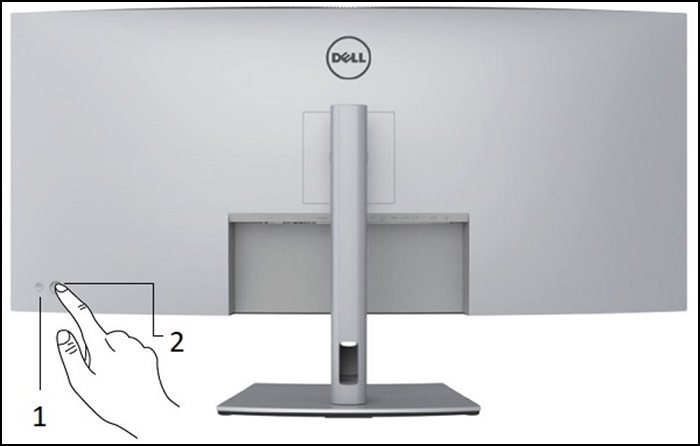
Figure 2: Dell S2425HS monitor Power button and OSD joystick.
| Button | Function | Description |
|---|---|---|
| 1. Power Button | Power On/Off button (with LED indicator on front of the monitor). | Solid white light indicates that the monitor is On and fully functional. Blinking white light indicates the power save mode. |
| 2. Joystick Control | Controls to make adjustments to the On-Screen Display. |
|
Resetting a monitor to factory defaults can help resolve many video or display-related issues. Reset your Dell S2425HS monitor to factory default settings by following these steps:
- Press on the joystick on the monitor to enter the On-Screen Display (OSD) Menu.
- Press up or down on the joystick to highlight Others option in the menu and press on the joystick to select.
- Press up or down to highlight Factory Reset option in the menu and press on the joystick to select.
- Press on the joystick to confirm the reset action.
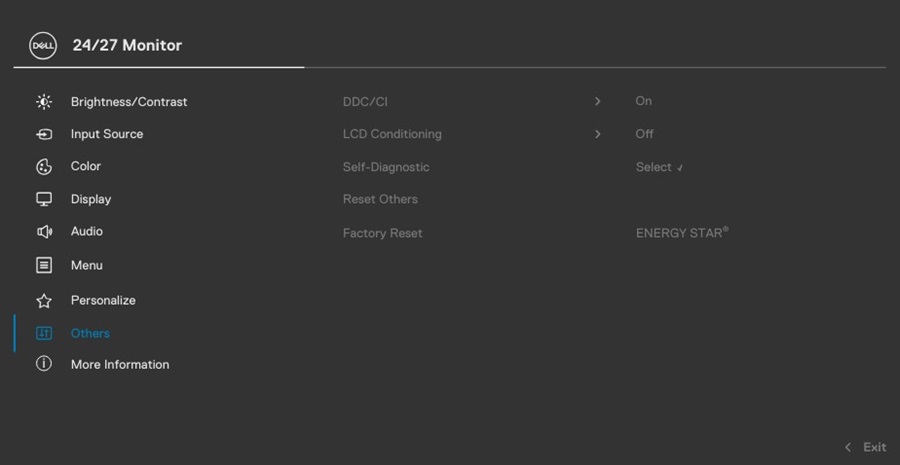
Figure 3: Dell S2425HS monitor reset screen.
A diagnostic test helps determine if the Dell monitor is normal when faced with a blank screen, blurry image, flickering or other abnormalities.
Verify that the monitor is working correctly by running a diagnostic test if you experience the following symptoms.
- Your computer does not turn on or shows any sign of power.
- Your computer does not show any indication of activity, the screen is blank and does not display the Dell logo during start-up.
- Your computer gets stuck at the Dell logo screen or does not respond to any keys during start-up.
- You cannot see any display on the screen.
- You hear the windows chime, but the monitor screen is blank.
Self-Test Feature Check
Your Dell S2425HS monitor provides a self-test feature check that allows you to check if the monitor is functioning properly. When the monitor is connected to the computer but the screen stays dark, run the monitor self-test by following these steps:
- Turn off the computer and the monitor.
- Unplug the video cable from the back of the computer. To ensure proper self-test operation, disconnect the video cable (VGA, DVI, HDMI, DisplayPort, or USB-C cable) from the back of the computer.
- Turn on the monitor. A floating dialog box should appear on-screen (against a black background), if the monitor cannot sense a video signal and is working correctly. While in self-test mode, the power LED remains white. Also, depending upon the selected input, the dialog box scrolls through the screen.
- This box also appears during normal system operation, if the video cable becomes disconnected or damaged.
- Turn off the monitor and reconnect the video cable.
- Turn on the computer and the monitor.
If the screen remains blank, check the video card (GPU) and computer, because the monitor is functioning properly.
Built-In Self-Test or Built-In Diagnostics
Your Dell S2425HS monitor has an integrated diagnostic tool. Hardware diagnostic helps determine if the screen abnormality issue is with the monitor or the video card on your computer.
If you observe any screen anomalies, you should isolate the monitor by performing the built-in diagnostics (BID).
- Ensure that the screen is clean (no dust particles on the surface of the screen).
- Select OSD items of Self-Diagnostics in Others feature.
- Press the Joystick button to start the diagnostics. A gray screen is displayed.
- Observe if the screen has any defects or abnormalities.
- Toggle the joystick once again until a red screen is displayed.
- Observe if the screen has any defects or abnormalities.
- Repeat steps 5 and 6 until the screen displays green, blue, black, and white colors. Note any abnormalities or defects.
If you do not detect any screen abnormalities in the diagnostics test, the monitor is functioning properly. Check the video card (GPU) and the computer.
If you notice any abnormalities in the diagnostics test, contact Dell Technical Support for repair options.
During the manufacturing process, it is not uncommon for one or more pixels to get stuck in an unchanging state. Such pixel issues are hard to see and do not affect the display quality or usability. Learn more about Dell Display Pixel Guidelines.
The following table contains information about troubleshooting common display-related issues on your Dell S2425HS monitor.
Alternatively, learn How to Troubleshoot Display or Video Issues on a Dell Monitor or check our Dell monitor self-help guide.
| Common Problem | What User Experiences | Possible Solution |
|---|---|---|
| No Video - Power LED Off | No picture. |
|
| No Video - Power LED On | No picture or no brightness. |
|
| Missing Pixels | LED screen has spots. |
|
| Stuck On Pixels | LED screen has bright spots. |
|
| Brightness Problems | Picture too dim or too bright. |
|
| Safety-Related Issues | Visible signs of smoke or sparks. |
|
| Intermittent Problems | The monitor malfunctions on and off. |
|
| Missing Color | The picture does not have color. |
|
| Wrong Color | Picture color is not good. |
|
| Image retention from a static image left on the monitor for a long period of time. | A faint shadow from the static image displayed appears on the screen. |
|
| The screen image is too small. | The image is centered on the screen, but does not fill the entire viewing area. |
|
| Cannot adjust the monitor with the joystick. | OSD does not appear on the screen. |
|
| No Input Signal when user controls are pressed. | No picture, the power LED light is white. |
|
| The picture does not fill the entire screen. | The picture cannot fill the height or width of the screen. |
|
Learn how to view or download the Manuals and Documentation for your Dell Product.
Frequently Asked Questions
For more information, click to expand a section below.
Using Windows Display Settings
In Windows 11, Windows 10, Windows 8 or 8.1, and Windows 7:
- For Windows 8 and Windows 8.1 only, select the Desktop tile to switch to the classic desktop view.
- Right-click the desktop and click Screen Resolution.
- Click the dropdown list of the Screen Resolution and select 1920 x 1080.
- Click OK.
Using NVIDIA Control Panel
To change the resolution using the NVIDIA Control Panel:
- Right-click the desktop and click NVIDIA Control Panel.
- Click the + symbol next to Display on the left pane.
- Select Change Resolution under Display.
- In the dropdown menu on the right pane, select the resolution 1920 x 1080.
- Click Apply.
Using AMD Catalyst Control Center
To change the resolution using the AMD Catalyst Control Center:
- Right-click the desktop and click AMD Catalyst Control Center.
- Click the + symbol next to Display on the left pane.
- Select Change Resolution under Display.
- In the dropdown menu on the right pane, select the resolution 1920 x 1080.
- Click Apply.
Go to the reset to the Dell S2425HS monitor to factory settings section of this article or see the user manual of the Dell S2425HS monitor.
The Dell S2425HS monitor has two built-in diagnostics that are available:
-
Self-Test Feature Check - The self-test feature check on the Dell S2425HS monitor allows you to check whether the monitor is functioning properly.
-
Built-In Self-Test - The Dell S2425HS monitor has a built-in self-test that helps you identify if the screen abnormality is with the monitor or the video card (GPU) on your computer. When you notice screen abnormalities such as distortion, clarity, horizontal or vertical lines, color fade. It is always a good practice to isolate the monitor by running the built-in diagnostics.
Learn how to run a diagnostic test on the Dell S2425HS monitor.
The troubleshooting section of this article provides information about troubleshooting common issues with your Dell S2425HS monitor.
This section has troubleshooting steps on how to resolve power issues, video issues, color or clarity issues, distortion issues, horizontal or vertical lines, brightness issues or pixel issues, and so on.
Learn how to access the on-screen display (OSD) menu on the Dell S2425HS monitor. For additional product-specific information, see the user manual of the Dell S2425HS monitor.
Information about the monitor such as the model number, firmware version, and Service Tag can be accessed using the on-screen display (OSD) menu of the monitor.
Learn how to access the on-screen display (OSD) menu on the Dell S2425HS monitor. For additional product-specific information, see the user manual of the Dell S2425HS monitor.
Dell S2425HS supports both DisplayPort 1.4 and 1.2 connectivity with your computer. If the video or graphics card (GPU) on your computer supports DisplayPort 1.2, it is required to change the monitor to DisplayPort 1.2 mode.
- Press on the joystick on the monitor to enter the On-Screen Display (OSD) Menu.
- Press up or down to highlight Input Source in the menu and press on the joystick to select.
- Press up or down to highlight DP in the menu.
- Press and hold on the joystick for approximately 10 seconds until the DisplayPort configuration message appears.
- Press on the joystick to select Disable and change the display mode to DisplayPort version 1.2.
Dell S2425HS supports both HDMI 2.0 and HDMI 1.4 connectivity with your computer. If the video or graphics card (GPU) on your computer supports HDMI 1.4, it is required to change the monitor to HDMI 1.4 mode.
- Press on the joystick on the monitor to enter the On-Screen Display (OSD) Menu.
- Press up or down to highlight Input Source in the menu and press on the joystick to select.
- Press up or down to highlight HDMI in the menu.
- Press and hold on the joystick for approximately 10 seconds until the HDMI configuration message appears.
- Press on the joystick to select Disable and change the display mode to HDMI version 1.4.