How to Remove the Ethernet Cable from the Expandable Ethernet Port on Dell Ultrathin Laptops
Summary: Learn how to remove the Ethernet cable from Latitude and Vostro Ultrathin laptops. This is including if the Ethernet cable is sticking or is not coming out of the port.
This article applies to
This article does not apply to
This article is not tied to any specific product.
Not all product versions are identified in this article.
Instructions
This guide takes you through removing the Ethernet cable safely when plugged to the expandable Ethernet port on Ultrathin Dell Laptops. Especially when it feels like the Ethernet cable is stuck or caught and does not come out smoothly.
Instructions:
-
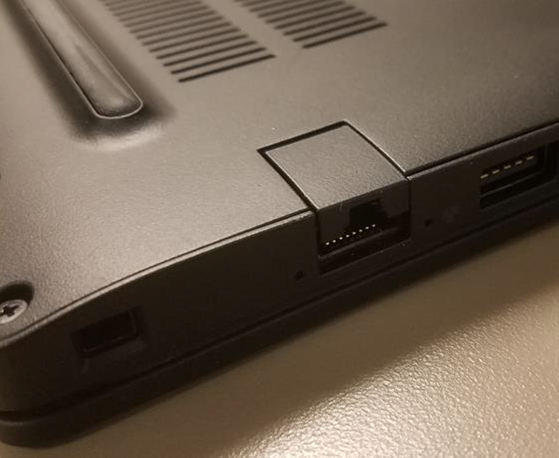
Identify the expandable Ethernet port. (Also known as the Local Area Network (LAN) port, the RJ45 port, or the Network Interface Controller (NIC) port.)
-
Observe the movement in the port when the network cable is attached.

-
The best way to remove the network cable from the laptop is by pushing downward on the Ethernet port while pressing the release tab on the network cable connector.

Warning: Pulling upward on the Ethernet port while pressing the release tab on the network cable connector makes the Ethernet cable difficult to remove. The Ethernet cable feels like it is getting caught and sometimes feels stuck. People assume that more force is required to remove the cable. However, using more force can damage either the Ethernet port or the cable.

Affected Products
Latitude 7280, Latitude 5410, Latitude 7480, Latitude 7490, Latitude 5501, Vostro 14 3440, Vostro 14 5468, Vostro 15 5568Article Properties
Article Number: 000063816
Article Type: How To
Last Modified: 05 Jun 2025
Version: 6
Find answers to your questions from other Dell users
Support Services
Check if your device is covered by Support Services.