Data Domain: How to Retrieve an iDRAC9 Enterprise License from Dell Digital Locker
Summary: This article explains how to download a copy of the iDRAC9 Enterprise license for a Data Domain system from the Dell Digital Locker via My Account.
This article applies to
This article does not apply to
This article is not tied to any specific product.
Not all product versions are identified in this article.
Instructions
⚠️Note: To download the iDRAC9 Enterprise license, you must log in to a Dell.com account that is linked to the service tag of the target device.
- Go to My Account (https://www.dell.com/myaccount) Sign in to your Dell My Account using the email address used at the time of purchase or the one used to assign you your software licenses.
- For questions about creating or updating a My Account login, see the My Account FAQs (https://www.dell.com/support/contents/article/eSupport-Order-Support/my-account).
- Click Software Licenses and Subscriptions on the menu and choose Software Licenses.
- Go to Quick Start Guide for Dell Digital Locker (https://www.dell.com/software-and-subscriptions/QuickGuide) for additional information about the Dell Digital Locker.
- If you are having trouble finding your order or logging in to the Locker, contact Dell support at the following link: Contact Order Support (https://www.dell.com/support/contents/category/Contact-Information/Customer-Support).
Steps
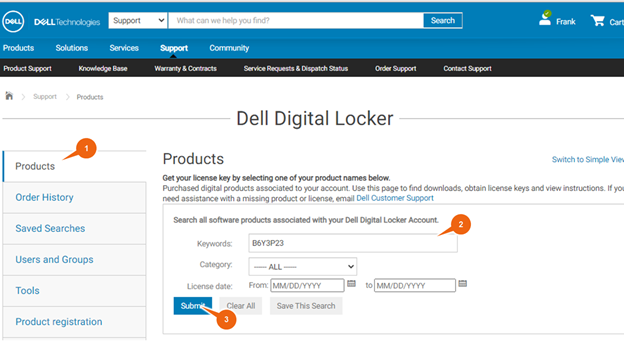
- After navigating to the Dell Digital Locker (Software Licenses) and logging into the site, select the products tab on the left side of the screen.
- Enter the Service Tag number of the device for which you want to retrieve the iDRAC9 Enterprise license.
- Select the Submit button.
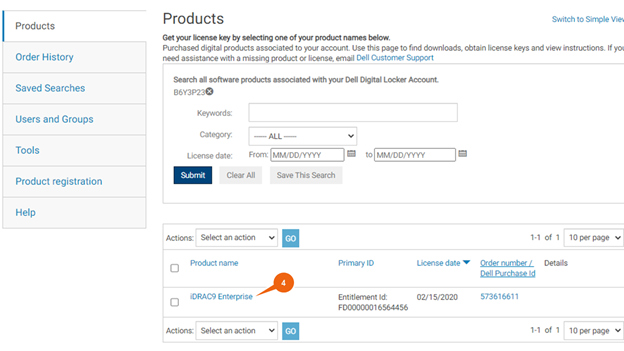
- After the record for the target device displays, select the iDRAC9 Enterprise link.
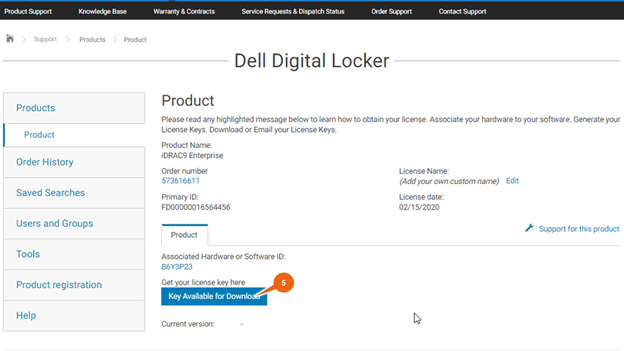
- When the product detail page displays, select the Key Available for Download button.
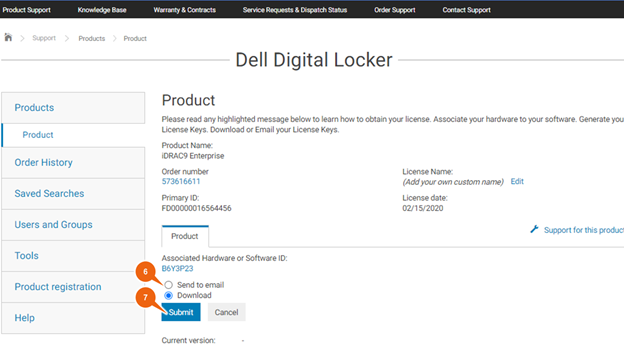
- Select the Download or Send to email option when these options are displayed.
- Select the Submit button to start the download process.
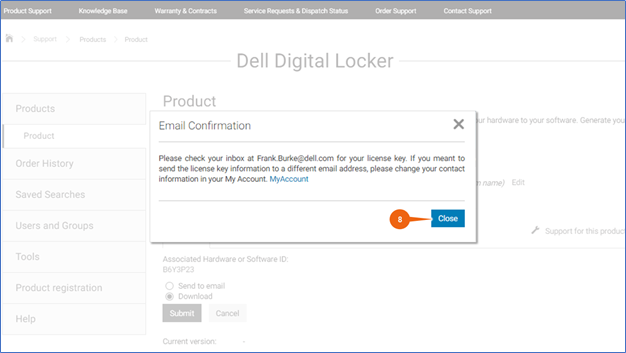
- If the Send to email option was selected, an Email Confirmation message is displayed. Select the close button to dismiss the message after reading it.
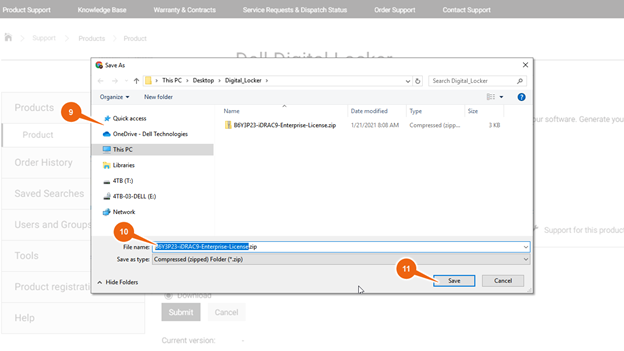
- If the Download option was selected, a Save As dialog box appears, navigate to the location to which you want to save the .zip file.
- Consider renaming the file from the default file name of License.zip to something more meaningful.
- Select the Save button.
Affected Products
Data DomainArticle Properties
Article Number: 000183997
Article Type: How To
Last Modified: 05 Nov 2025
Version: 2
Find answers to your questions from other Dell users
Support Services
Check if your device is covered by Support Services.