Upgrades to Consider for Your Dell Computer
Summary: If you are looking for Dell Desktop and Laptop computer upgrades, here are the recommended hardware upgrades to consider: CPU, graphics card, memory, and storage.
This article applies to
This article does not apply to
This article is not tied to any specific product.
Not all product versions are identified in this article.
Instructions
Table of Contents:
- Description
- Desktop Computers
- Laptops
- Where is the potential upgrade on my computer?
- Can Dell help me with the upgrade installation?
- Where Can I Locate Upgrade Information Regarding My System?
Description
Over time, computer resources are unable to run new applications or games because the application requirements exceed the computer capability. You now can consider upgrading the computer that you are using or buying a new computer if an upgrade is not competitive compared to a new computer price.
If your calculation shows upgrading as a viable option, the below information helps to determine what hardware can be changed in your current configuration. Prior to considering an upgrade, you might want to check our online resource for advice and steps which can address Slow System Performances: How to Troubleshoot Slow Performance Issues.
Note: Some components such as the computer motherboard cannot be upgraded as upgrade motherboards are not generally available. Other components like memory, a solid state drive, or a wireless card may be soldered down components to the board.
Desktop Computers
Desktop or tower computers are upgradable in most circumstances. Depending on the chassis design, you may be able to upgrade several components.
- Storage (solid state drive or hard drive) is commonly the easiest item to upgrade.
- Memory modules in most desktop computers are upgradable and many computers ship with open slots for additional memory.
- Graphic adapters can often be upgraded or added for additional display capability. Care must be taken to ensure that the computer power supply can either support the graphic card upgrade. The power supply itself may require an upgrade with a graphics adapter.
- Other PCIe expansion cards (Network adapter, Wireless network adapter, and so on) may also be an option if the computer has the appropriate slots available.
- The monitor displays.
- Other items (Keyboard, Mouse, Optical Drive, and so on.)
Note: When upgrading older computers, compatibility with the motherboard and the BIOS are also considerations. A card may fit into the PCIe slot, but the motherboard may not provide the correct data for the card to function. M.2 SSDs also required motherboard compatibility on PCIe generation type, the physical size, and keying of the drive.
Depending on your initial configuration, some extra mounting hardware or functional components may be required in addition to the upgraded component. For example: Changing a 3.5-inch drive carrier to a 2.5-inch drive carrier or adding a thermal plate that would prevent overheating or crashes.
Depending on your initial configuration, some extra mounting hardware or functional components may be required in addition to the upgraded component. For example: Changing a 3.5-inch drive carrier to a 2.5-inch drive carrier or adding a thermal plate that would prevent overheating or crashes.
Laptops
Due to their compact design, laptops are less upgradable than desktop computers. With a few specific exceptions, you cannot upgrade the graphics adapter on a laptop. CPUs are almost exclusively an integrated component of the motherboard. As tolerances on laptops get smaller, more components are integrated into the motherboard, reducing upgrade options. Generally, these items can be upgraded on a laptop.
- Memory
- Storage
Where is the potential upgrade on my computer?
If you already have a high-end configuration, the processor, maximum memory, and latest graphic card leave a few upgrades to consider. Here are items that you can consider for upgradability:
To purchase upgrade components for your Dell computer, go to the Dell website.
- Memory
- Storage
- Graphics Card
- CPU
Memory
How to check if my memory (RAM) needs an upgrade.
A game’s or application’s specific requirements can be consulted on the developer portal. The operating system also uses this fast storage space for its applications and data.
How much space RAM is already taken?
In Windows, check RAM using "Task Manager" which can be launched by doing a right mouse click the Taskbar and selecting its name.
The Performance tab section gives you access to Memory information along with memory already used. Similar information is also available in the BIOS of your computer: How to Access UEFI (BIOS) System Setup from Microsoft Windows on your Dell Computer.
The numbers of Slots that are used can be found in multiple ways, either using the BIOS or Task Manager.
When you are launching your game or applications, if the memory percentage reported by the task manager reaches 80% and your computer has less than 8 GB, you should consider upgrading to a higher memory capacity. (90% for computers with 16 GB and above.)
If your computer allows it and has a free slot, you might also want to consider Optane memory for this upgrade: Intel Optane Memory Module - Frequently Asked Questions.
For more information about Memory upgrades, see How to Upgrade or Install System Memory or RAM in a Dell Computer.
Storage
How to check if I can upgrade my storage?
Under the Windows Operating computer, you would be notified when a drive is close to its maximum capacity by a "low disk space" notification or an error that tells you there is no space left as you try to install new program/store new files.
Windows will show the storage space in red in the file explorer (See Figure.1).
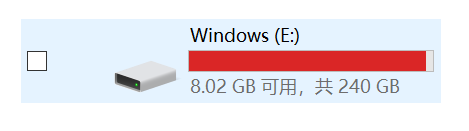
Figure.1 Storage Almost Full
Warning: In case your computer does not have extra storage possibilities, upgrading storage implies that you would need to reinstall the Operating computer. It is always advised to backup data prior to proceeded. You may also want to consider an external storage option.
Upgrading storage might be a good opportunity for a technology change Nowadays, SSDs, or M.2 drives can bring a good performance improvement if you were using previous technology.
Things to consider before upgrading the hard disk drive on your Dell computer:
- Form factor - Hard disk drives come in two form factors: 3.5-inch drive - used on desktop computers and 2.5-inch drive - used on laptops.
- Connector - What type of connector is available on your computer? IDE, S-ATA (Serial ATA) connector (SATA-I, SATA-II, or SATA-III connector) or M.2.
- Capacity - What is the maximum hard disk drive capacity that is supported by your computer?
Note: Before purchasing a solid state drive (SSD) or M.2 drive, verify that your Dell computer can support it.
How to Replace the Hard Drive in a Dell System (Video guides) | Dell US
Note: Performance on computers with limited RAM relies on hard disk storage (swapfile) under load. The combination of limited RAM and a low-speed mechanical hard drive results in poor overall computer performance.
Two upgrade options may allow for improved performance.
Upgrade the hard disk drive to a solid state drive (preferably also larger storage capacity.)
Upgrade the RAM of the computer to the maximum size for that model (if RAM is upgradable).
Individually, these moderately improve performance. When combined, there is an exponential improvement in computer speed.
Two upgrade options may allow for improved performance.
Upgrade the hard disk drive to a solid state drive (preferably also larger storage capacity.)
Upgrade the RAM of the computer to the maximum size for that model (if RAM is upgradable).
Individually, these moderately improve performance. When combined, there is an exponential improvement in computer speed.
Graphics Card
How to check if my graphic card needs an upgrade?
Upgrading the graphic card is one of the easiest things to do on a Desktop computer. As mentioned earlier, few if any current laptops can support a graphics upgrade. Your decision to upgrade heavily depends on your game or application's requirement and the screen resolutions you want to achieve. NVIDIA and AMD, it is really your choice, items you have to keep in mind and check:
- Power requirements for the card.
- GFX slot that your computer has, PCI-E x16 is the current standard.
- Is a power connector available? It is the right connector?
- Will the card fit in the computer?
CPU
At Dell, we are not proposing or supporting CPU such upgrades, even if it is technically possible, we consider that it should be handled carefully as such upgrade may turn your computer unusable.
Note: Heatsink, Fan, and other components that are not listed above.
Back to Top
Can Dell help me with the upgrade installation?
Yes, you can benefit from Dell’s Technical expertise and ease of installation with Client Installation Services.
Where Can I Locate Upgrade Information Regarding My System?
See Where Can I Locate Upgrade Information Regarding My System?
Affected Products
Desktops & All-in-Ones, Dell All-in-One, Dell Pro Max Micro, Dell Pro Max Slim, Dell Pro Max Tower, Dell Pro Micro, Dell Pro Slim, Dell Pro Tower, Dell Slim, Dell Tower, Laptops, Dell Plus, Dell Pro, Dell Pro Max, Dell Pro Plus, Dell Pro Premium
, Dell Pro Rugged, Workstations
...
Article Properties
Article Number: 000191108
Article Type: How To
Last Modified: 31 Jul 2025
Version: 16
Find answers to your questions from other Dell users
Support Services
Check if your device is covered by Support Services.