How to Identify the Secureworks Taegis XDR Agent Version
Summary: Learn step-by-step instructions to identify the version of the Secureworks Taegis XDR agent on Windows or Linux.
This article applies to
This article does not apply to
This article is not tied to any specific product.
Not all product versions are identified in this article.
Instructions
This article provides the steps to locate and identify the Secureworks Taegis XDR agent version.
Affected Products:
- Secureworks Taegis XDR
Affected Operating Systems:
- Windows
- Linux
The process to identify the Secureworks Taegis XDR agent version differs between Windows and Linux. Click the appropriate operating system for more information.
Windows
- As an administrator, right-click the Windows start menu and then click Run.
- In the Run UI, type
cmdand then press Enter.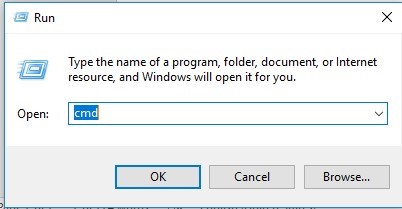
- Type
cd "<PATH>"and then press Enter. Note:
Note:<PATH>= The Secureworks Taegis XDR setup folder- By default, the setup folder is
C:\Program Files (x86)\Dell SecureWorks\Red Cloak.
- Type
redcloak.exe --checkand then press Enter.
- Command Prompt outputs information similar to the below example output. The installed version displays in the
[INFO] Version:output. If errors are seen or there is not a[SUCCESS]message at the end, contact Dell Support.… [ INFO ] Secureworks Red Cloak [ INFO ] Communications Check [ INFO ] [ INFO ] This process will check the communications channel between [ INFO ] this system and the servers. [ INFO ] [ INFO ] Version: 2.8.3.0 [ INFO ] Configuration: c:\Program Files (x86)\Dell SecureWorks\Red Cloak\config.bin … [SUCCESS] connection active
Note:- For more information about contacting support, reference How to Get Support for Secureworks Taegis XDR.
- The version in the example output may differ in your environment.
Linux
- Open Terminal.
- Type
/opt/secureworks/redcloak/bin/redcloak -–checkand then press Enter to verify the agent version. The installed version displays in the[INFO] Version:output.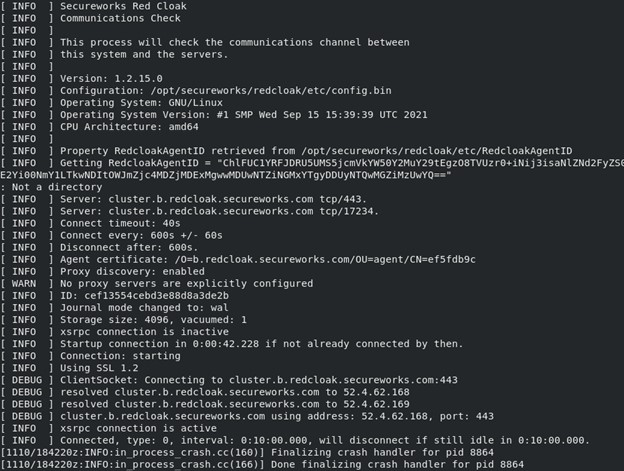 Note: The version in the example image may differ in your environment.
To contact support, reference Dell Data Security International Support Phone Numbers.
Go to TechDirect to generate a technical support request online.
For additional insights and resources, join the Dell Security Community Forum.
Affected Products
SecureworksArticle Properties
Article Number: 000193496
Article Type: How To
Last Modified: 01 Aug 2025
Version: 5
Find answers to your questions from other Dell users
Support Services
Check if your device is covered by Support Services.