How to Optimize Battery Runtime and Enhance Battery Lifespan on Dell Client Laptops Running Gen 11 to 14 Intel Core Processors
Summary: The following article provides information about optimizing the runtime (Hours) and lifespan (Years) on Latitude laptops and Precision Mobile Workstations (MWS). This is recommended where the laptop is configured with 11th, 12th, 13th, and 14th generation of Intel Core Processors. ...
This article applies to
This article does not apply to
This article is not tied to any specific product.
Not all product versions are identified in this article.
Instructions
Table of Contents:
- Introduction
- The importance of Dell Command Update
- Install Dell Command Update
- The importance of Dell Optimize
- Install Dell Optimize
- Further Battery enhancement instructions
Introduction
Installing and using the Dell Command Update and Dell Optimizer applications help to optimize the runtime (hours) and lifespan (years) on Latitude and Precision MWS laptops.
This is for Latitude and Precision WMS laptops that were configured to run the 11th to 14th generation of Intel Core Processors.
The importance of Dell Command Update
The Dell Command Update application includes two additional components:
- Intel Dynamic Tuning Technology (DTT) with Energy performance optimizer (version 9.0.10900.26658 or later)
- Intel Innovation Platform Framework (IPF) (version 1.0.10900.26658 or later)
These components enhance the Intel Thermal tuning and thermal management solution, which results in noticeable improvements in a laptops performance and its battery efficiency. Intel Dynamic Tuning dynamically adjusts its power and performance settings based on the workload demands. It optimizes the balance between performance and power consumption.
The Intel Innovation Platform Framework Driver works with Intel Dynamic Tuning to provide an enhanced thermal management solution. This ensures that the laptop stays within safe temperature limits while delivering optimal performance and battery efficiency. It does this by keeping the laptop updated and optimizing its power and thermal management.
Automatically updating the DTT and IPF drivers along with the latest BIOS update ensures that the Intel Collaboration mode is implemented. Intel collaboration mode is a power-saving mode that brings Acoustic and Thermal improvements during conferencing. (For example: When using conferencing apps like Teams, Skype, Google Meet, Zoom, Discord, Meeting, and so on.) It helps optimize the battery run time.
We recommend installing Dell Command Update. It ensures that the Dell Latitude and Precision MWS laptops stay up to date with the latest BIOS versions, software, and firmware updates. This application automatically checks for updates and performs the necessary installations.
Install Dell Command Update
Download the latest revision of Dell Command Update and read the latest release notes, specifications, and installation instructions on the following article:
- Dell Command | Update
- Dell Command | Update Documentation page (Contains the latest User guides to the application.)
The importance of Dell Optimizer
The Dell Optimizer application leverages intelligent algorithms to enhance the battery performance and provide the laptop owner with intelligent battery run-time extension.
The application regulates screen brightness, CPU performance, Bluetooth, and other settings to ensure optimal battery performance.
- Advanced Charge: This enables you to specify your work schedule. Your laptop waits to finish charging past 80% until just before you start your workday, which extends the life of the battery and reduces charge cycles.
- Battery Information: This lets you quickly access battery details within the new power interface.
- Critical Alerts: Notify you of any power, thermal, and battery charges within your hardware and its ecosystem.
- Peak Shift: Delivers a unique cost-conscious option that lets you avoid high energy costs during specific parts of the day. It does this by switching the Laptop from AC power to battery power on a pre-specified schedule.
- Quiet Mode: In the thermal management settings of Dell Optimizer, it provides up to 18% in power savings and up to 21% performance per watt improvement over the default mode.*
Note: * Disclaimer: This is based on a Dell internal study, testing power, and performance within our Dell Optimizer power module. These workers primarily focus on general computational activities. (For example: Video conference calls, web browsing, and the general response time of opening and closing applications.)
Note: A software application to maximize workstation performance A whitepaper was published in November 2022. (English Only)
Install Dell Optimizer
Download the latest revision of Dell Optimizer or Dell Precision Optimizer (as appropriate). Read the latest release notes, specifications, and installation instructions on the following support pages:
-
Dell Optimizer Documentation page (Contains the latest User guides to the application.)
-
There are several different user guides for each revision of the application that has been released. The current version is Dell Optimizer 4.0
-
Go down the page to Manuals and Documents.
-
Locate the Dell Optimizer Version 4.0 User's Guide entry.
-
Click either View PDF or View Page to open a downloadable PDF or webpage version of the User Guide.
-
-
Dell Precision Optimizer Documentation page (Contains the latest User guides to the application.)
Further Battery enhancement instructions
There are two recommended steps to further enhance the battery runtime:
-
Use the instruction that matches the operating system installed on your laptop:
-
Microsoft Windows 11: Win 11 no longer has access to the battery slider in the system tray. Open the Windows 11 Settings and click System then the Power and battery menu to access the Windows 11 Power Mode dropdown menu. (See Figure.1)
-
Microsoft Windows 10: Set the Battery Slider to Better Battery using the Windows performance power slider setting. Adjusting the battery synchronizes the Thermal Management mode in Dell Optimizer to Optimized. It optimizes power usage by striking a balance between performance and energy efficiency. This setting ensures that the laptop operates with power-saving measures while still delivering satisfactory performance.
-
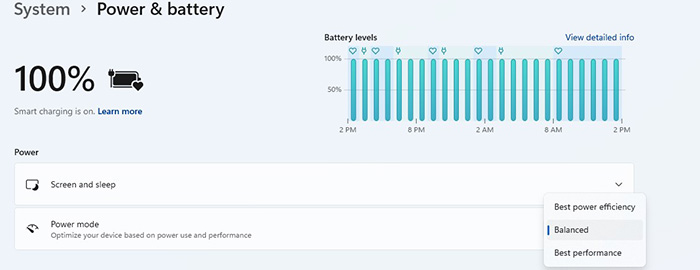
(Figure.1 Power and Battery menu Screenshot)
-
Install the Intel Processor Power Management (PPM) Utility: This utility provides additional tuning capabilities for the processor. It focuses specifically on maximizing the battery runtime. It achieves this by intelligently adjusting the Intel core clock frequency based on the requirements of your applications. It matches the workload by dynamically scaling the processor's performance. The power consumption is minimized, which results in extending the battery life.
All these measures ensure that the processor operates efficiently, adapting its performance to the needs of running applications, while maintaining a longer battery life.
Affected Products
Latitude 3120, Latitude 3140, Latitude 3180, Latitude 3189, Latitude 3190 2-in-1, Latitude 3190, Latitude 5280/5288, Latitude 5285 2-in-1, Latitude 5289 2-in-1, Latitude 5290 2-in-1, Latitude 5290, Latitude 7200 2-in-1, Latitude 7210 2-in-1
, Latitude 7280, Latitude 7285 2-in-1, Latitude 7290, Latitude 3300, Latitude 3301, Latitude 3310 2-in-1, Latitude 3310, Latitude 3320, Latitude 3330, Latitude 3340, Latitude 13 3379 2-in-1, Latitude 13 3380, Latitude 3390 2-in-1, Latitude 5300 2-in-1, Latitude 5300, Latitude 5310 2-in-1, Latitude 5310, Latitude 5320, Latitude 5330, Latitude 5340, Latitude 5350, Latitude 7300, Latitude 7310, Latitude 7320, Latitude 7320 Detachable, Latitude 7330, Latitude 7340, Latitude 7350, Latitude 7350 Detachable, Latitude 7370, Latitude 7380, Latitude 7389 2-in-1, Latitude 7390 2-in-1, Latitude 7390, Latitude 9330, Latitude 3400, Latitude 3410, Latitude 3420, Latitude 3430, Latitude 3440, Latitude 3450, Dell Latitude 3480/3488, Latitude 3490, Latitude 5400, Latitude 5401, Latitude 5410, Latitude 5411, Latitude 5421, Latitude 5431, Latitude 5440, Latitude 5450, Latitude 5455, Latitude 5480/5488, Latitude 5490, Latitude 5491, Latitude 5495, Latitude 7400 2-in-1, Latitude 7400, Latitude 7410, Latitude 7420, Latitude 7430, Latitude 7440, Latitude 7450, Latitude 7455, Latitude 7480, Latitude 7490, Latitude 9410, Latitude 9420, Latitude 9430, Latitude 9440 2-in-1, Latitude 9450 2-in-1, Latitude 3500, Latitude 3510, Latitude 3520, Latitude 3530, Latitude 3540, Latitude 3550, Dell Latitude 3580/3588, Latitude 3590, Latitude 5500, Latitude 5501, Latitude 5510, Latitude 5511, Latitude 5520, Latitude 5521, Latitude 5530, Latitude 5531, Latitude 5540, Latitude 5550, Latitude 5580, Latitude 5590, Latitude 5591, Latitude 7520, Latitude 7530, Latitude 9510, Latitude 9520, Latitude 7640, Latitude 7650, Latitude 3150, Latitude 3160, Latitude 3350, Latitude 3460, Latitude 3470, Latitude 3560, Latitude 3570, Latitude 5175 2-in-1, Latitude 5179 2-in-1, Latitude 5420, Latitude 5430, Latitude 7275, Precision 3470, Precision 3480, Precision 3490, Precision 5470, Precision 5480, Precision 5490, Precision 3520, Precision 3530, Precision 3540, Precision 3541, Precision 3550, Precision 3551, Precision 3560, Precision 3561, Precision 3570, Precision 3571, Precision 3580, Precision 3581, Precision 3590, Mobile Precision 3591, Precision 5520, Precision 5530 2 in 1, Precision 5530, Precision 5540, Precision 5550, Precision 5560, Precision 5570, Precision 7520, Precision 7530, Precision 7540, Precision 7550, Precision 7560, Precision 5680, Mobile Precision 5690, Precision 7670, Precision 7680, Precision 5750, Precision 5760, Precision 5770, Precision 7720, Precision 7730, Precision 7740, Precision 7750, Precision 7760, Precision 7770, Precision 7780, Precision 3510, Precision 5510, Precision 7510, Precision 7710
...
Article Properties
Article Number: 000215958
Article Type: How To
Last Modified: 13 Jun 2025
Version: 5
Find answers to your questions from other Dell users
Support Services
Check if your device is covered by Support Services.