戴尔笔记本电脑摄像头在 Teams、Zoom 和 Windows 摄像头应用程序中无法正常工作
Summary: 本文提供有关驱动程序缺失或不正确的信息。它们会导致笔记本电脑网络摄像头在使用移动行业处理器接口 (MIPI) 摄像头的戴尔笔记本电脑上停止工作。
This article applies to
This article does not apply to
This article is not tied to any specific product.
Not all product versions are identified in this article.
Symptoms
下表 1 中列出的笔记本电脑可能配置了高性能 MIPI 摄像头。与配备传统网络摄像头的笔记本电脑相比,这些笔记本电脑需要一组不同的驱动程序。驱动程序缺失或不正确可能会导致摄像头问题,例如集成摄像头或网络摄像头在 Teams、Zoom、Discord 和其他应用程序中停止工作。
其他症状可能包括:
- Windows 相机应用中的错误:(见第一张图)
We cannot find your camera
- 英特尔 AVStream 摄像头、摄像头传感器或设备管理器中的英特尔控制逻辑上出现黄色感叹号
- 有时,设备管理器中不会显示任何错误
- 蓝牙和设备→摄像头下未检测到摄像头(请参阅第二张图片)
- 网络摄像头在 Teams、Zoom、Discord 或其他应用程序中无法正常工作
提醒:启动前诊断程序不支持 MIPI 摄像头。没有摄像头功能测试,也没有列出硬件 ID。这并不表示硬件故障。

有时设备管理器中没有异常设备,但在 蓝牙和设备 → 摄像头下可能无法检测到您的摄像头。

| 戴尔笔记本电脑 | 戴尔 Pro 笔记本电脑 | Dell Pro Max 笔记本电脑 |
|---|---|---|
| 戴尔 14 高端DA14250 | 戴尔 Pro 14 高端PA14250 | 戴尔 Pro Max 14 MC14250 |
| 戴尔 16 高端DA16250 | 戴尔 Pro 13 Premium PA13250 | 戴尔 Pro Max 14 高端MA14250 |
| 戴尔 Pro 16 Plus PB16250 | 戴尔 Pro Max 16 MC16250 | |
| 戴尔 Pro 14 Plus PB14250 | 戴尔 Pro Max 16 高端MA16250 | |
| 戴尔 Pro 13 Plus PB13250 |
| Latitude 笔记本电脑 | Precision 移动工作站 | XPS 笔记本电脑 |
|---|---|---|
| Latitude 9450 二合一 | Precision 5690 | XPS 16 9640 |
| Latitude 9440 二合一 | Precision 5680 | XPS 13 9350 |
| Latitude 9430 | Precision 5490 | XPS 14 9440 |
| Latitude 9330 | Precision 5480 | XPS 13 9340 |
| Latitude 9420 | Precision 5470 | XPS 13 Plus 9320 |
| Latitude 7650 | XPS 13 9315 | |
| Latitude 7450 | XPS 13 9315 二合一电脑 | |
| Latitude 7350 可拆卸式电脑 | ||
| Latitude 7350 | ||
| Latitude 7640 | ||
| Latitude 7440 | ||
| Latitude 7340 | ||
| Latitude 7030 Rugged Extreme | ||
| Latitude 7230 Rugged Extreme | ||
| Latitude 7320 可拆卸式电脑 | ||
| Latitude 9450 二合一 |
Cause
Windows Update、Norton Updater 和其他实用程序可能会推送不正确或不完整的驱动程序。在重新安装作系统、部署公司作系统映像或手动安装驱动程序时也会发生这种情况。存在对其他英特尔驱动程序的依赖关系,必须按特定顺序安装。
Resolution
提醒:安装任何驱动程序和应用程序或配置作系统都需要笔记本电脑上的管理员权限。
- 戴尔知识库文章:如何下载和安装戴尔驱动程序
-
确保已填写 BIOS 中 Enable Camera旁边的复选框。

-
安装最新的
Intel 2D Imaging, MCU, Visual Sensing Controller Driver for Camera从戴尔网站运行可执行文件。提醒:戴尔下载站点上的驱动程序包包含一个实用程序,可删除旧的驱动程序文件。整个过程可能需要一到两分钟,并且不会显示进度条。等待新窗口打开,确认驱动程序已成功安装。删除实用程序不包括在 Windows Update 完成的自动更新中。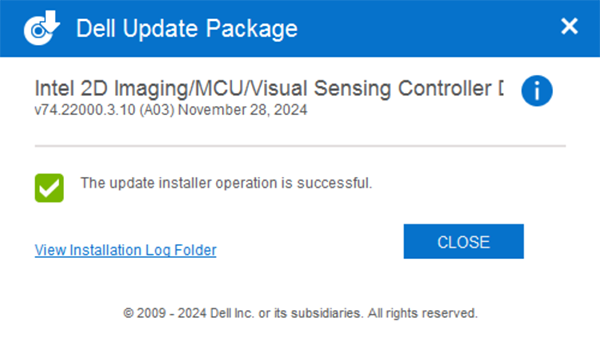
-
重新启动并使用 Windows 摄像头应用程序确认摄像头正常工作。
-
如果摄像头仍然无法正常工作,则更新所有 相关的驱动程序 和 BIOS。有两个选项:
- (强烈推荐)运行 Windows 更新、Dell Command 更新(商业平台)、Dell 更新(消费者平台)或 SupportAssist(所有平台),以将所有驱动程序更新到最新版本:如何更新 Dell 计算机上的驱动程序。
- 从戴尔网站手动下载并安装这些驱动程序的最新版本。所有这些驱动程序都是相机正常工作所必需的。
- 英特尔芯片组设备软件
- 英特尔显卡或 Arc 显卡驱动程序
- 英特尔集成传感器解决方案驱动程序(与英特尔视觉传感控制器(英特尔三叶草瀑布 (CVF))或用户存在检测 (UPD) 相关。)
- Intel 串行 I/O 驱动程序
- 英特尔管理引擎组件安装程序
- 5 更新到可用的 BIOS 最新版本
- 安装所有驱动程序后重新启动笔记本电脑,以确认问题已解决。
- 是,问题已解决。无需采取其他措施。
- 否,问题未解决。请联系戴尔技术支持以获得更多帮助。
Affected Products
Dell 14 Premium DA14250, Dell 16 Premium DA16250, Dell Pro Max 14 Premium MA14250, Dell Pro Max 14 MC14250, Dell Pro Max 16 MC16250, Dell Pro 13 Premium PA13250, Dell Pro 14 Premium PA14250, Dell Pro 13 Plus PB13250, Dell Pro 14 Plus PB14250
, Dell Pro 16 Plus PB16250, Latitude 7030 Rugged Extreme Tablet, Latitude 7230 Rugged Extreme Tablet, Latitude 7320 Detachable, Latitude 7340, Latitude 7350, Latitude 7350 Detachable, Latitude 9330, Latitude 5455, Latitude 7440, Latitude 7450, Latitude 9420, Latitude 9430, Latitude 9440 2-in-1, Latitude 9450 2-in-1, Latitude 7640, Latitude 7650, Precision 5470, Precision 5480, Precision 5490, Precision 5680, Mobile Precision 5690, XPS 13 9315 2-in-1, XPS 13 9315, XPS 13 Plus 9320, XPS 13 9340, XPS 13 9350, XPS 14 9440, XPS 16 9640
...
Products
Dell Pro Max 16 Premium MA16250Article Properties
Article Number: 000248760
Article Type: Solution
Last Modified: 27 Nov 2025
Version: 22
Find answers to your questions from other Dell users
Support Services
Check if your device is covered by Support Services.