PowerEdge: NVIDIA Driver Error: nvidia-smi has failed because it could not communicate with the NVIDIA driver
Summary: When running the nvidia-smi command, you may encounter a driver error stating that "nvidia-smi has failed because it could not communicate with the NVIDIA driver.
This article applies to
This article does not apply to
This article is not tied to any specific product.
Not all product versions are identified in this article.
Symptoms
The nvidia-smi command fails to run and returns the error message:
nvidia-smi has failed because it could not communicate with the NVIDIA driver.
NVIDIA GPU information is not displayed when running nvidia-smi.
nvidia-smi has failed because it could not communicate with the NVIDIA driver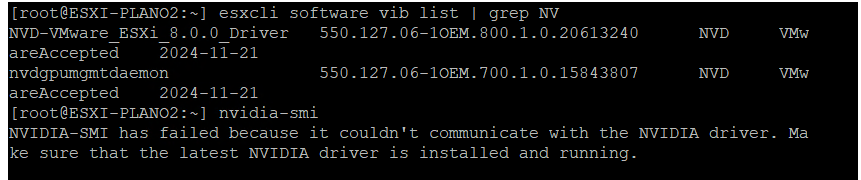
NVRM: nvidia_ctl_session_announce failed as driver unload is in progress.
Cause
The error "nvidia-smi has failed because it could not communicate with the NVIDIA driver" can be caused by several factors:
-
NVIDIA Driver Not Installed or Corrupted: The NVIDIA driver may not be installed on the system, or the installation could be corrupted, causing the
nvidia-smitool to fail when trying to interact with the GPU. -
Driver Incompatibility: The version of the NVIDIA driver installed may not be compatible with the GPU or the operating system, leading to communication issues.
-
NVIDIA Kernel Module Not Loaded: The required NVIDIA kernel module (
nvidia.ko) may not be loaded into the system, preventing proper communication between thenvidia-smitool and the GPU. -
GPU Initialization Failure: The GPU might not have been initialized properly during boot or due to a hardware failure, which means
nvidia-smicannot establish communication with it. -
Conflicting Driver Versions: Conflicting or multiple GPU drivers (for example, Nouveau open-source driver or older NVIDIA driver versions) may be installed, causing the system to fail to load the correct NVIDIA driver.
-
Faulty Hardware: There could be a hardware issue with the GPU itself, such as a physical malfunction, overheating, or improper connection, preventing the system from accessing it.
-
Missing or Expired NVIDIA License (for vGPU setups): In virtualized environments, a missing or expired NVIDIA vGPU license can prevent the driver from functioning properly, leading to communication failures.
-
System Updates or Kernel Changes: Recent updates to the operating system or kernel changes may have affected the compatibility or functionality of the NVIDIA driver, causing it to fail.
To resolve this, check the driver installation, verify that the correct driver is loaded, and ensure that the hardware and software are compatible.
Resolution
Step-by-Step Guide to Enable vGPU in ESXi 7.0 and Later:
-
Install the NVIDIA vGPU Manager:
- Download the latest NVIDIA vGPU Manager for VMware ESXi from the NVIDIA website
.
- Use SSH to access the ESXi host or the ESXi Shell to install the vGPU Manager package.
- Download the latest NVIDIA vGPU Manager for VMware ESXi from the NVIDIA website
-
Install the NVIDIA vGPU Drivers in the Virtual Machines (VMs):
- For each VM using vGPU, install the appropriate NVIDIA GPU driver in the guest operating system (for example, Windows, Linux).
- Download the drivers from the NVIDIA website for the specific operating system.
- Install the drivers inside the VM as you would on a physical machine.
-
Reboot the ESXi Host:
- After installing the NVIDIA vGPU Manager, reboot the ESXi host for the changes to take effect.
-
Check if the NVIDIA Driver is Loaded:
- Run the command:
esxcli system module list | grep nvidia
- This checks whether the NVIDIA kernel module is loaded.
- Run the command:
-
Manually Load the NVIDIA Driver (if not loaded):
- If the NVIDIA module is not loaded, you can manually load it by running:
esxcli system module load --module=nvidia
- If the NVIDIA module is not loaded, you can manually load it by running:
-
Enable Hardware Virtualization (if not enabled):
- Log in to the ESXi host over the ESXi Host Client or vSphere Client.
- Check that Intel VT-x or AMD-V is enabled in the BIOS/UEFI of the physical server. These options are required for virtualization.
-
Check if the NVIDIA GPU is Detected:
- Run the command:
lspci | grep -i nvidia
- This checks if the NVIDIA GPU is detected by ESXi.
- Run the command:
-
Check System Logs for Errors:
- Use the command to find specific error messages related to the NVIDIA driver:
tail -f /var/log/vmkernel.log
- Use the command to find specific error messages related to the NVIDIA driver:
-
Check NVIDIA-Specific Logs:
- Review the NVIDIA-specific logs located at:
/var/log/nvidia-installer.log
- Review the NVIDIA-specific logs located at:
-
Configure vGPU in vSphere:
- Open the vSphere Client and navigate to your ESXi host.
- Right-click the VM that uses vGPU and select Edit Settings.
- In the VM Hardware tab, click Add New Device and select PCI Device.
- Choose the NVIDIA GPU (vGPU) you want to assign to the VM.
- Select the wanted vGPU Profile (for example, GRID, vComputeServer, so on) depending on the available GPU resources and licensing.
-
Assign a vGPU Profile:
- When configuring the VM, assign a vGPU profile that determines how much of the physical GPU’s resources to allocate to each VM. The profile options depend on the GPU model.
-
Configure NVIDIA License:
- Ensure that the correct NVIDIA vGPU license is installed on the ESXi host.
- To install or update the vGPU license, use the vGPU Licensing Utility that comes with the NVIDIA vGPU package.
- The license is required for vGPU functionality to work properly, and it can be applied to the ESXi host over the command line.
-
Verify vGPU is Enabled:
- After setting up the vGPU, verify that it is recognized correctly in the virtual machine.
- Log in to the VM and run the following command:
nvidia-smi
- This should display the status of the virtual GPU, similar to how it would appear on a physical machine.
Additional Information
Dell should suggest customer open a case with NVIDIA for vGPU related Issues by either sending an email to enterprisesupport@nvidia.com OR by submitting a web case through their portal, or contacting them by phone.
Web Portal: https://www.nvidia.com/en-us/support/
Phone Support:
Note: While Dell can initiate a case with NVIDIA for further assistance, however if the license is not issued by Dell, NVIDIA typically prefers to work directly with the customer.
Affected Products
C Series, Rack Servers, Tower Servers, XE Servers, VMware ESXi 7.x, VMware ESXi 8.x, VMware OEM Products with ProSupportProducts
HS Series, OEM Server SolutionsArticle Properties
Article Number: 000252982
Article Type: Solution
Last Modified: 08 Nov 2025
Version: 3
Find answers to your questions from other Dell users
Support Services
Check if your device is covered by Support Services.