The login attempt to an ESXi server results in the error "No supported authentication methods available (server sent: publickey)"
Summary: This article provides a detailed guide on troubleshooting SSH issues from an ESXi perspective. However, the concepts and solutions discussed here are also applicable to other Linux-based operating systems, making this information valuable for a broader range of environments. ...
This article applies to
This article does not apply to
This article is not tied to any specific product.
Not all product versions are identified in this article.
Symptoms
Symptom 1:
SSH login attempt to an ESXi server results in the error "No supported authentication methods available (server sent: publickey)" as follows below: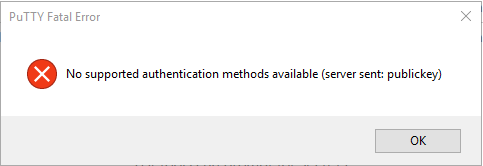
The login attempt from a different ESXi server, the following error is displayed:
Symptom 2:
SSH login attempt to an ESXi server results in the error "No supported authentication methods available (server sent: publickey,keyboard-interactive)" as follows below:

Cause
Cause for Symptom 1:
The server refuses the SSH session because the "challengeresponseauthentication" parameter in the sshd_config file is set to "no" and the servers are not properly configured for asymmetric authentication (RSA Public and Private key authentication).
As a result, the attempt to connect to the server using Putty results in the error "No supported authentication methods available (server sent: publickey).
A similar behavior is observed when attempting to establish an SSH connection from another ESXi host. In this case, the error 'Load key '/.ssh/id_rsa': error in libcrypto' is received, but there is no prompt to enter a password, and the connection fails.
If the servers are not properly configured for asymmetric authentication, but the 'ChallengeResponseAuthentication' parameter is set to 'yes,' an error message is displayed, followed by a prompt to enter a password. When the password is correctly entered, the connection is successfully established.
Cause for Symptom 2:
Lockdown Mode is enabled for the host.
Resolution
Resolution for Symptom 1:
Connect to the target server console using the DCUI and then edit the challengeresponseauthentication parameter to "yes" in the /etc/ssh/sshd_config configuration file.
The ChallengeResponseAuthentication setting specifies whether challenge-response authentication is allowed for SSH connections. When this option is enabled, the SSH server requires that clients respond to a challenge before allowing them to authenticate. It is enabled by default in some SSH server implementations, but it may be disabled for security reasons on some systems, such as in Red Hat, as described in Red Hat article 336773
ChallengeResponseAuthentication is a deprecated alias for KbdInteractiveAuthentication. Reference: OpenSSH: Release Notes
Resolution for Symptom 2:
Disable Lockdown Mode or add a user to the Exception Users list. For more details on this task, consult the following Broadcom Article: Enabling or disabling Lockdown mode on an ESXi host
Additional Information
More Details:
- The combination of setting
challengeresponseauthenticationandpasswordauthenticationproduces a slightly different prompt:challengeresponseauthentication set to no and passwordauthentication set to yes:
challengeresponseauthentication set to no and passwordauthentication set to yes OR both set to yes
More Troubleshooting Steps:
- From the client side, use
-voption in thesshcommand to print debugging messages aboutsshprogress.
Multiple-voptions increase the verbosity (the maximum is three):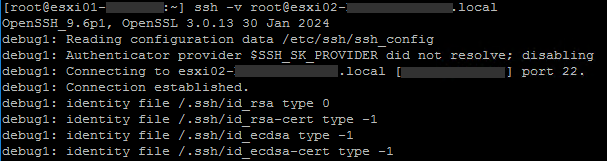 …
…
- In the target server, increase the verbosity level of the LogLevel
Gives the verbosity level that is used when logging messages from sshd(8)QUIET, FATAL, ERROR, INFO, VERBOSE, DEBUG, DEBUG1, DEBUG2, and DEBUG3 The default is INFO. DEBUG and DEBUG1are equivalent.DEBUG2 and DEBUG3each specify higher levels of debugging output. Logging with aDEBUGlevel violates the privacy of users and is not recommended. - Review the
/var/run/log/auth.login the target server for more details on the error.
Affected Products
VMware ESXi 6.5.X, VMware ESXi 6.7.X, VMware ESXi 6.x, VMware ESXi 7.x, VMware ESXi 8.xArticle Properties
Article Number: 000286315
Article Type: Solution
Last Modified: 08 Apr 2025
Version: 2
Find answers to your questions from other Dell users
Support Services
Check if your device is covered by Support Services.