PowerEdge: Dell Systems Management Troubleshooting Tool for network devices
Summary: Dell EMC Troubleshooting Tool you can gather more information about failure to discover a network device (for example: Dell servers, clients, or any other network resources) in the management console such as OpenManage Enterprise. Also, it may help to determine the root cause for discovery-related problems for remote devices; run a protocol-specific test for the remote device and verify the results. It also has tools to: configure emails, check availability of ports, run a command on a remote box, send and listen for SNMP traps, and check for warranty status. ...
This article applies to
This article does not apply to
This article is not tied to any specific product.
Not all product versions are identified in this article.
Instructions
About the Dell EMC Troubleshooting Tool
The tool can be used to gather more information about failures and issues with the discovery of network devices (for example, Dell servers, clients, or any other network resources). The tool can verify emails, SMTP settings, check for the availability of ports, run a command on a remote device, send and listen for SNMP traps, check warranty status, verify connectivity issues to a network share and iDRAC while deploying files. The tool can debug issues during in-band system update, find detailed information about iDRAC jobs or delete iDRAC jobs, and verify the IP address formed during out-of-band system update. This tool is optional and is only required to debug issues. The tool helps identify issues so they can be manually resolved.
Features and Benefits of the Dell Troubleshooting Tool
The Dell Troubleshooting Tool gathers information about problems that may occur in the data center. The tool can be used to diagnose discovery-related problems that may occur while connecting to managed nodes using various protocols such as SNMP, WMI, SSH, WS-Man, PowerVault modular disk-specific connection, among others. The tool also verifies the SMTP-specific settings, SNMP trap listening, SNMP trap forwarding, and TCP/UDP port availability. It can be used to diagnose issues that may occur while updating patches through the in-band method and also verify connectivity issues that may occur during deployment using a network share. See the tool's Help and readme file for more information.
Download the Dell Troubleshooting Tool v3.4.8.
Example Use Cases
The following are some example use cases:
- Run the tool and select the SNMP protocol, specify protocol-specific settings, and provide the remote system IP address when unable to discover a supported device in OpenManage Essentials or the device is classified as an unknown device while using the SNMP protocol. For Dell PowerEdge servers, verify whether the tool provides the Server Administrator version in the result area for a successful test (using the SNMP protocol for an in-band server discovery).
- Verify the ability to ping a remote device (using Ping/ICMP protocol) and the ability to resolve the hostname of the device from the management station (using Name Resolution protocol).
- Verify whether the Dell OpenManage Server Administrator services are running on a remote device (using Services protocol).
- Check the warranty status of any Dell server (using Service Tag).
- Run a command on the remote system and verify its output.
- Listen to incoming SNMP traps.
- Use the tool to forward test SNMP traps.
- Use the tool to verify the SMTP settings to ensure that OpenManage Essentials can successfully run the Alert Emails action.
- Use the tool to verify the availability of the local or remote ports.
- Identify the user groups of the active user.
- View or delete the pending system update jobs in an iDRAC.
- Verify connectivity to the deployment file share.
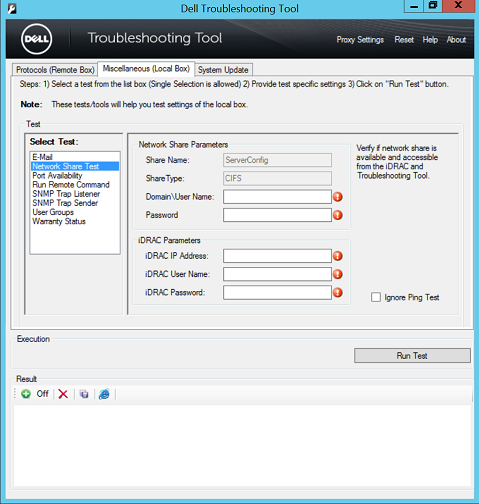
Figure 1: Network Share Test
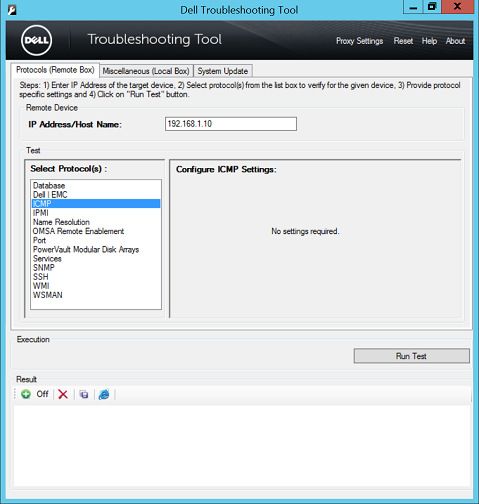
Figure 2: Configure ICMP Settings
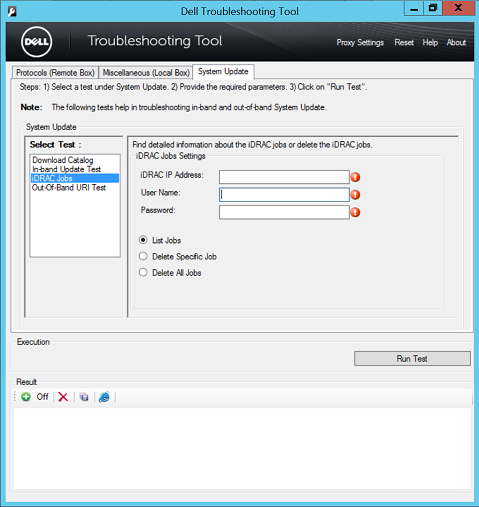
Figure 3: iDRAC Jobs
Installation Requirements
The Dell Troubleshooting Tool is a 64-bit application that requires the following:
- Supported Operating Systems
- Windows Server 2008 R2, 2012, 2012 R2, 2016, and 2019 Standard and Datacenter Edition
- Windows 7 (x64), 8 (x64), 8.1 (x64), and Windows 10 (x64)
- Microsoft .NET Framework 4.0 or later
- Write permissions are required on the folder where the Dell Troubleshooting Tool is installed. This is required to perform the required tests and show the results successfully.
- Administrator permissions are required to run the tool executable.
- IPv4 support only
Note: Dell recommends managing devices using OpenManage Enterprise (OME), which is the successor to OpenManage Essentials and includes an integrated troubleshooting tool starting with appliance version 3.9. The standalone Dell Troubleshooting Tool v3.4.8 documented in this article is intended for use with OpenManage Essentials.
Review the readme file after you install the utility.
Affected Products
OpenManage Essentials, iDRAC8, iDRAC9, Dell EMC OpenManage Enterprise, Secure Connect Gateway - Virtual EditionArticle Properties
Article Number: 000145268
Article Type: How To
Last Modified: 16 Oct 2026
Version: 10
Find answers to your questions from other Dell users
Support Services
Check if your device is covered by Support Services.