Dell AIOps: General procedures to onboard VxRail into Dell AIOps
Summary: Procedure to onboard VxRail into Dell AIOps
This article applies to
This article does not apply to
This article is not tied to any specific product.
Not all product versions are identified in this article.
Instructions
Introduction
Dell AIOps is a no-cost, cloud-based application that leverages AI/Machine Learning to proactively monitor and measure the overall health of Dell infrastructure and Connectrix switches through intelligent, comprehensive, and predictive analytics. This article describes the requirements to enable Dell AIOps on Dell VxRail hyperconverged systems.
Prerequisites
- Users accessing Dell AIOps must have Dell Support credentials for a business/corporate support account and be able to log in to https://www.dell.com/support.
For more information on accounts, see: How to Register for Access to Dell Technologies Online Support or Upgrade an Existing Account. - The user account email used to log in to Dell AIOps must have inherited the site relationship to the site where the asset resides.
- Valid Support Contract: At least one of the nodes within a VxRail cluster must have a ProSupport or ProSupport Plus contract for the cluster to be detected by Dell AIOps.
To check for ProSupport coverage, enter the service tags for devices on the Dell Support Services & Warranty page. - The nodes within the VxRail cluster may span more than one location ID, but the Dell user account (email address) must have access to all sites where the nodes reside, and company profile ID should be the same.
- Must have incoming port opened for multicluster upgrade in future.
- For VxRail v4.7.100 up to v7.0, connectivity to a secure connect gateway is required.
- Customer Improvement Program must be enabled during connectivity configuration.
- Minimum versions:
- 4.7.100
- 7.0 (and all later versions)
- VxRail Clusters running v7.0.3.350 or later versions can directly connect using the connectivity agent, ESE, or they can use a secure connect gateway.
Note: Dell AIOps does not support dynamic nodes.
Onboarding
Enable Connectivity
To configure connectivity, see the following sections in the VxRail documentation available on the support site:
- V4.7.x: VxRail Administration Guide: see “Enable service connectivity”
- V7.0.x: VxRail Administration Guide: see “Service connectivity”
- V8.0.x: VxRail Administration Guide: see “Service connectivity”
To enable Dell AIOps for v.8.0.x, see VxRail Administration Guide: “View Dell AIOps Infrastructure Observability information in VxRail” - Also see Solve Online, VxRail section.
Enable Telemetry for Dell AIOps
You must enable Customer Improvement Program. The default and recommended collection level is Medium. This collects samples after every one hour.
Intelligent Multi-System Updates Feature
To perform an Intelligent Multisystem Updates operation, each user must enable vCenter-based access control using the Enable vCenter Access Control wizard on the HCI Settings page.
Accessing the Dell AIOps Portal
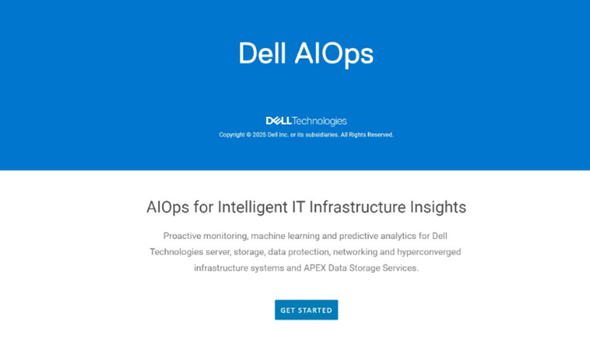
The Dell AIOps onboarding wizard is displayed which includes a description of Dell AIOps, basic information, and the licensing agreement. VxRail systems are automatically onboarded to Dell AIOps.
To access Dell AIOps:
- In your browser, access Dell AIOps by going to https://aiops.dell.com.
- Log in to Dell AIOps using your Dell Support credentials.
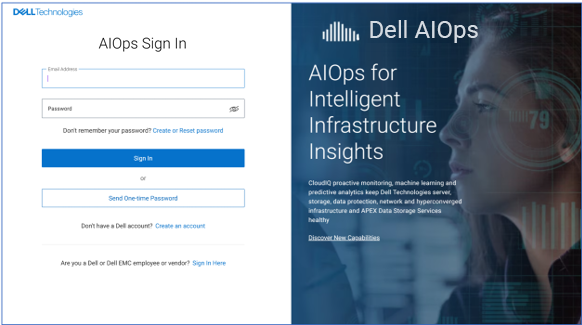
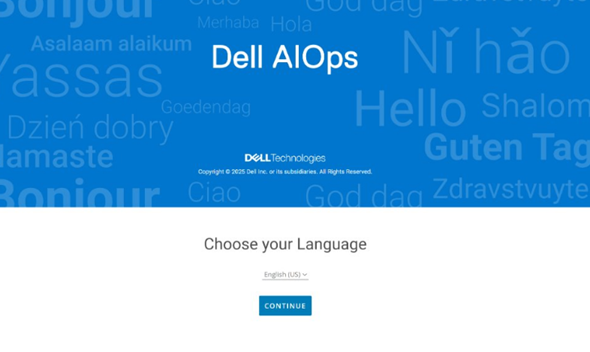
- When a new user logs in to Dell AIOps, they step through the following onboarding screens.
-
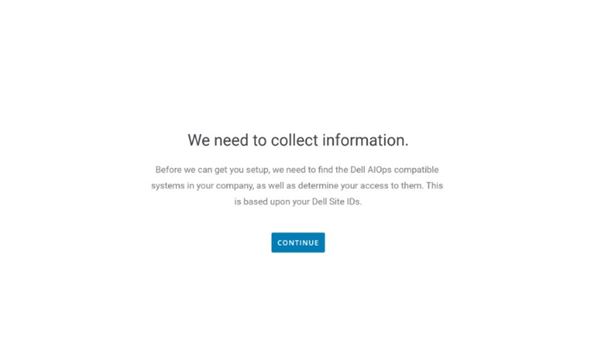
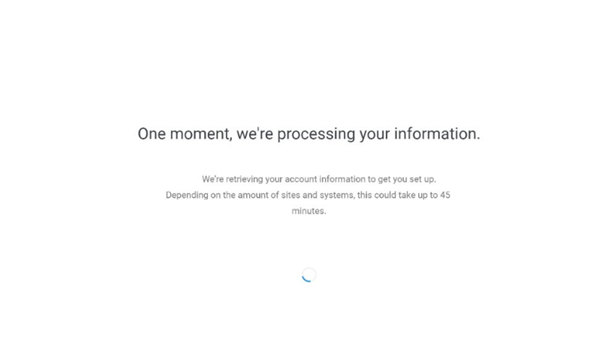
Dell AIOps retrieves the systems that are associated to the user's site IDs based on their support credentials. Click Continue.
-
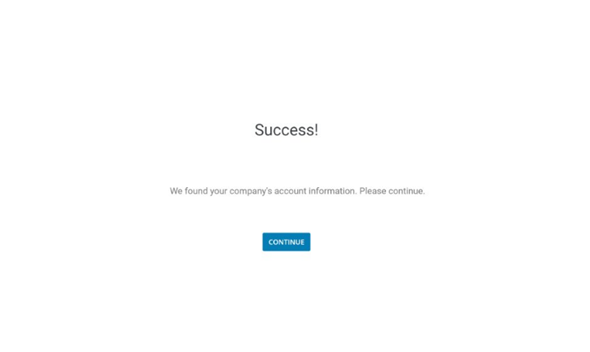
Once the command finishes, it shows a Success screen.
-
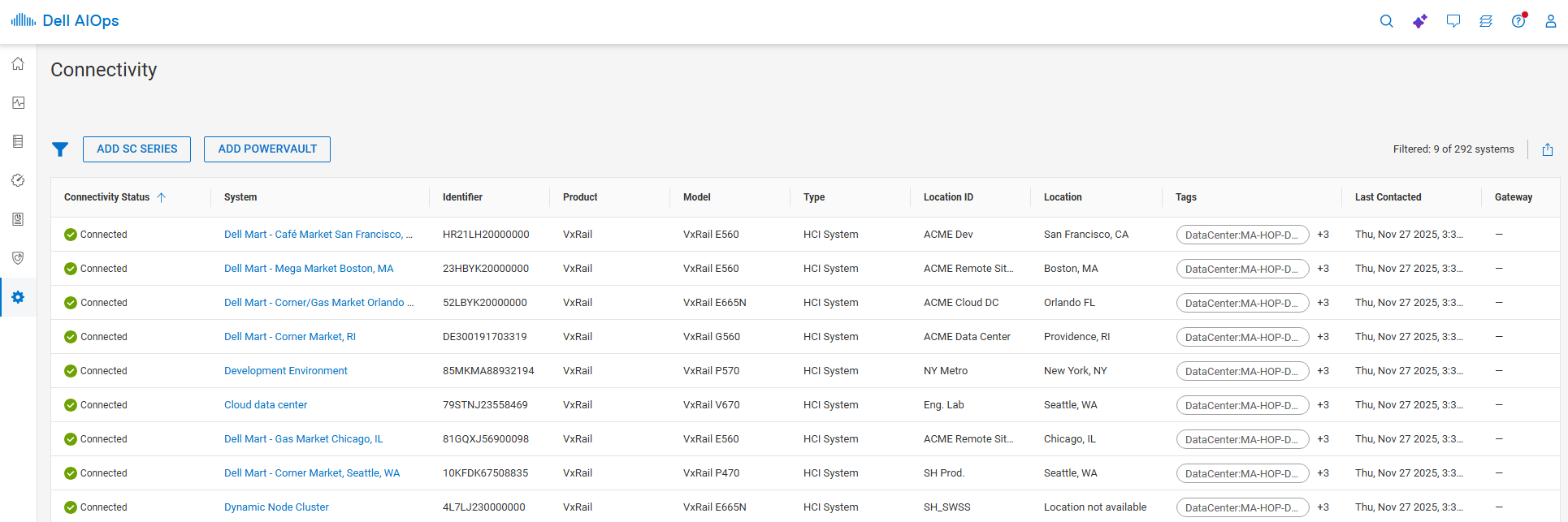
Upon logging in to Dell AIOps, the user sees all systems that are successfully sending data to AIOps.
Products
CloudIQ, CloudIQArticle Properties
Article Number: 000184396
Article Type: How To
Last Modified: 08 May 2026
Version: 18
Find answers to your questions from other Dell users
Support Services
Check if your device is covered by Support Services.