Live Optics | PowerStore | Performing an Array Profile
Summary: Guide to performing a PowerStore collection.
This article applies to
This article does not apply to
This article is not tied to any specific product.
Not all product versions are identified in this article.
Instructions
Overview
Live Optics supports the profiling of Dell Technologies PowerStore. Using the Live Optics collector, configuration and performance data is captured, analyzed, and compiled into a project. The output can be viewed from the Online Viewer only.
This document outlines the process to produce a Dell Technologies PowerStore array storage profile.
Quick-Start Directions
-
Download the Live Optics Collector (Windows .NET version).
-
Launch Live Optics Collector.
-
Click Get Started.
-
Click Yes, I agree to accept the End User License Agreement (prompted only on first execution).
-
Click Yes, this is me after verifying identity (prompted only on first execution).
-
Select Storage from the left menu.
-
Select PowerStore.
-
Enter the PowerStore array IP address.
-
Enter the admin username and password.
-
Select the Upload Option, either upload automatically (recommended) or upload later.
-
Click Next. If Upload Automatically was selected, enter the project name to be created and click Next. If Upload Later was selected, enter the file name and directory to save the SIOKIT file and click Next.
-
Click Continue to gather the data.
-
If Upload Automatically was selected, the data is sent to the Live Optics portal. An option to create a SIOKIT for backup is provided. This can be skipped, or the file can be created now. If Upload Later was selected, the SIOKIT must be manually uploaded to the Live Optics portal.
-
Click Quit to exit the application.
Detailed Instructions
There are two ways to download the Live Optics collector:
-
First, from the invite email you receive from your systems consultant by clicking the Download Collector link.
-
Second, from the Live Optics portal, select Collectors from the left menu, then click Download Collector.
Start the Profile Selection Process.
-
Select Storage from the list of Category Types and select PowerStore from the list of storage array assets.
-
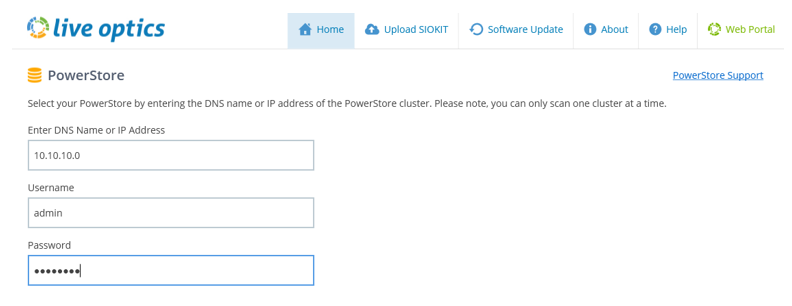
Enter the array IP address, username, and password. The username is the admin or admin equivalent account.
-
PowerStore automatically defaults to 48 hours to collect the performance data. Once entered, click Next.
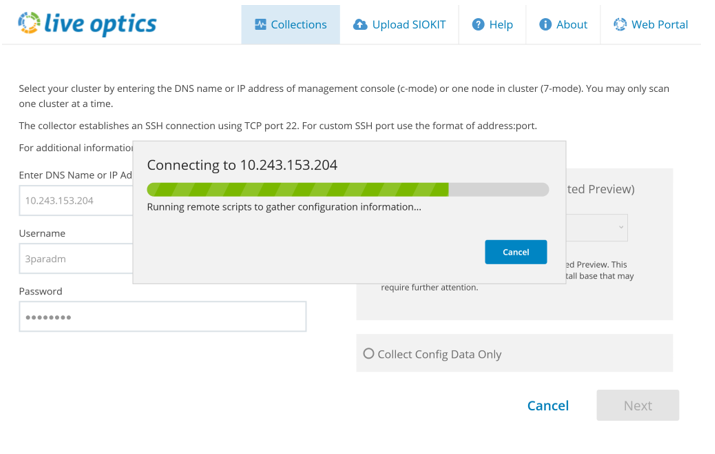
Start the Configuration Collection.
The collector connects to the array and captures the data.
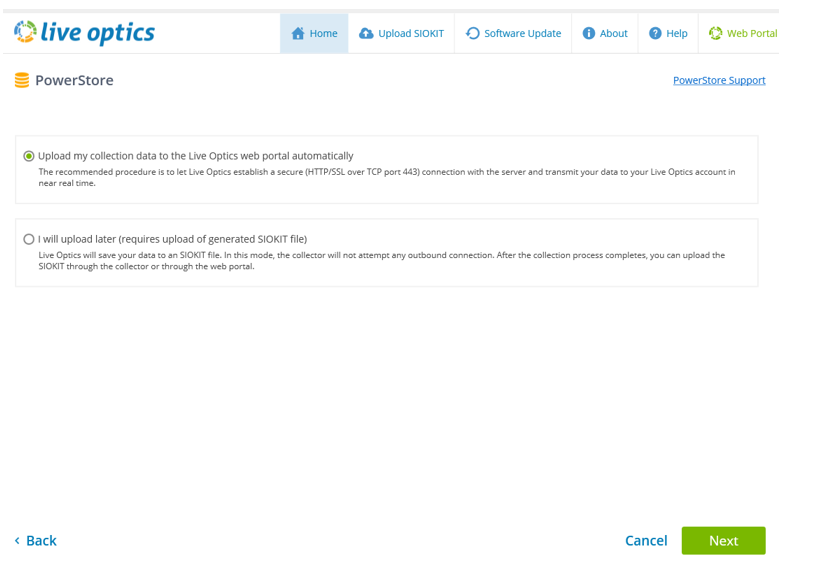
Select the Method to Upload to the Live Optics Portal for Processing.
-
Select the default option, Upload my collection data to the Live Optics web portal automatically. This is the recommended method. Once the collection is complete, the data is automatically uploaded to the Live Optics portal. Use this option when the host running the collector has Internet access
-
There is an option to upload later. This saves the configuration and performance data to an encrypted file, named [hostname]_PowerStore.siokit. The file is written to the same folder that the collector was ran. Use this option when the host running the collector does not have Internet. Instructions for uploading the.siokit can be found at the end of these instructions.
-
Once selected, click Next.
-
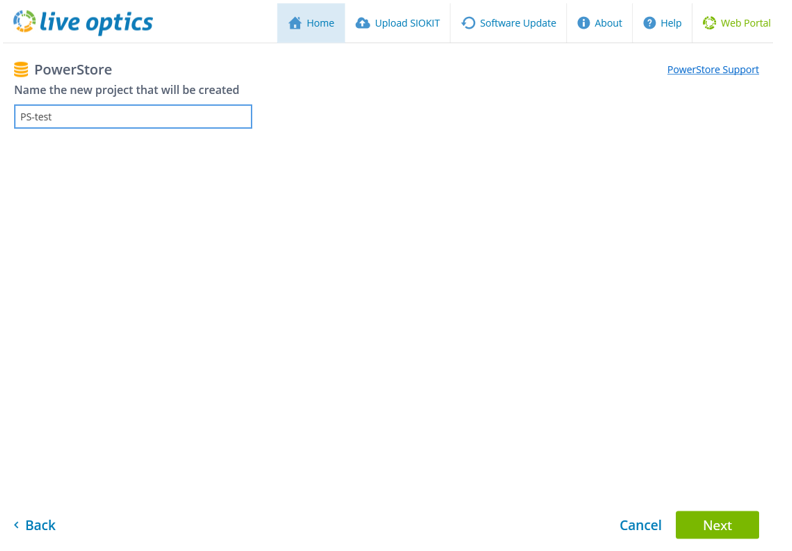
Enter the name of the project in the Live Optics portal.
-
Click Next.
Collecting the data from the array
During the collection process, a status bar indicates the progress. The collection may take some time to complete.
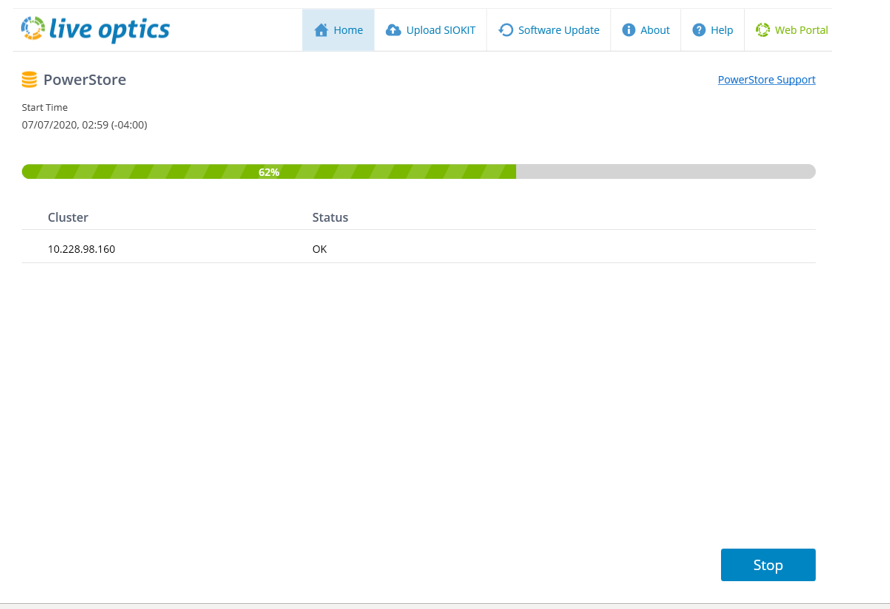
Upload the data to the Live Optics portal.
-
Once the collection is collected, it is automatically uploaded to the web portal.
-
During the upload, a status bar indicates the progress. The upload may take some time to complete depending on the speed of the Internet connection
-
The collector indicates when the upload has finished.
Create a backup file of the data.
A choice is provided to back up the project to a SIOKIT. There is a choice to skip this option or create the backup file. Identify the file name and a save location of this file.
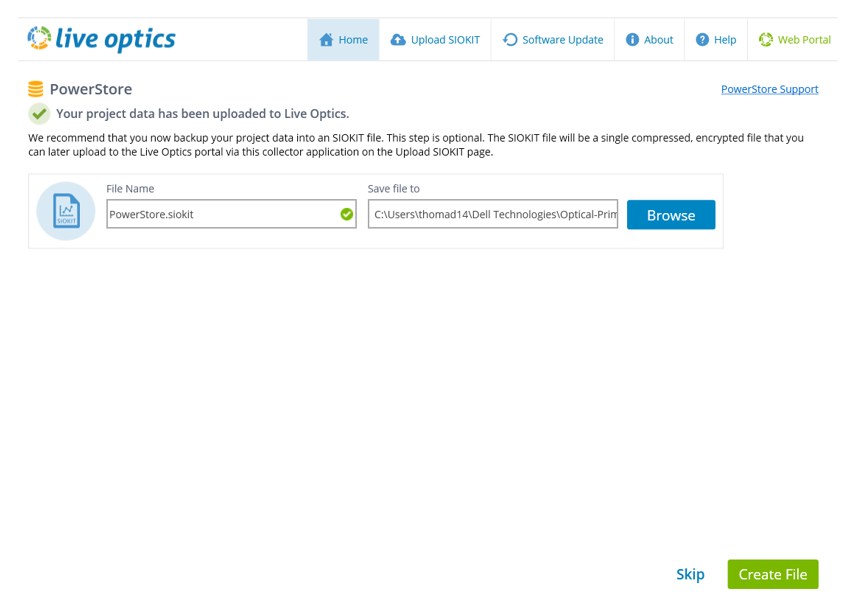
The process has been completed successfully.
-
Once the upload has finished. Click Quit to close the collector. An email from Live Optics is sent when the project is ready for viewing on the web portal.
Uploading the SIOKIT (applies only if the "upload later" was selected)
-
The Live Optics collector software is used to upload the SIOKIT files using the Windows collector.
View Project Results
-
Log in to the Live Optics web portal.
-
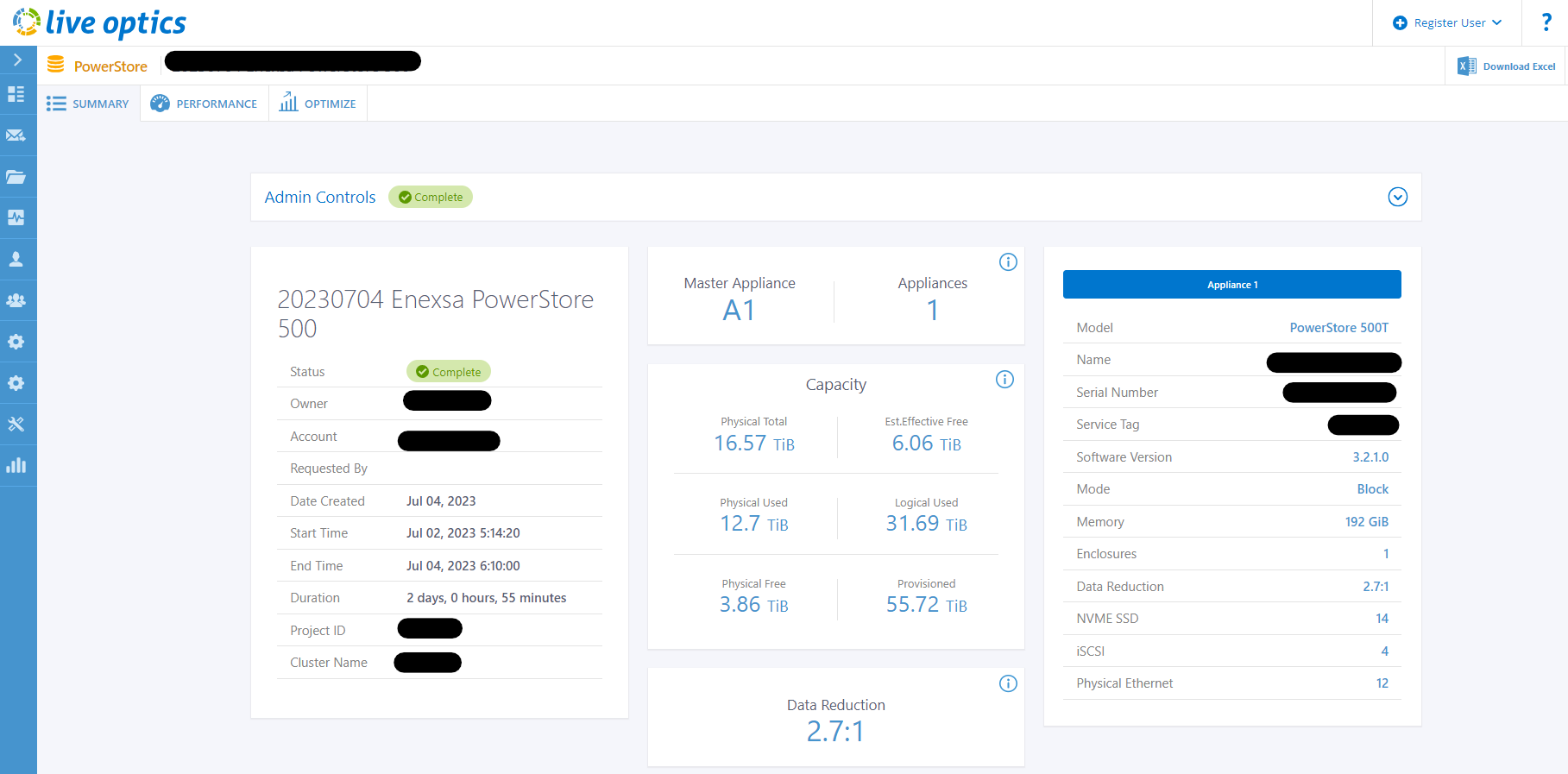
Recent projects are listed on the dashboard. Select the project that you want to view.
-
Click on the project page to view the project details using the Live Optics Online viewer.
Affected Products
LiveOpticsArticle Properties
Article Number: 000228709
Article Type: How To
Last Modified: 04 Apr 2025
Version: 3
Find answers to your questions from other Dell users
Support Services
Check if your device is covered by Support Services.