PowerFlex 3.X: de-registering and re-registering the alert connector SRS SCG
Summary: A guide to deregistering and reregistering the alert connector in PowerFlex Manager 3.6 through 3.8
Instructions
This is useful to perform if the user is not receiving dial homes or that the alert connector is not connected.
You want to log in to PowerFlex Manager using the UI.
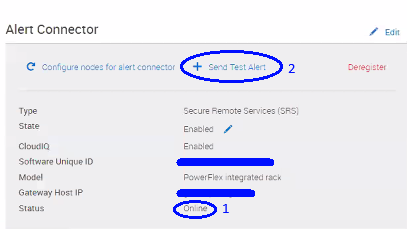
Browse to Settings -> Virtual Appliance Management and observe the Alert Connector Panel. The "Status" can be highly variable. The goal is to have the status say "Online" and be able to check send a test alert from this panel.
First Step:
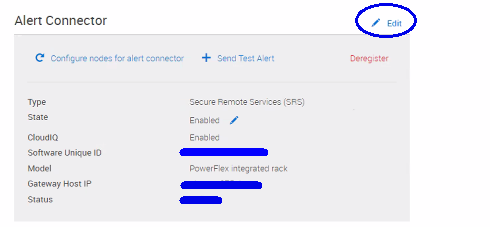
Gather Information or take a screenshot. You want to press the edit pencil near the alert connector.
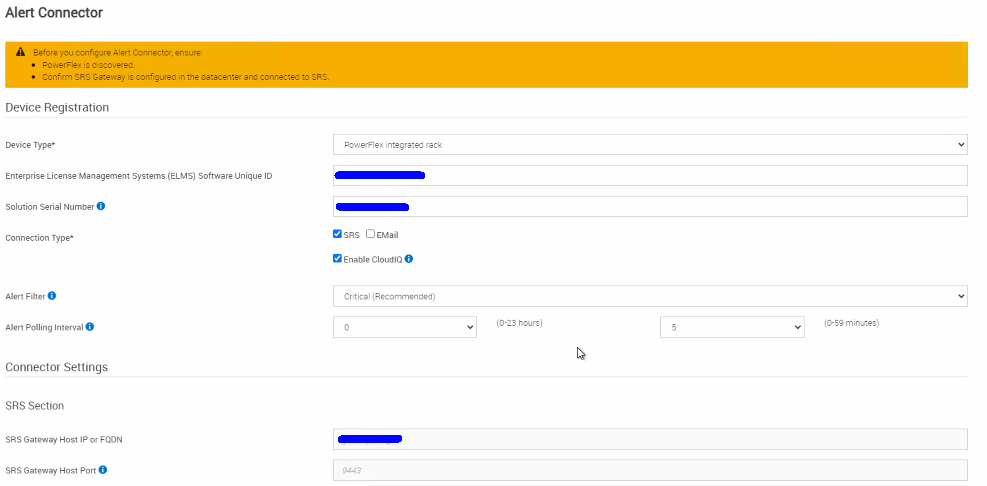
In the following screen you want to gather the following information:
1.) Device Type
2.) Enterprise License Management System (ELMS) Software Unique ID [also known as the SWID]. Usually starts with ELM********.
3.) Solution Serial Number Starts with V71******.
4.) Connection Type (Secure Remote Services or email)
5.) If Cloud IQ is enabled.
6.) Alert Filter (what customer has it set as)
7.) Alert Polling Interval (Hours, Minutes)
8.) Secure Remote Services Gateway Host IP or FQDN
9.) The port it runs at (if non-standard of 9443)
10.) Email alert notifications and configuration (if set up)
Second Step:
Deregister the Alert Connector.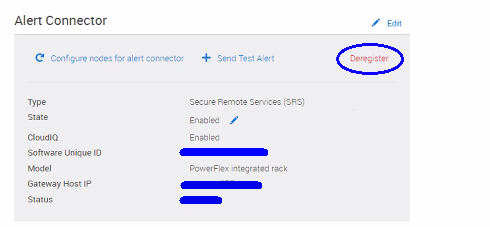
Third Step:
Reboot the PowerFlex Manager Virtual Appliance.
Ensure that there are no jobs running in PowerFlex Manager.
Browse to Settings -> Virtual Appliance Management -> Reboot Virtual Appliance.
Allow the Appliance about 5-10 minutes for a reboot. It may take longer in larger environments with many services.
Fourth Step:
Register for the Alert Connector.
Browse to Settings -> Virtual Appliance Management -> Alert Connector pane and press the (+ Add button).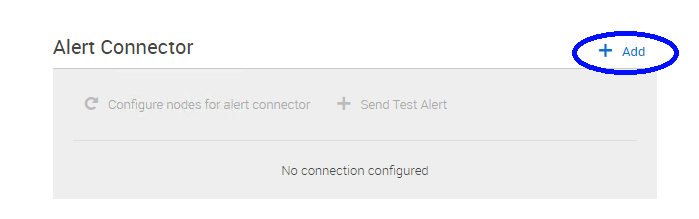
And register the Alert Connector using the information gathered in the First Step.
Dell Customers: For the USER ID if a Dell Customer, use your email address associated with your Dell account (what you use to access the digital lock box, log in to support website, etc.). 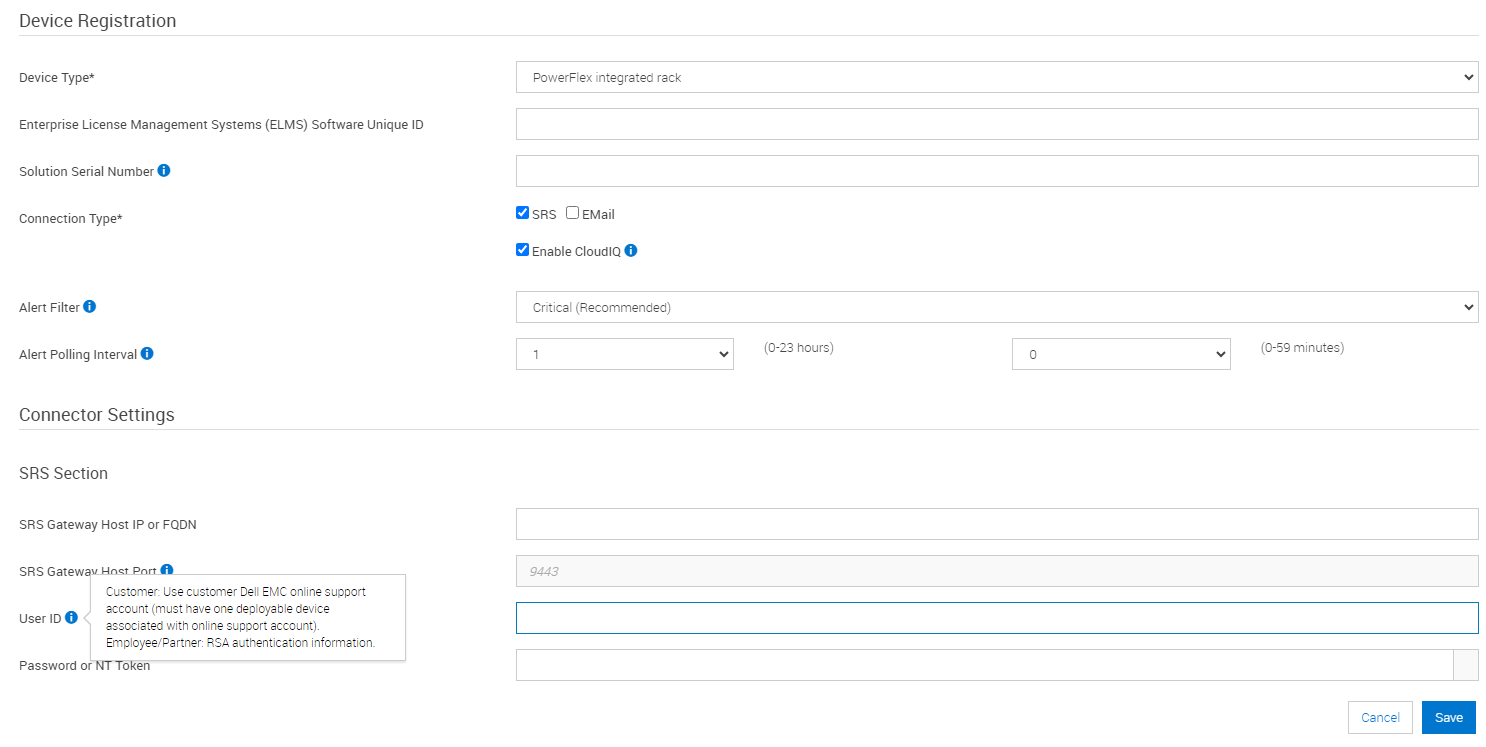
Once completed, validate that the status is Online and send a test alert to validate end-to-end connectivity.