Collaboration Touchpad Does Not Control Zoom Application
Summary: This article provides information about an issue where you cannot control the Zoom application with a single-tap on the Collaboration Touchpad. This is seen on the Latitude 9330 laptop. ...
Ez a cikk a következő(k)re vonatkozik:
Ez a cikk nem vonatkozik a következő(k)re:
Ez a cikk nem kapcsolódik egyetlen konkrét termékhez sem.
Ez a cikk nem azonosítja az összes termékverziót.
Symptoms
Single-tap does not control Zoom application on Collaboration Touchpad.
Cause
Double-tap is selected in the Collaboration Touchpad controls.
Resolution
Clear the double-tap checkbox to use a single tap as the default behavior. To enable additional control over the Collaboration Touchpad feature, follow these instructions:
- Go to the home screen and click Collaboration (Figure 1 [English only]).
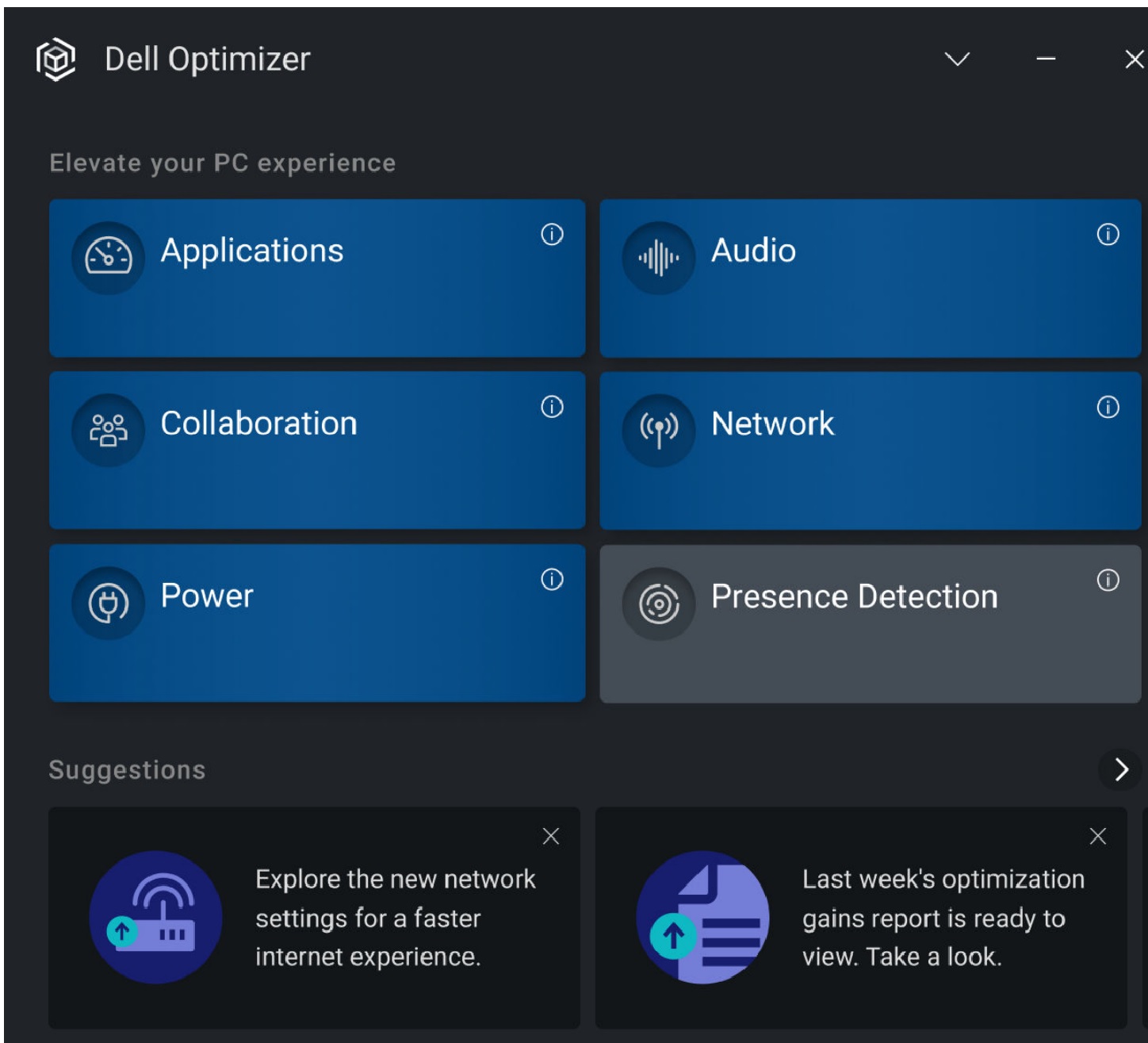
Figure 1: Collaboration Tile - The Collaboration screen is displayed. Confirm if the double-tap setting is enabled (the checkbox is checked). If you prefer to use a single-tap, clear it (Figure 2 [English only]).
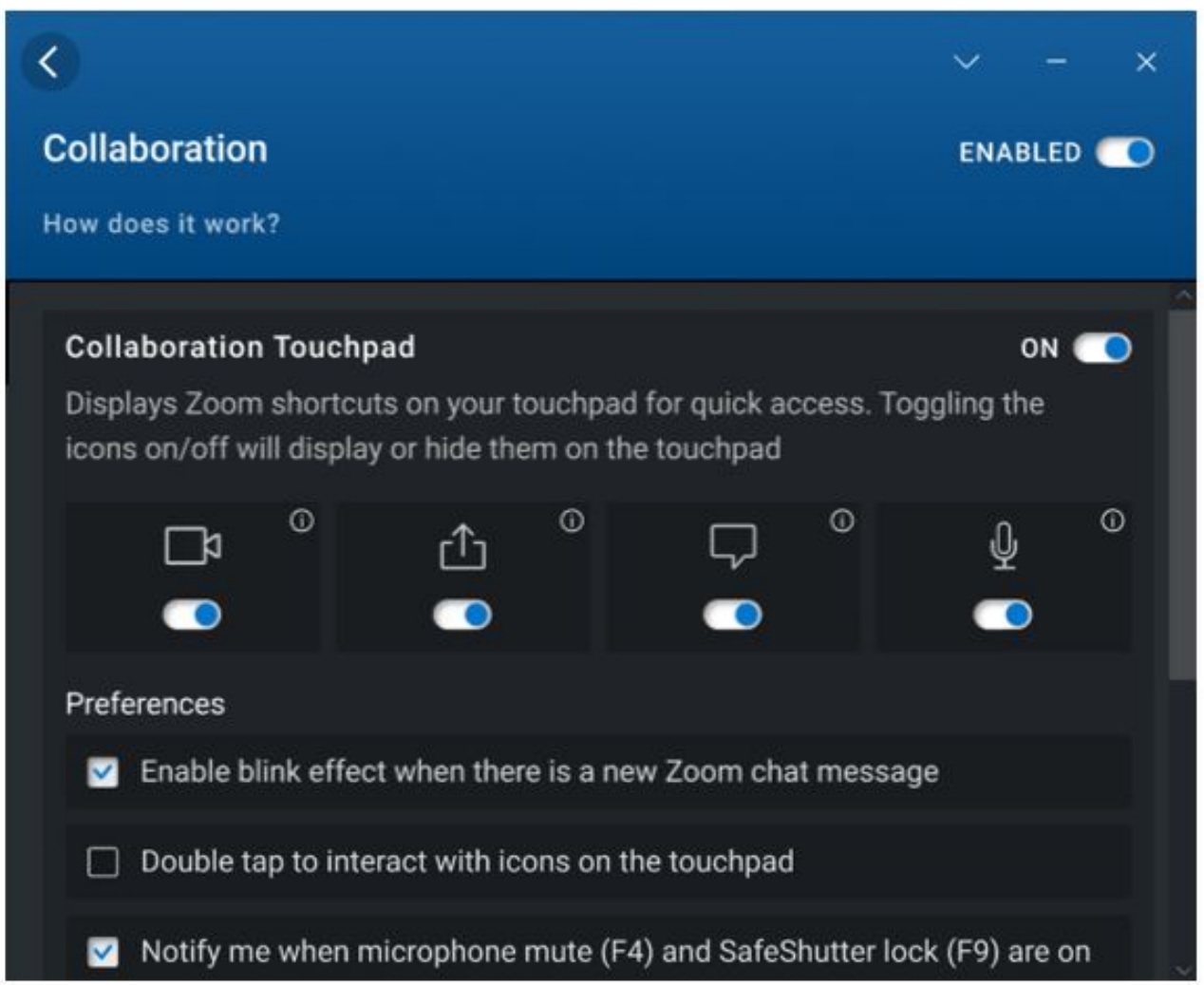
Figure 2: Collaboration settings - Check the double-tap checkbox to engage with the touchpad icons by tapping twice instead of once. Enable this setting to avoid activating the touchpad icons using a single tap accidentally. This checkbox is cleared by default, as single-tap is the default behavior.
Érintett termékek
Dell Optimizer, Dell Pro 13 Premium PA13250, Latitude 9330Termék tulajdonságai
Article Number: 000200990
Article Type: Solution
Utoljára módosítva: 14 máj. 2026
Version: 5
Választ kaphat kérdéseire más Dell-felhasználóktól
Támogatási szolgáltatások
Ellenőrizze, hogy a készüléke rendelkezik-e támogatási szolgáltatással.