How to Locate your System Service Tag Using Windows PowerShell
Riepilogo: How to locate the service tag of your Dell device using Windows PowerShell, as Microsoft has deprecated the WMI Command-Line (WMIC) tool, making Command Prompt no longer a viable option. ...
Questo articolo si applica a
Questo articolo non si applica a
Questo articolo non è legato a un prodotto specifico.
Non tutte le versioni del prodotto sono identificate in questo articolo.
Istruzioni
Note: For more information about Windows PowerShell, reference What is PowerShell? 
Windows Laptops and Desktops
- Type PowerShell in the Windows search bar at the bottom-left of the screen, then select Windows PowerShell from the list of results.
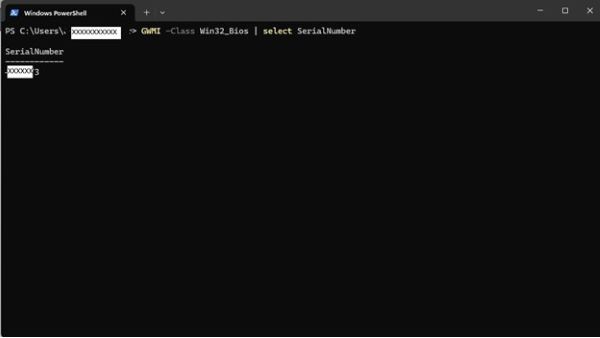
- In the PowerShell window, type
GWMI -Class Win32_Bios | select SerialNumberand press Enter. - The Service Tag (Serial Number) appears as shown in the image below.

Windows Tablets
- On the Windows Tile Screen, swipe up from the bottom and tap All Apps.
- Scroll to the right until you get to Windows PowerShell.
- In the PowerShell window, use the on-screen keyboard to type
GWMI -Class Win32_Bios | select SerialNumberand press Enter. - The Service Tag (Serial Number) appears as shown in the image below.
Informazioni aggiuntive
 Is your computer out of warranty? For Out of Warranty support, browse to the Dell.com/support website and enter your Dell Service Tag to view our offers.
Note: Offers are only available for consumer and commercial computer customers in the US, Canada, UK, France, Germany, and China. Offers are not applicable to Server and Storage systems.
Prodotti interessati
Alienware, Dell Pro All-in-One, Dell Pro Max Micro, Dell Pro Max Slim, Dell Pro Max Tower, Dell Pro Micro, Dell Pro Slim, Dell Pro Tower, Dell Slim, Dell Tower, Inspiron, OptiPlex, Vostro, XPS, G Series, G Series, Alienware, Dell Plus, Dell Pro
, Dell Pro Max, Dell Pro Plus, Dell Pro Premium, Inspiron, Latitude, Dell Pro Rugged, Vostro, XPS, Fixed Workstations, Mobile Workstations, Dell Pro Max Micro XE FCM2250
...
Proprietà dell'articolo
Numero articolo: 000130711
Tipo di articolo: How To
Ultima modifica: 30 mag 2025
Versione: 15
Trova risposta alle tue domande dagli altri utenti Dell
Support Services
Verifica che il dispositivo sia coperto dai Servizi di supporto.