如何在 Dell Networking Enterprise SONiC MF-CLI 中配置网关 MAC 地址
Riepilogo: 本文介绍如何在 Dell Networking Enterprise SONiC 中设置网关 MAC 地址。
Questo articolo si applica a
Questo articolo non si applica a
Questo articolo non è legato a un prodotto specifico.
Non tutte le versioni del prodotto sono identificate in questo articolo.
Istruzioni
Dell Enterprise SONiC 网关 MAC 地址
默认情况下,MC-LAG 交换机及其对等交换机使用活动对等节点的系统 MAC 地址作为 L3 接口中的网关 MAC 地址。要使用对等链路是 VLAN 成员的 L3 VLAN 接口的通用可配置网关 MAC 地址,请配置 MC-LAG 网关 MAC 地址。
提醒:在配置了 mclag-separate-ip 的 VLAN 接口上,VLAN 获取与配置的 mclag gateway-mac 不同的 MAC 地址(mclag-separate-ip 配置优先于 mclag gateway-mac)。
指数
配置语法
解释
mclag-separate-ip 对已配置网关 Mac 地址的影响
配置语法
配置 |
说明 |
|---|---|
Admin@SONIC:~$ sonic-cli |
输入 SONiC CLI |
SONiC# 配置终端 |
输入配置终端。 |
SONIC(config)# mclag gateway-mac <Mac 地址> |
配置网关 MAC 地址。 |
提醒:网关 MAC 地址不能是零、多播或广播 MAC 地址。
提醒:确保地址未与 Anycast MAC 地址混淆。
说明
下面我们用拓扑进行解释。
图 1:MC-LAG 拓扑示例
配置
示例让我们在两个 MC-LAG 对等节点中将 66:22:33:44:55:66 配置为 mclag gateway-mac。
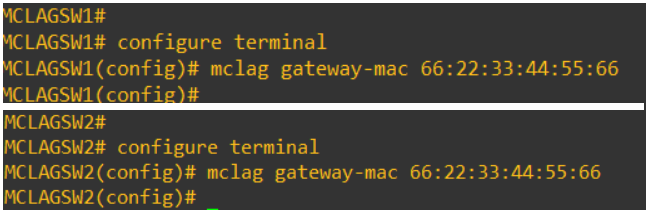
图 2:配置 MC-LAG MAC
我们可以从下游交换机看到,VLAN 25 和 VLAN 50 的 MAC 地址是 66:22:33:44:55:66。

图 3:show ip arp 命令的屏幕截图
mclag-separate-ip 对已配置网关 Mac 地址的影响
在配置了 mclag-separate-ip 的 VLAN 接口上,VLAN 获取与配置的 mclag gateway-mac 不同的 MAC 地址。请考虑我们在 VLAN 25 上配置 mclag-separate-ip。

图 4:MCLAGSW1中显示接口 VLAN 25 的屏幕截图

图 5:MCLAGSW2中显示接口 VLAN 25 的屏幕截图
两个交换机上的 VLAN 50 未配置 mclag-separate-ip。

图 6:未配置交换机MCLAGSW1显示 VLAN 50 接口的屏幕截图

图 7:未配置交换机MCLAGSW2显示 VLAN 50 界面的屏幕截图
我们可以看到,两个 mclag 对等节点上的 VLAN 25 的 MAC 地址已更改,并且不再是配置的网关 MAC。但是,MAC 地址 VLAN 50 仍然是配置的网关 MAC 地址。

图 8:显示 ip arp 和结果的屏幕截图
Prodotti interessati
Enterprise SONiC Distribution, PowerSwitch S6000 ON, PowerSwitch E3200-ON Series, Dell EMC Networking N3200-ON, PowerSwitch S5232F-ON, PowerSwitch S5248F-ON, PowerSwitch S5296F-ON, PowerSwitch S6100-ON, PowerSwitch Z9100-ON, PowerSwitch Z9264F-ON
, PowerSwitch Z9332F-ON
...
Proprietà dell'articolo
Numero articolo: 000191547
Tipo di articolo: How To
Ultima modifica: 06 lug 2023
Versione: 7
Trova risposta alle tue domande dagli altri utenti Dell
Support Services
Verifica che il dispositivo sia coperto dai Servizi di supporto.