How to Use Dell Power Button Sync for Dell Monitors
Riepilogo: Learn about the Dell Power Button Sync feature, compatible monitors, common use cases, and detailed examples of how this feature works.
Questo articolo si applica a
Questo articolo non si applica a
Questo articolo non è legato a un prodotto specifico.
Non tutte le versioni del prodotto sono identificate in questo articolo.
Istruzioni
What is the Dell Power Button Sync feature?
Dell Power Button Sync is a bi-directional power button sync feature. It allows a user's computer power state to be controlled using the monitor’s power button, and the opposite way.
This feature is compatible with select Dell products. The sync is enabled by using a USB type-C connection. When Dell Power Button Sync is active, it gives you control over your connected productivity devices. You are a button press or cable connection away from this feature working.
Monitors Compatible with the Dell Power Button Sync Feature:
- Dell 24 Video Conferencing Monitor | C2422HE
- Dell 27 Video Conferencing Monitor | C2722DE
- Dell 34 Video Conferencing Curved Monitor | C3422WE
- Dell P2223HC
- Dell P2422HE
- Dell P2423DE
- Dell P2424HT
- Dell P2722HE
- Dell P2723DE
- Dell P2723QE
- Dell P3221D
- Dell P3222QE
- Dell P3223DE
- Dell P3223QE
- Dell P3424WE
- Dell U2421E
- Dell U2422HE
- Dell U2424HE
- Dell U2722DE
- Dell U2723QE
- Dell U2724DE
- Dell U3023E
- Dell U3223QE
- Dell U3223QZ
- Dell U3224KB
- Dell U3421WE
- Dell U3423WE
- Dell U3821DW
- Dell U3824DW
- Dell U4021QW
- Dell U4323QE
- Dell U4924DW
How do I set up Dell Power Button Sync?
There are a few conditions that must be followed when setting up Dell Power Button Sync. First, both the laptop and monitor must support Dell Power Button Sync.
Also the connection between the laptop and monitor must be made using USB Type-C.
There are three distinct scenarios:
Scenario 1:
In scenario one, a single monitor is connected directly to a laptop using USB Type-C.
In this case, the monitor mimics the behavior of the laptop’s power button.
Scenario 2:
In scenario two, multiple monitors are connected directly to a laptop using USB Type-C.
In this case, all the monitors mimic the behavior of the laptop's power button.
Scenario 3:
In scenario three, multiple monitors are connected to a laptop using daisy chaining with only one monitor connected directly to the laptop using USB Type-C.
In this case, only the directly connected monitor mimics the behavior of the laptop's power button.
The second monitor in the scenario is not affected by Dell Power Button Sync.
How do I enable Dell Power Button Sync?
- Open the monitor’s On-Screen Display menu.
- Go to Display.
- Set the Dell Power Button Sync setting to On.
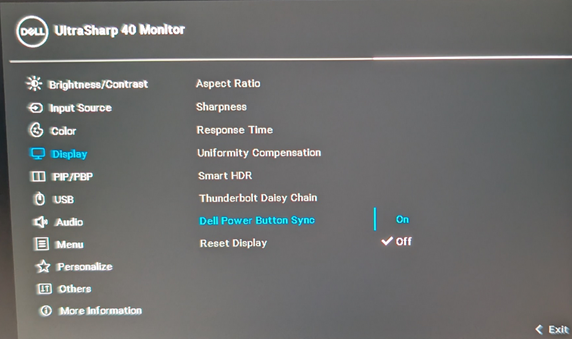 Note:
Note:- Ensure that the BIOS of the connected computer is up to date.
- Monitor firmware updates released since January 2024 include a Dell Power Button Sync option. Ensure that the Dell Power Button Sync setting is set to On if the feature has stopped working after a firmware update.
Monitor Power Button Sync Behavior
Different user actions influence the behavior of Dell Power Button Sync based on varying monitor and laptop power states.
There are four types of user actions that can activate Dell Power Button Sync:
- Connecting the monitor to the laptop using USB Type-C cable
- A quick press of the power button
- Pressing and holding the power button for four seconds
- Pressing and holding the power button for ten seconds
The user's actions are explained below:
Connecting the monitor to the laptop using USB Type-C cable
Connecting the monitor to the laptop using USB Type-C wakes the laptop on connection if the monitor is turned on or is in standby mode.
Wake-on-connection puts both the monitor and the laptop in a working state. When the cable is plugged in, the wake-on-connection does not work if the monitor is turned off.
A quick press of the power button
A quick press of the power button while the monitor is connected to the laptop using USB Type-C cable activates Dell Power Button Sync.
Pushing either power button has the same expected result as if you were to push the power button on the laptop.
For example, if both devices are turned off or are in sleep or hibernate mode, a quick press of the power button turns both devices on at once. This is the same as you are used to with your laptop's power button.
In this example, if the laptop and monitor are both running, a quick press of the power button sends the laptop into an idle state and the monitor into standby mode.
Note: These are both default scenarios. Dell Power Button Sync mimics the behavior of the laptop's power button depending on user-defined power button behavior in Windows.
Pressing and holding the power button for four seconds and pressing and holding the power button for ten seconds
This action works as you would expect. The action mimics the behavior of the host laptop.
However, if the user-defined power button behavior in Windows affects this. For example, Windows may be configured so that pressing and holding the power button for four seconds prompts a laptop shutdown or shutting down the computer from sleep mode.
In this example, pressing and holding the power button for ten seconds forces a full laptop shutdown and switches off the monitor.
Introducing Dell Power Button Sync for Dell Monitors
Duration: 00:07:49 (hh:mm:ss)
When available, closed caption (subtitles) language settings can be chosen using the Settings or CC icon on this video player.
Prodotti interessati
Dell 24 Video Conferencing Monitor C2422HE, Dell 27 Video Conferencing Monitor C2722DE, Dell 34 Video Conferencing Curved Monitor C3422WE, Dell P2422HE, Dell P2722HE, Dell P3221D, Dell P3222QE, Dell U2421E, Dell U2422HE, Dell U2722DE, Dell U3421WE
, Dell U3821DW, Dell U4021QW, Dell P2223HC, Dell P2423DE, Dell P2424HT, Dell P2723DE, Dell P2723QE, Dell P3223DE, Dell P3223QE, Dell P3424WE, Dell U2424HE, Dell U2723QE, Dell U2724DE, Dell U3023E, Dell U3223QE, Dell U3223QZ, Dell U3224KB, Dell U3423WE, Dell U3824DW, Dell U4323QE, Dell U4924DW
...
Proprietà dell'articolo
Numero articolo: 000218558
Tipo di articolo: How To
Ultima modifica: 22 apr 2025
Versione: 7
Trova risposta alle tue domande dagli altri utenti Dell
Support Services
Verifica che il dispositivo sia coperto dai Servizi di supporto.