How to Use E-Lab Navigator for VMAX and PowerMax
Riepilogo: This KB article explains how to use E-Lab Navigator simple support matrix options to determine VMAX and PowerMax supported platforms.
Questo articolo si applica a
Questo articolo non si applica a
Questo articolo non è legato a un prodotto specifico.
Non tutte le versioni del prodotto sono identificate in questo articolo.
Istruzioni
E-Lab Navigator home page (Login is required)
Steps:
-
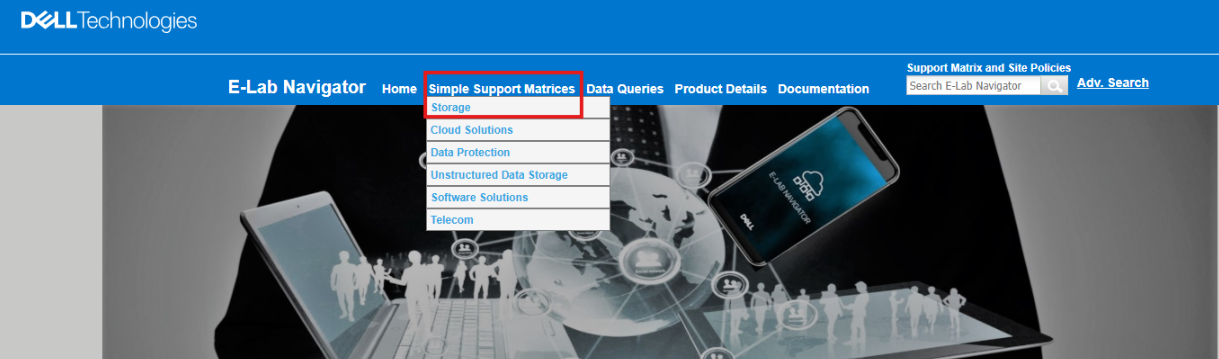
Hover over the Simple Support Matrices link and select Storage:
- Select the relevant array model:
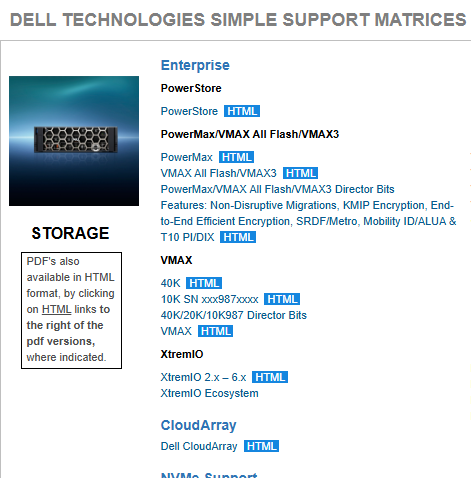
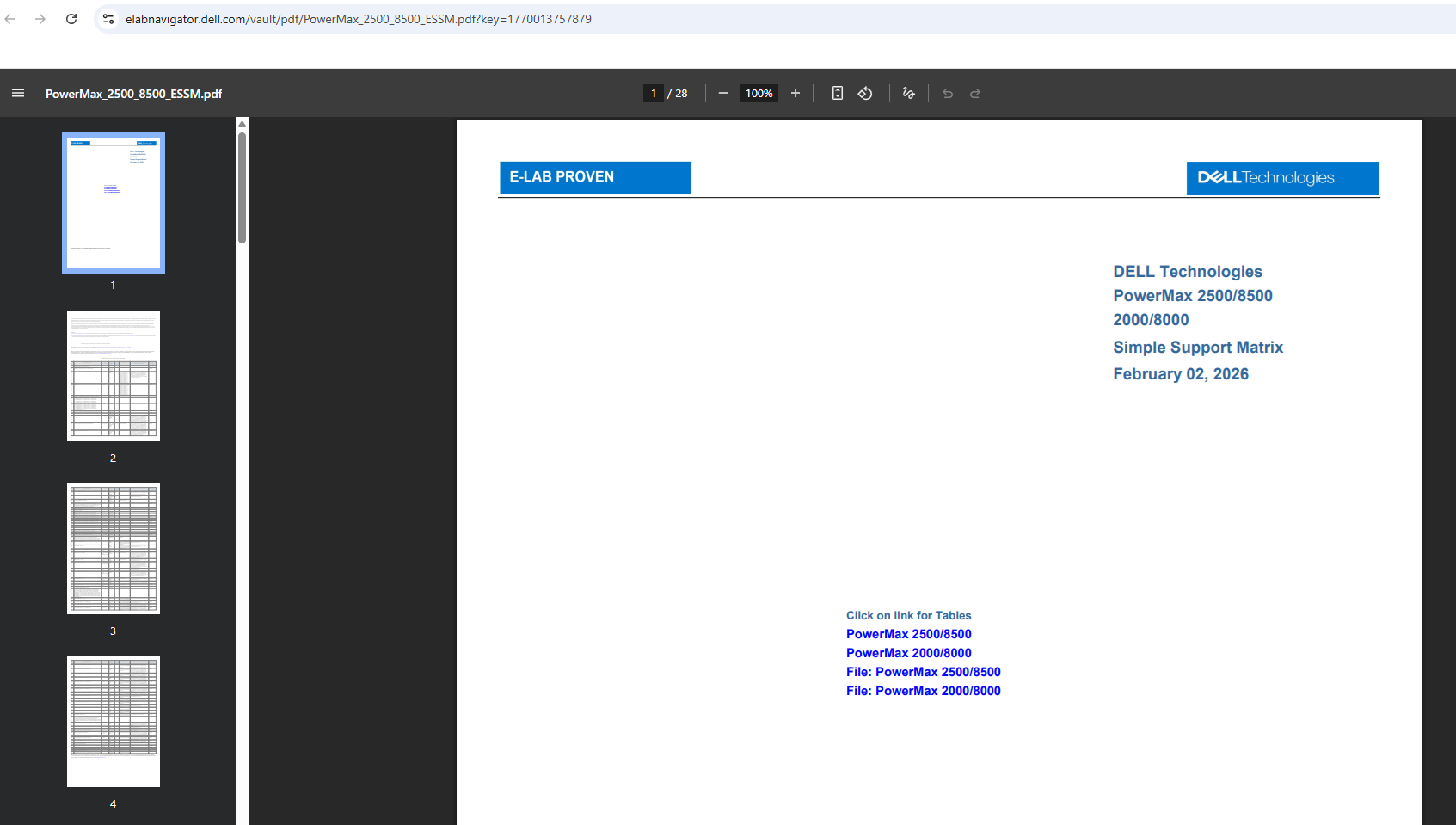
- By clicking the relevant array model, a new PDF file opens as follows:
This is an example PDF by clicking PowerMax from the above list:
For Advanced Queries
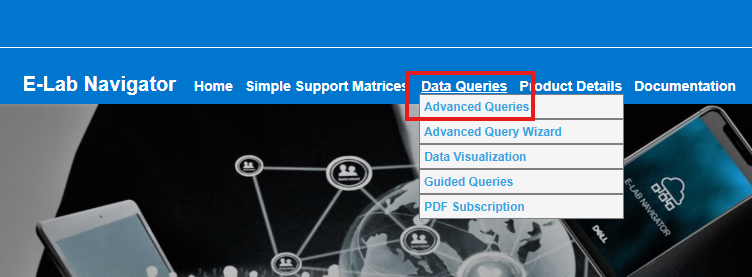
- Hover over the Data Queries link and select Advanced Queries:
- Once there, you see an interactive table:
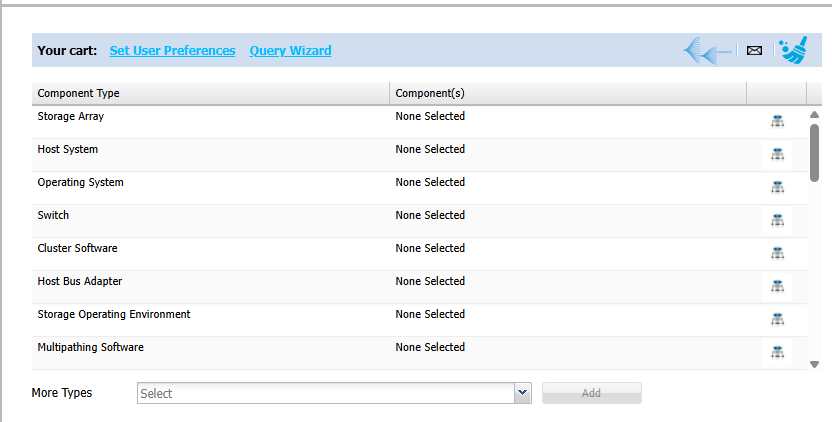
- The table lists various categories from which to choose. These include storage array, host system, OS, switch, storage OE, and multipathing software. Once you select the category (button on the right side), you see another interactive table to the right that is filtered for the subcategory and more specific options.
Below is an example for choosing the Storage Array:
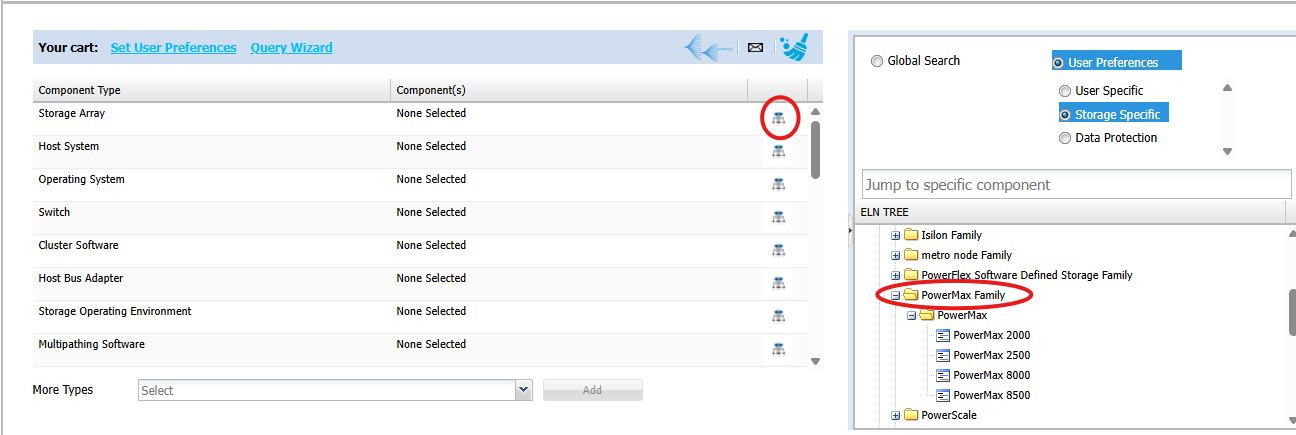
- From the right, you can filter your search to the specific array model or subcategory down to a specific array. Double-click the option to add it to the main table:
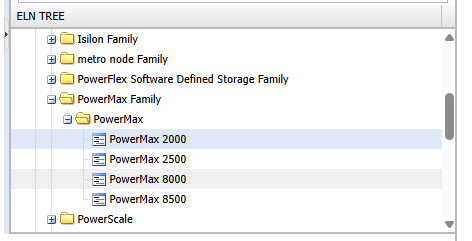
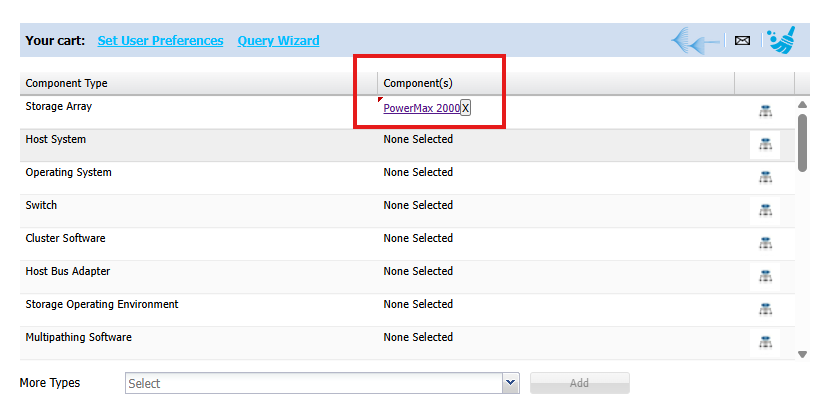
- Once you have chosen all your options, scroll down and select one or more of the options and click the Get Results for Selected Configurations button:
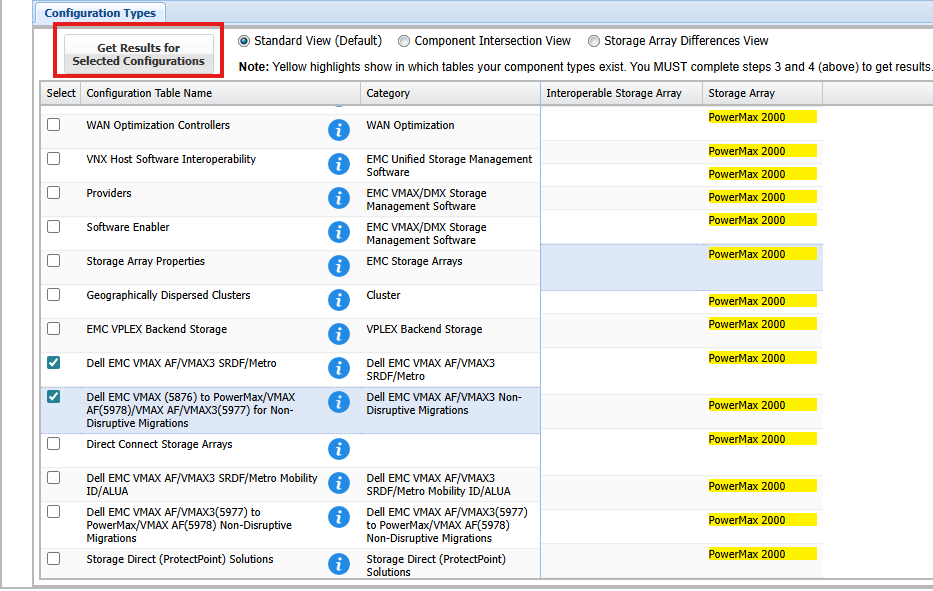
- This generates the matrix or document within the window. However, you can export this to a PDF by selecting the Export as PDF button:

Prodotti interessati
PowerMax, VMAX, PowerMax, VMAX All Flash, VMAX3 SeriesProprietà dell'articolo
Numero articolo: 000425337
Tipo di articolo: How To
Ultima modifica: 20 feb 2026
Versione: 3
Trova risposta alle tue domande dagli altri utenti Dell
Support Services
Verifica che il dispositivo sia coperto dai Servizi di supporto.